Manage API keys
The API Keys page in the Admin Console lists every API key of the organization, inference and management, and is where management keys are created, deactivated, and deleted.
Persona: Platform operator in the Admin Console.
Estimated time: A few minutes per task.
Two kinds of key appear on the page:
| Key type | What it is for | Where it is created |
|---|---|---|
| Inference | Sends inference requests to a gateway, in one project | The Developer Console. See Issue a project API key. |
| Management | Calls the management APIs, for every project in the organization | Create key on this page |
View API keys
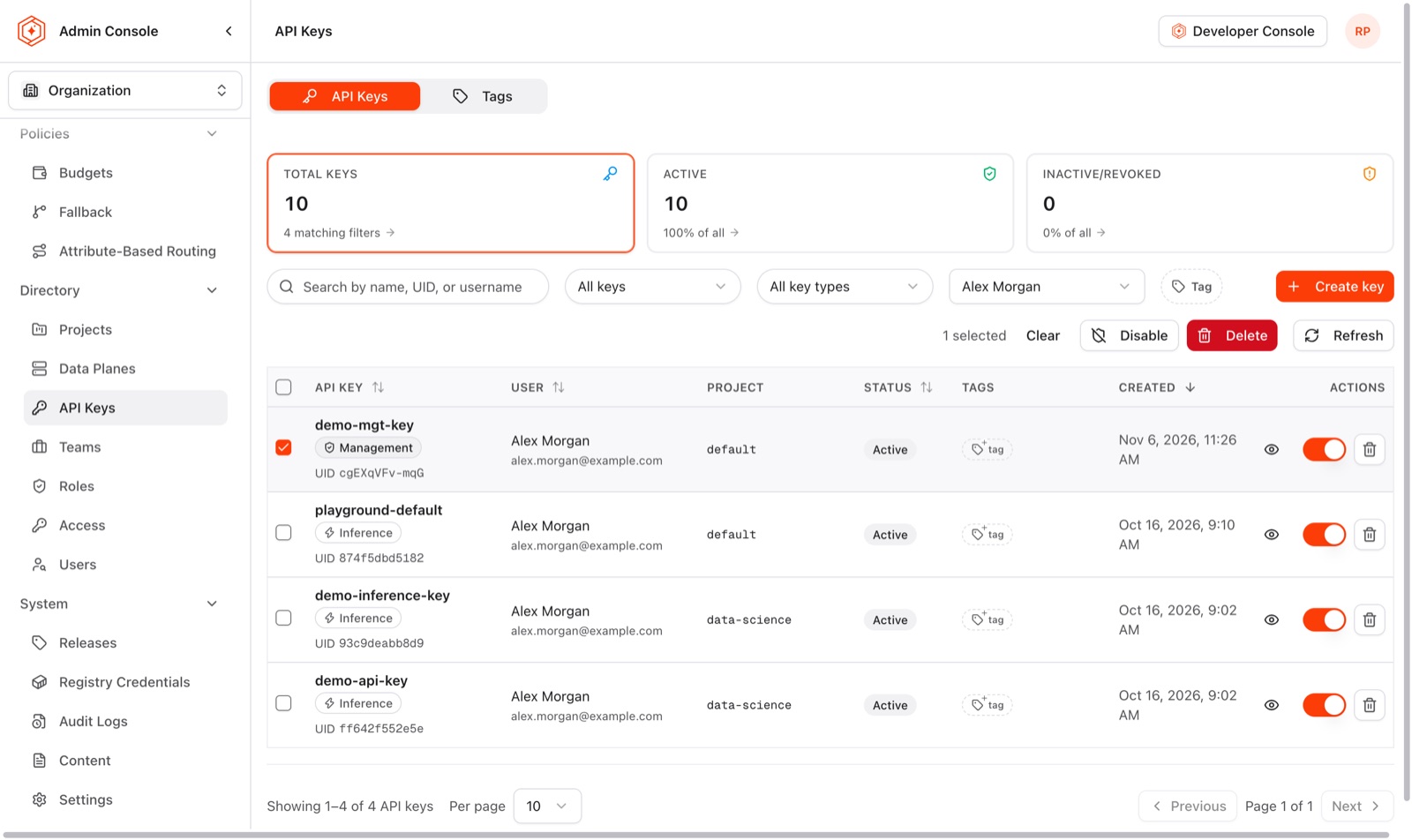
Open Directory → API Keys. Each row shows the key name and its type, its UID, the user it belongs to, its project, its status, its tags, and when it was created. Inference and management keys are listed together, and the key type is shown as a label under the name.
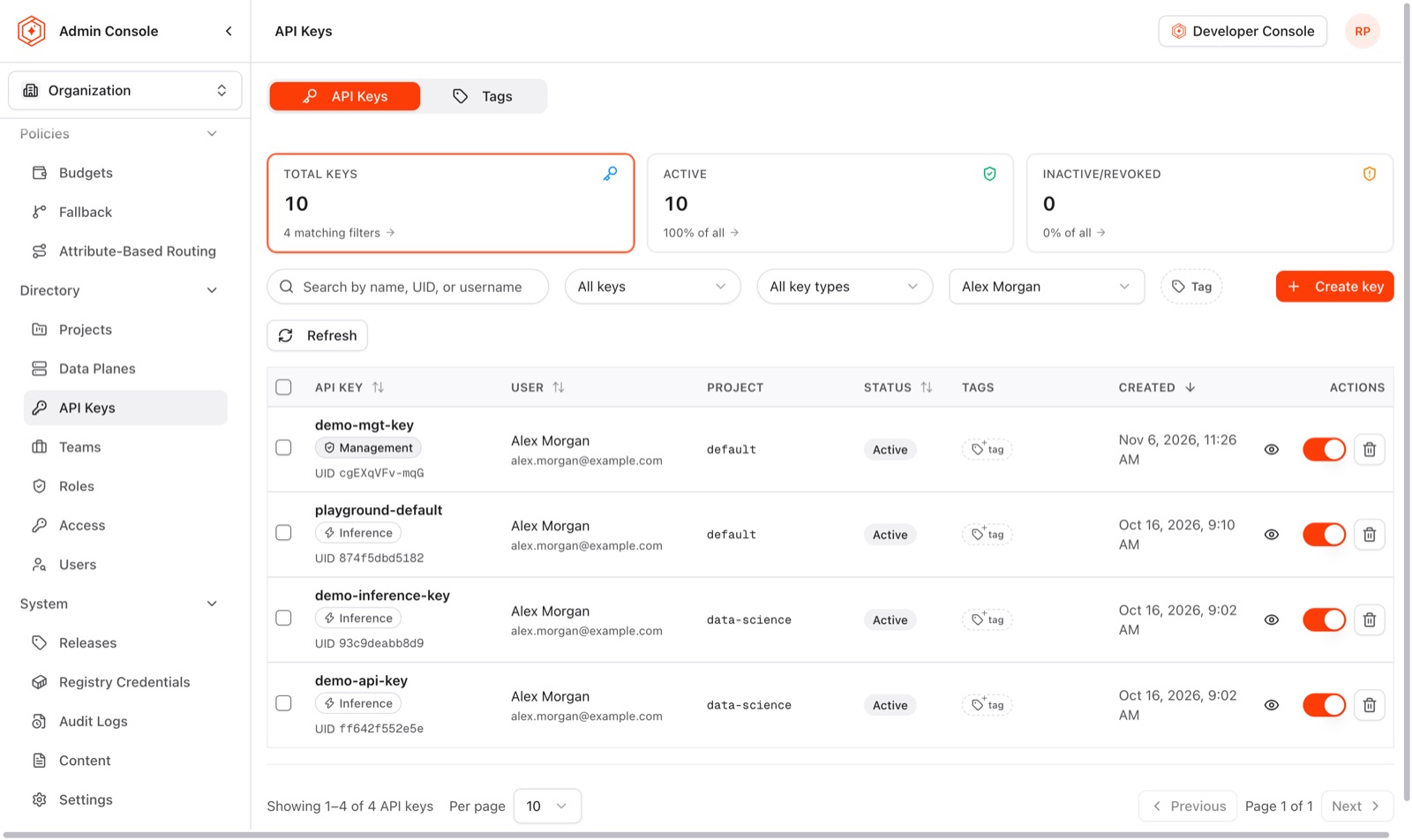
The cards above the list count the keys of the organization: total, active, and inactive or revoked. The list narrows with:
- Search, which matches the key name, the UID, or the username.
- Key status: all keys, active only, inactive only, or revoked.
- Key type: all, management, or inference.
- User, which lists the keys of one user.
- Tag, which lists the keys that carry a tag.
The eye icon in the Actions column opens the details of a key: its status, UID, and tags, and the budget, rate limits, and attribute-based routing policy that apply to it. The budget and routing sections link to the pages that manage them. The UID is the identifier to quote when a key is discussed, because the secret is never shown again.
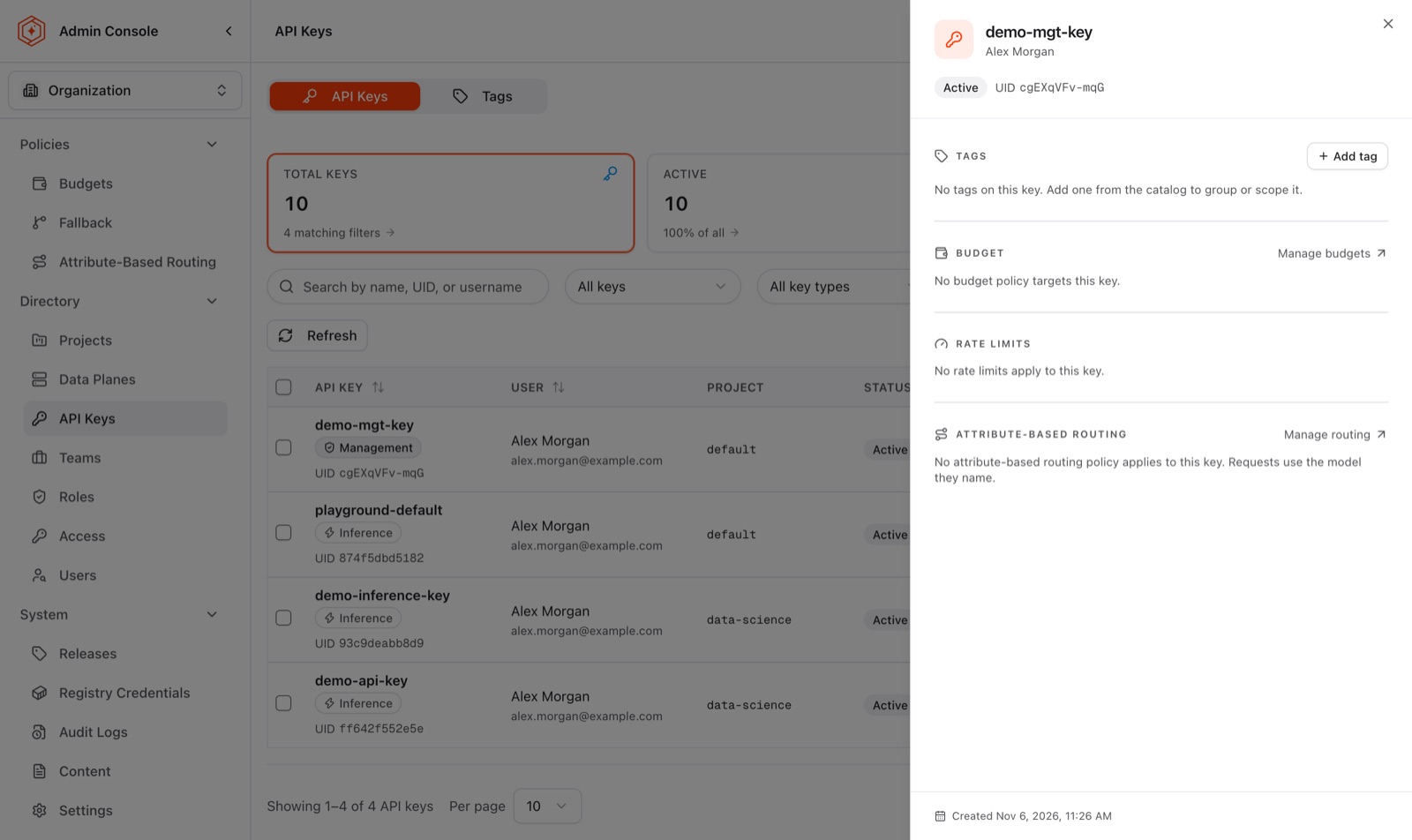
A key shows Revoked when it was revoked and not only deactivated. The keys of a user who is banned or deleted are revoked, and stay revoked. See Ban, delete, and restore user accounts.
Create a management API key
Create key creates a management key. Inference keys are created in the Developer Console, and are not affected by the options below.
- Open Directory → API Keys and select Create key.
- Enter a Key name that identifies the purpose of the key, such as the integration that uses it.
- Optionally choose an Access level.
- Optionally tick Additional scopes.
- Select Create key.
- Copy the secret with the copy button, and store it in a secret manager. The secret is shown once, and cannot be displayed again.
- Select Done.
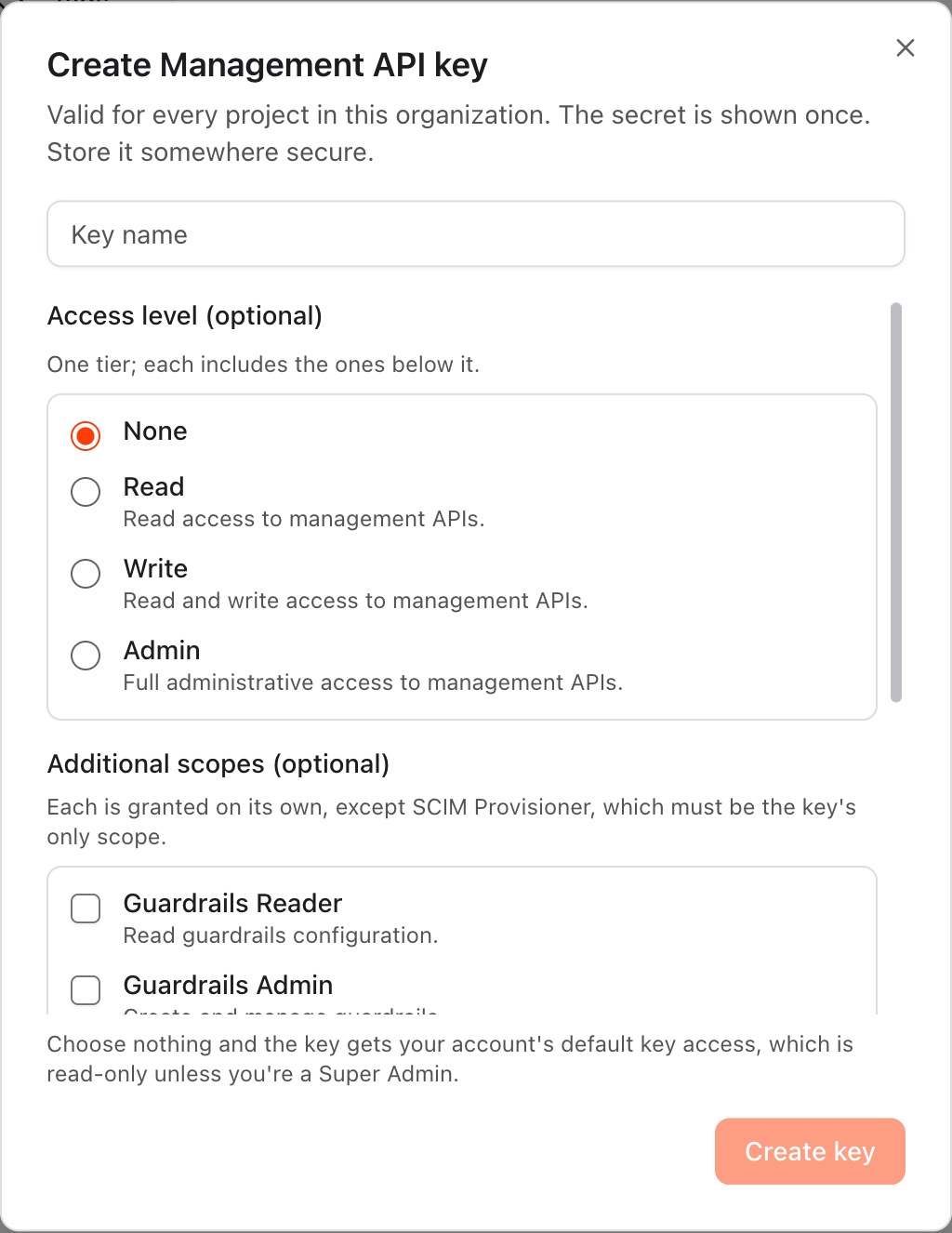
A management key is valid for every project in the organization.
Access level
The access level is one tier, and each tier includes the ones below it.
| Access level | What the key can do |
|---|---|
| None | No tier. The key carries only the additional scopes ticked, or the default access when nothing is chosen. |
| Read | Read access to the management APIs |
| Write | Read and write access to the management APIs |
| Admin | Full administrative access to the management APIs |
Additional scopes
Each scope is granted on its own and adds one narrow capability, so a key that serves one integration carries only what that integration needs.
| Scope | What it grants |
|---|---|
| Guardrails Reader | Read guardrails configuration |
| Guardrails Admin | Create and manage guardrails |
| Policy Reader | Read policy configuration |
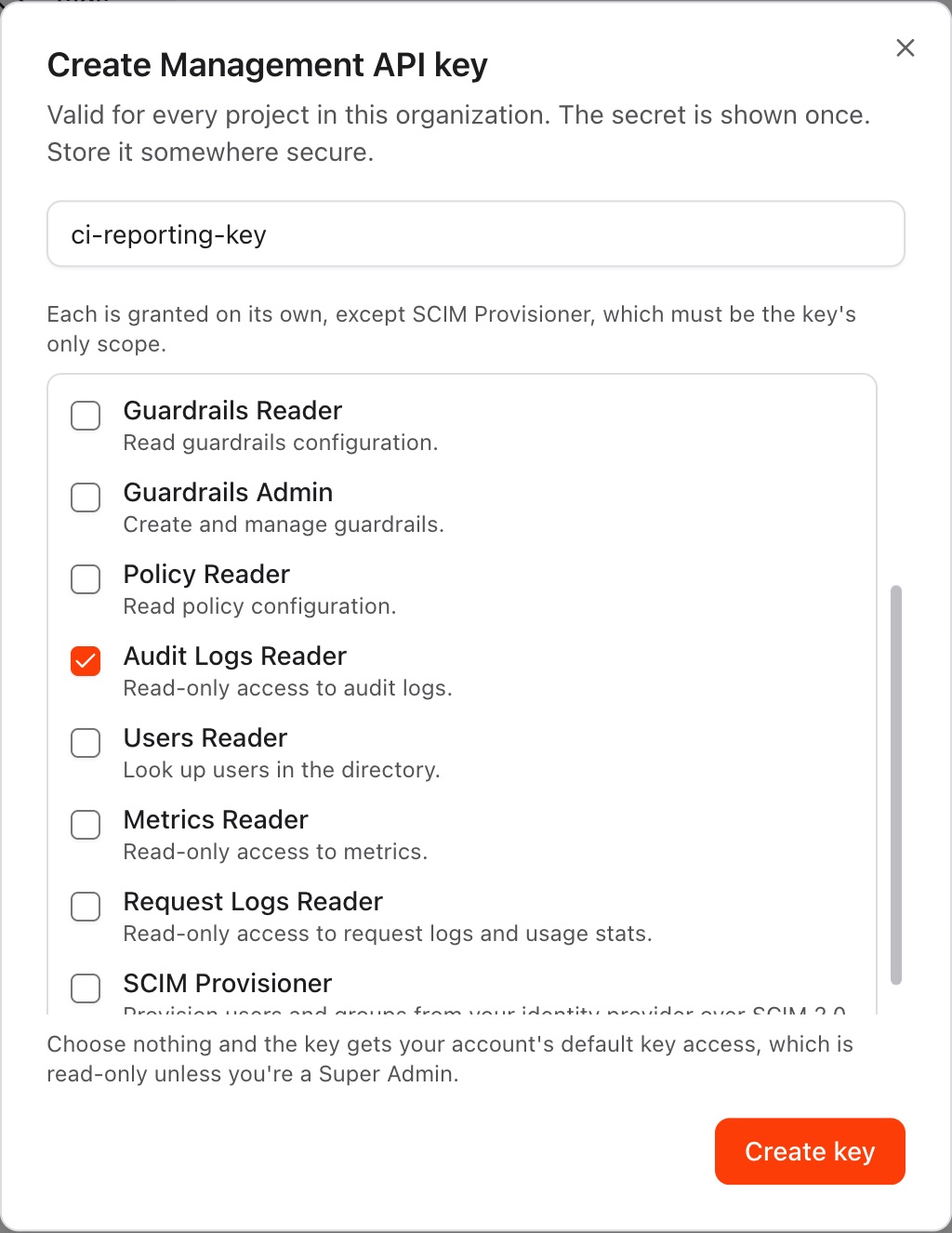
| Audit Logs Reader | Read-only access to audit logs |
| Users Reader | Look up users in the directory |
| Metrics Reader | Read-only access to metrics |
| Request Logs Reader | Read-only access to request logs and usage stats |
| SCIM Provisioner | Provision users and groups from an identity provider over SCIM 2.0 |
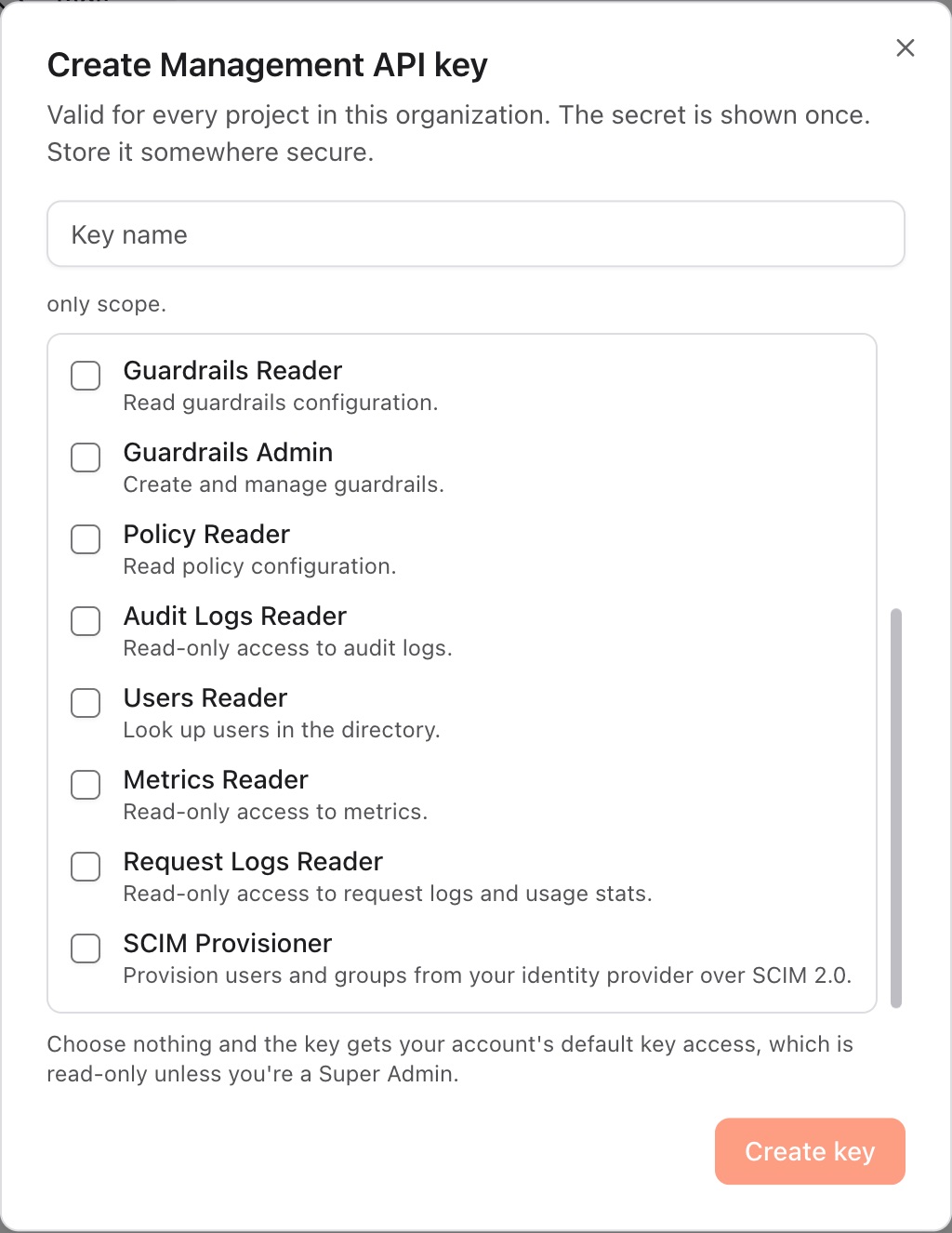
SCIM Provisioner must be the only scope of its key. Ticking it turns off the access level and the other scopes, and unticking it brings them back. See Provision users and groups with SCIM for the key's use.
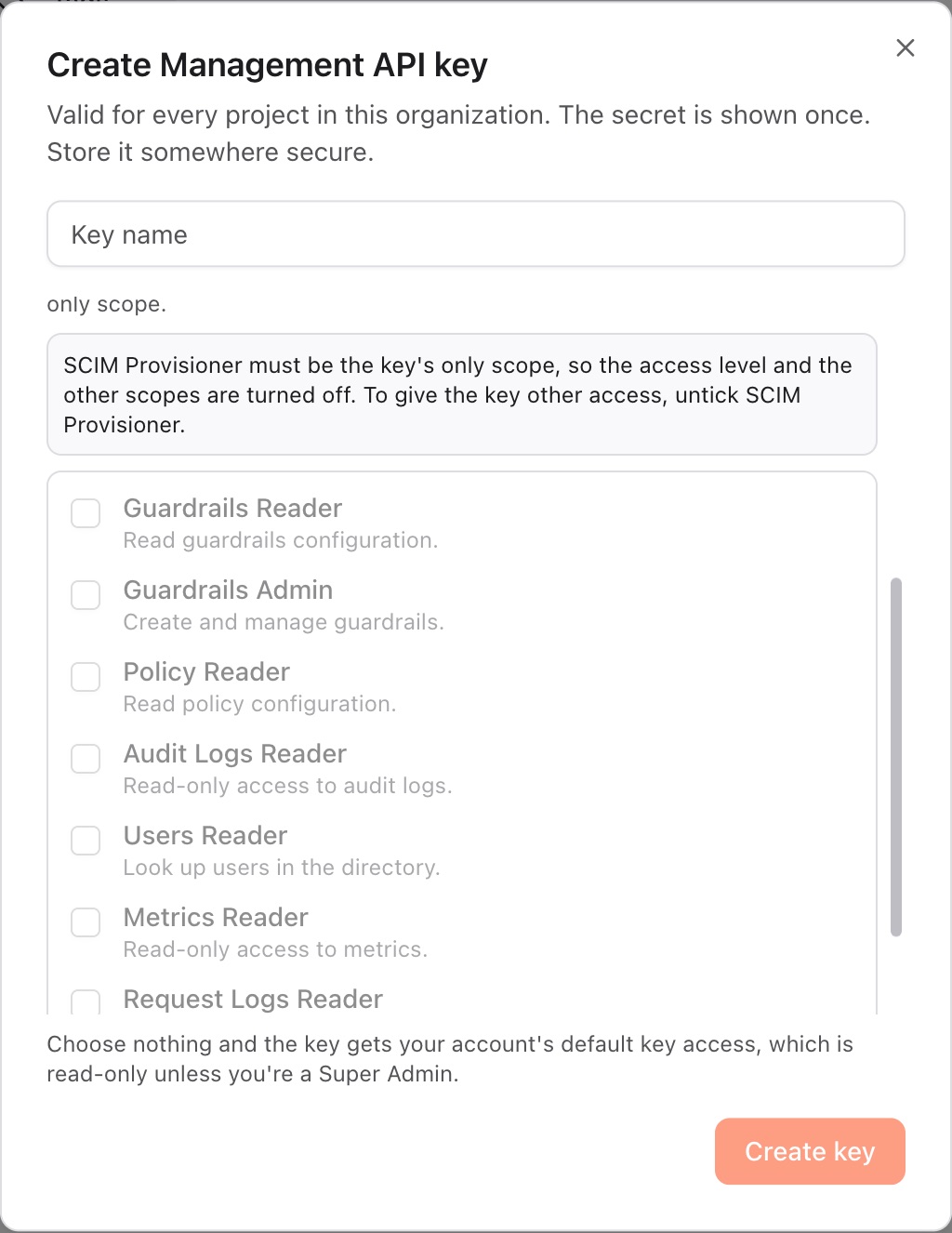
When neither an access level nor a scope is chosen, the key gets the default key access of the account that creates it. That access is read-only, unless the account is a Super Admin.
The example below creates a key that reads the organization's configuration and its audit logs, and nothing else:
The secret and the key's reach
After the key is created, the dialog shows the secret, the scopes the key carries with their identifiers (for example read and audit_logs_reader), and a note on the key's reach.
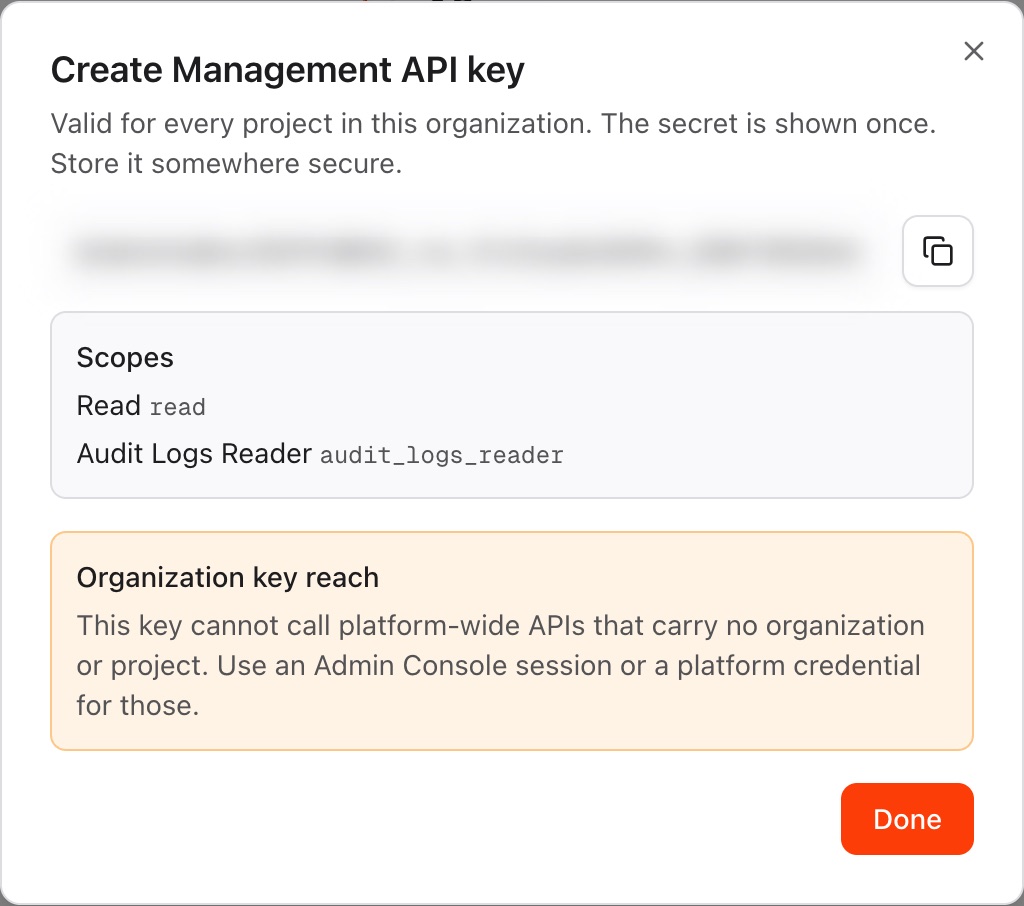
The key cannot call platform-wide APIs that carry no organization or project. An Admin Console session or a platform credential is used for those.
Deactivate and reactivate a key
Deactivating a key turns it off and keeps it in the list, so it can be turned back on. It is the reversible response to a key that is not needed for now, or that is suspected of being exposed while the cause is investigated. See Contain a leaked key.
- Open Directory → API Keys and find the key.
- Switch the toggle in the Actions column off.
The change takes effect at once, with no confirmation. A message reads API key deactivated successfully, the status becomes Inactive, and the Inactive/Revoked card counts the key.
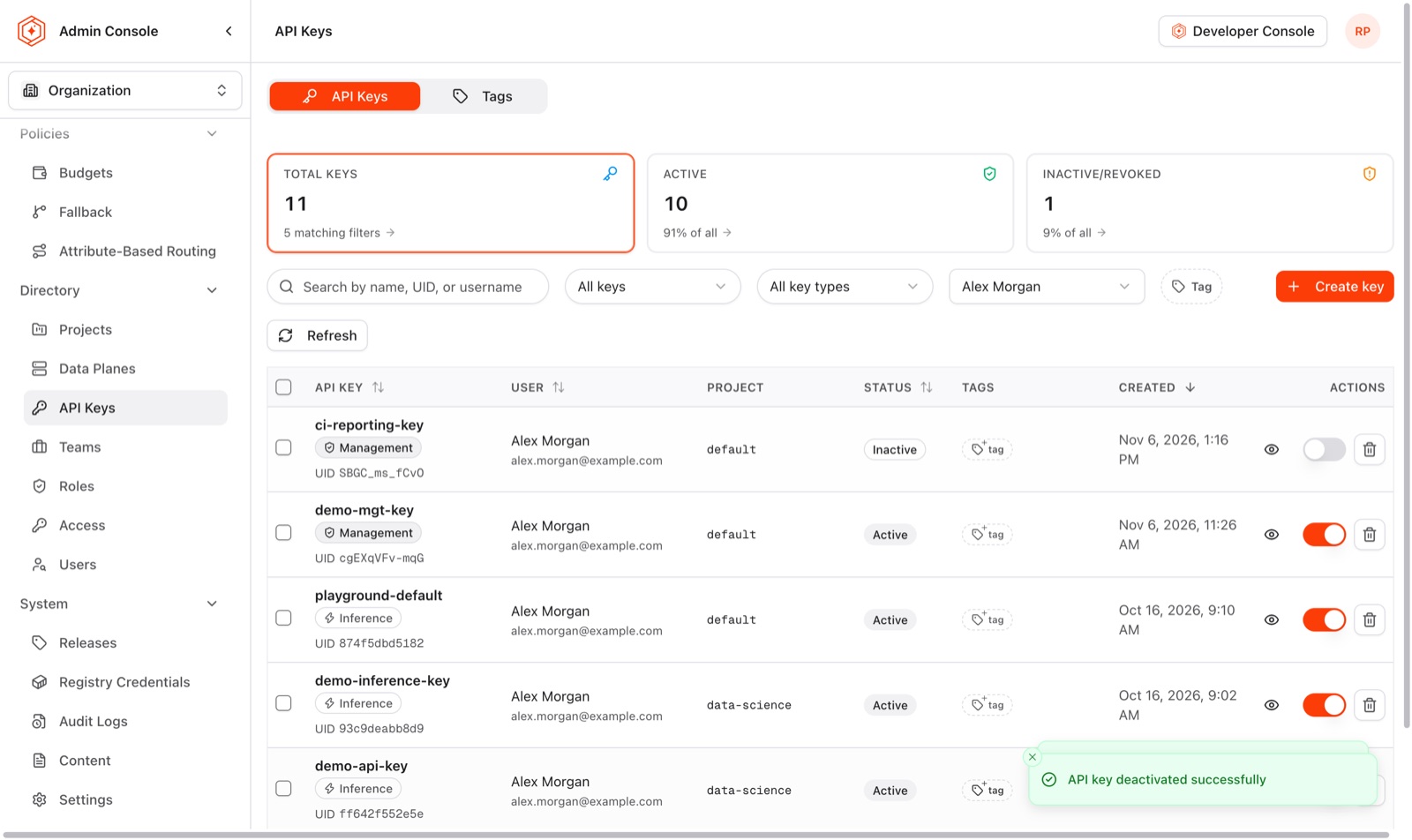
Switching the toggle on again reactivates the key, and shows API key activated successfully. A key that was revoked cannot be reactivated this way.
Several keys are deactivated together by ticking their checkboxes and selecting Disable in the bar that appears above the list. Clear removes the selection.
Delete a key
Deleting a key removes it, and any application that uses the key loses access. Deletion cannot be undone.
- Open Directory → API Keys and find the key.
- Select the trash icon in the Actions column.
- Confirm with Delete.
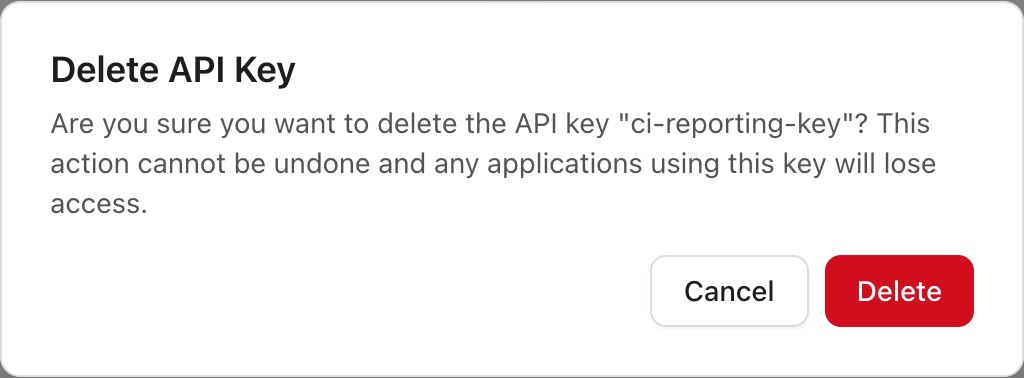
A message reads API key deleted successfully. To delete several keys at once, tick their checkboxes and select Delete in the bar above the list.
Deactivating is chosen over deleting when the key might be needed again, because a deleted key cannot be restored and a new key has a new secret.
Where to go next