Check the management plane version and release notes
Support conversations, upgrade planning, and release notes all start from the same question: which release is this management plane running? Since 0.3.0 the Admin Console answers it directly, in two clicks.
Persona: Platform operator in the Admin Console. The user menu half also works for developers in the Developer Console.
Estimated time: 2 minutes.
Step 1: read the version from the user menu
Select the avatar in the top-right corner of the Admin Console. The menu's footer carries two lines:
- Release is the management plane's release version, the number a support ticket or an upgrade conversation needs. A candidate build reads as the release it is validating with a
-presuffix, for examplev0.3.0-preef7ec37. - Build is the web application's own build number. It is tagged per commit and reused across releases, so it identifies the Admin Console code, not the release in service. On earlier releases it was the only number shown.
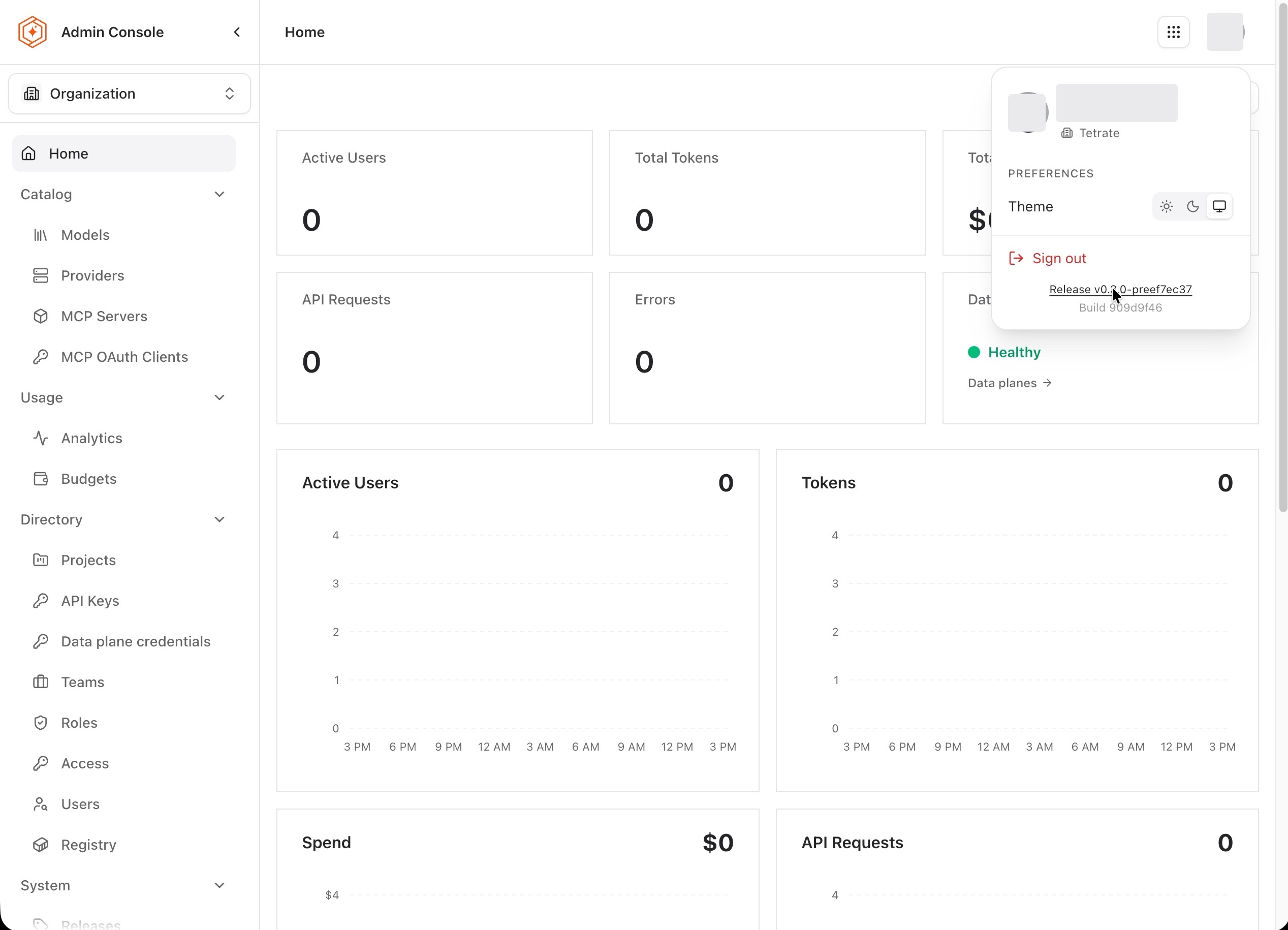
Data plane versions are a separate reading: the Admin Console data plane list carries a Version column with the release each data plane runs. On a data plane on 0.8.0 or later it is the release tetrate agentrouter doctor reads from the deployed chart; otherwise it is the release of the data plane's last successful install or upgrade. A data plane managed by ArgoCD or Flux shows no version. From 0.8.0 the column also marks a data plane that lacks a high or critical security fix from a newer release, and the data plane's own page says which release to upgrade to. Both are described in Where the running version is read.
Step 2: open the Releases page
The Release line in the menu links to the Releases page; it is also reachable from the sidebar under System → Releases. The page header badge restates the answer, Management plane is on followed by the version, and the Available panel above the list says whether a newer release is published or the deployment is on the latest, with a Check button and the time of the last check.
When newer releases are published, the Available panel also says whether they matter. If any of them carries a security fix, a note above the release cards names the most urgent severity and lists each release with its severity and CVE or GHSA identifiers, so the panel can be matched against an advisory a security team has asked about. If none does, the panel says so. If the notes of a newer release could not be read, the panel never says that no newer release carries a fix, and when it lists fixes it names the unread releases, since one of them could carry a more urgent fix.
Step 3: read the release notes and artifacts
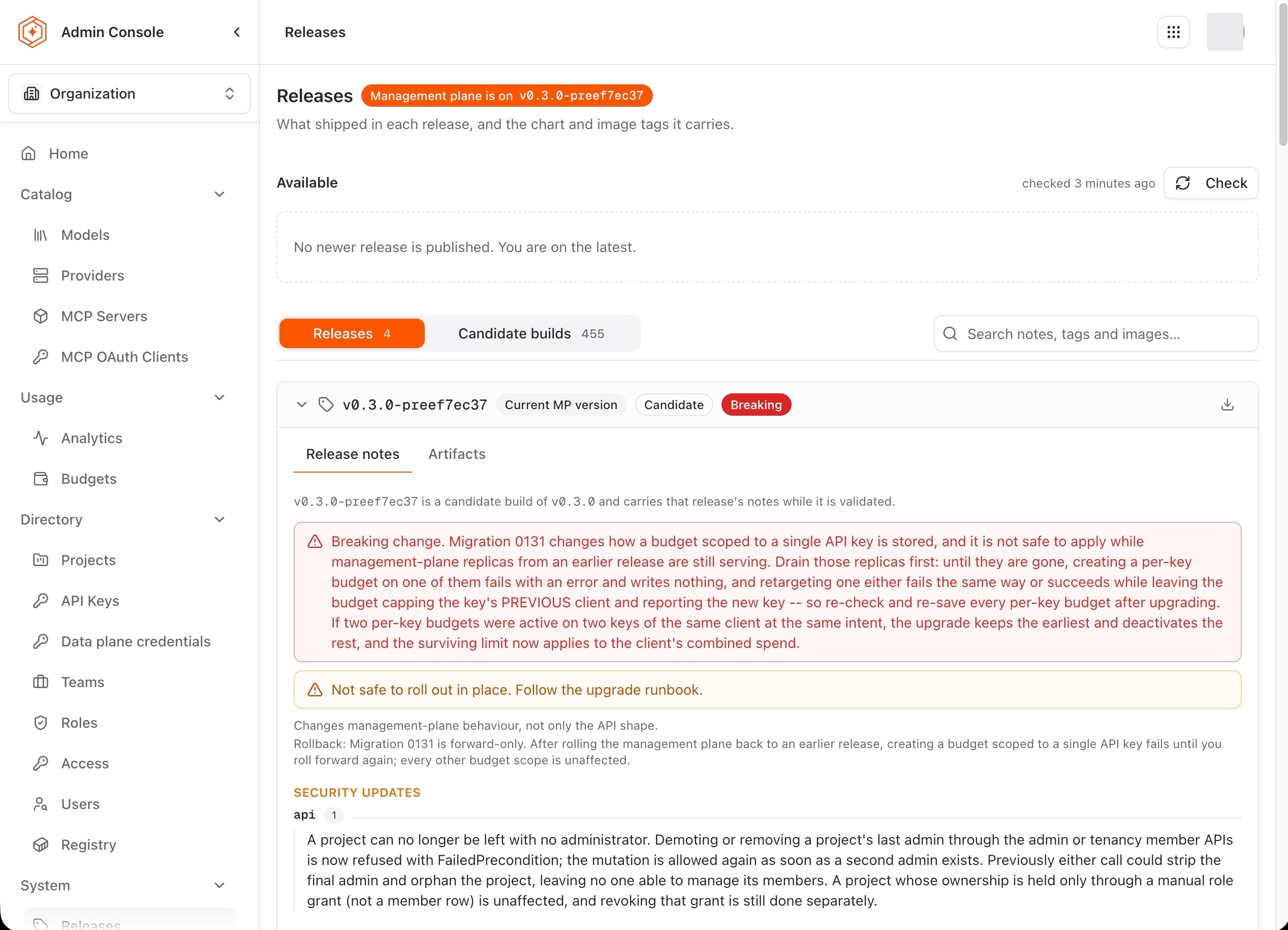
Each release is a card, labeled with its badges: Current MP version on the running one, Candidate on a validation build, and Breaking where the release contains a breaking change. Two tabs cover what a release means for the deployment:
- Release notes leads with what an operator plans around: the breaking-change warning and its required action, whether the release rolls out in place, the rollback condition, and whether behavior between the management plane and the data plane changed, followed by the categorized updates (security updates, new features, bug fixes, deprecations), each tagged with the component it touches. A candidate build carries the notes of the release it is validating.
- Artifacts lists the chart and image tags the release ships, for operators who mirror registries or pin versions in GitOps.
The Candidate builds tab lists validation builds separately from final releases, so the release list stays readable.
The same notes are published on this site under Release notes, which is the copy to link from a ticket or share outside the Admin Console.
Where to go next