Add providers and models to a project
Enabling a model in the organization catalog makes it available to grant, not callable. A project reaches a model only once that model has been assigned to the project. That assignment applies to a project that already exists, and has three parts: switching the Admin Console into project scope, restricting the project to a chosen set of providers, and granting the individual models the project may call. Connecting providers and enabling models at the organization level is covered in Provision models and providers.
The same grants can be made while the project is being created, in Create and delete a project, or automated through the Catalog API in Provision models via API. The pages below are where the grants are managed for the rest of the project's life.
Persona: Platform operator working in the Admin Console, holding a role that can administer the project's catalog.
Estimated time: 5 to 10 minutes per project, and a minute or two for each later change.
When this guide applies
| Situation | Why this guide helps |
|---|---|
| A project has been created and its models still have to be granted | Model access is explicit: an unassigned model cannot be reached through the project's gateway |
| A project should be confined to a subset of the connected providers | The project's provider list is what narrows the set |
| A team asks for an additional model, or for a newly released model version | Models are granted from the project's Models page, one at a time or in a batch |
| A model was granted in error, or is being retired from one project only | The row's unlink control withdraws the grant without touching the organization catalog |
| The catalog steps were skipped during project creation | Every grant the Create Project wizard offers can also be made later, from these pages |
Outcomes
By the end of this guide:
- The Admin Console is scoped to the project, with the project's own Catalog pages in view.
- The project is either confined to a chosen set of providers, or deliberately left unrestricted.
- The models the project may call are assigned and report an Enabled availability.
- The effect of removing a grant is understood, at both the model and the provider level.
Prerequisites
- An existing project. Creating one is covered in Create and delete a project.
- Access to the Admin Console with a role that can administer this project's catalog, granted either across the organization or scoped to this project alone. See Manage roles and permissions.
- Providers connected and models enabled in the organization catalog. Nothing can be granted that the catalog does not already carry. See Provision models and providers.
How project grants relate to the organization catalog
Two layers decide whether a request succeeds, and both have to agree:
| Layer | What it decides | Where it is configured |
|---|---|---|
| Organization catalog | Which providers are connected, and which models exist and are enabled at all | Organization scope, covered in Provision models and providers |
| Project grant | Which of those providers the project may use, and which models the project may call | Project scope, covered below |
The two grants are not symmetrical. Models are allow-listed: a model the project has not been granted is refused at request time. Providers are a restriction: a project with no providers listed may use any provider the organization catalog has enabled.
Step 1: switch the Admin Console to the project
- Open the scope selector at the top of the sidebar. It reads Organization while the organization is in scope.
- Select the project from the Projects list.
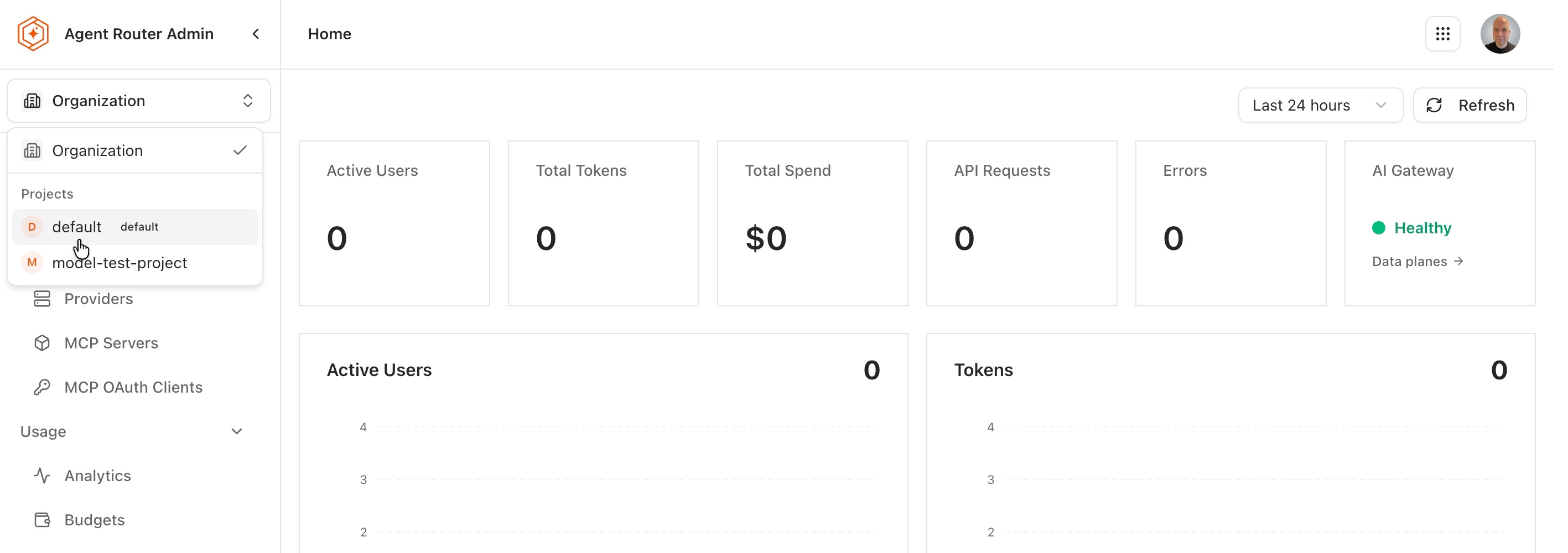
The sidebar is rebuilt for the project, with Catalog (Models, Providers, MCP Servers), Access (Users, API Keys), and Guardrails. The organization-wide sections are not part of project scope. Every page reached from here reads and writes this project's configuration only, so the same operator can hold broad access and still work safely inside one project.
Step 2: review the project's provider list
- Open Catalog → Providers.
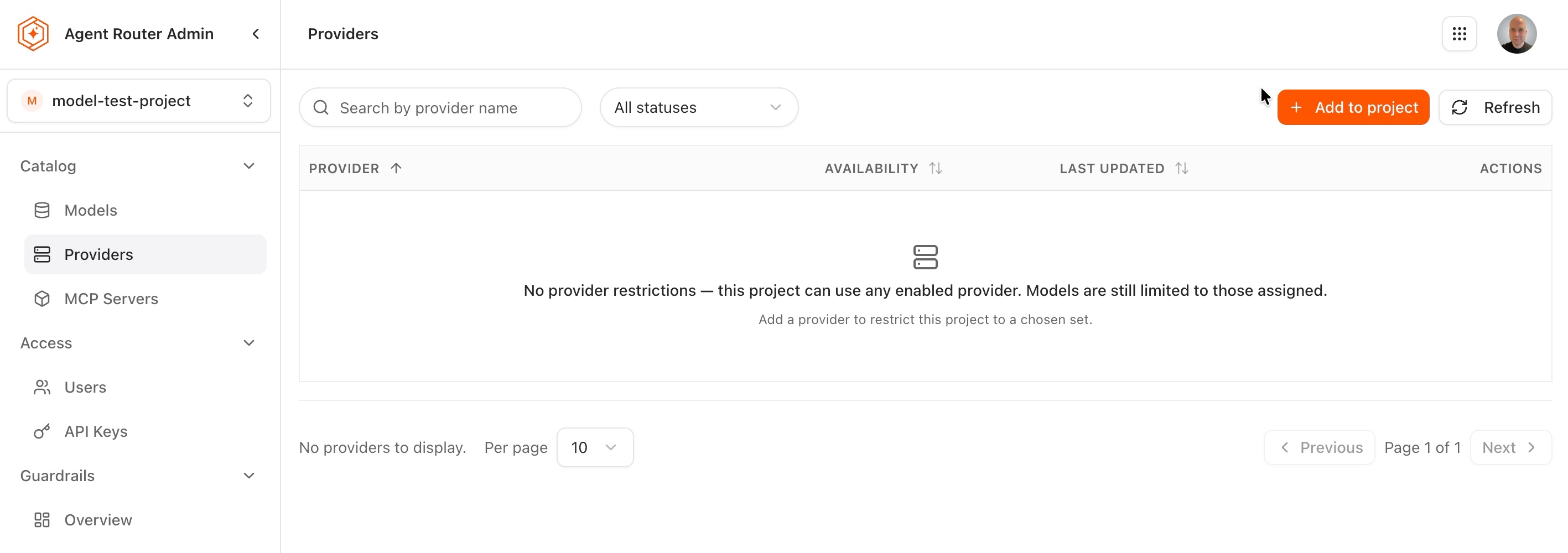
An empty list is the absence of a restriction, not a restriction. The empty state says as much: no provider restrictions are in place, the project may use any provider that is enabled in the organization catalog, and the models it may call are still limited to those assigned in Step 4.
Adding a provider here changes the rule from "any enabled provider" to "these providers only". A project is therefore given a provider list when the intent is to confine it, for example a team that must reach one vendor and nothing else, for contractual or data-residency reasons. A project that should keep following the organization catalog as that catalog changes is left with an empty list.
Step 3: add providers to the project
- Select Add to project.
- Search for a provider, or pick from the list. Each candidate shows its display name and its provider slug, for example
anthropicandgemini. - Tick every provider the project should be allowed to use. Each one ticked joins the Shortlist panel on the right, and the confirm button counts what is queued (Add 1, Add 2, and so on).
- Select the confirm button to apply the shortlist. Cancel discards it, and nothing is written.
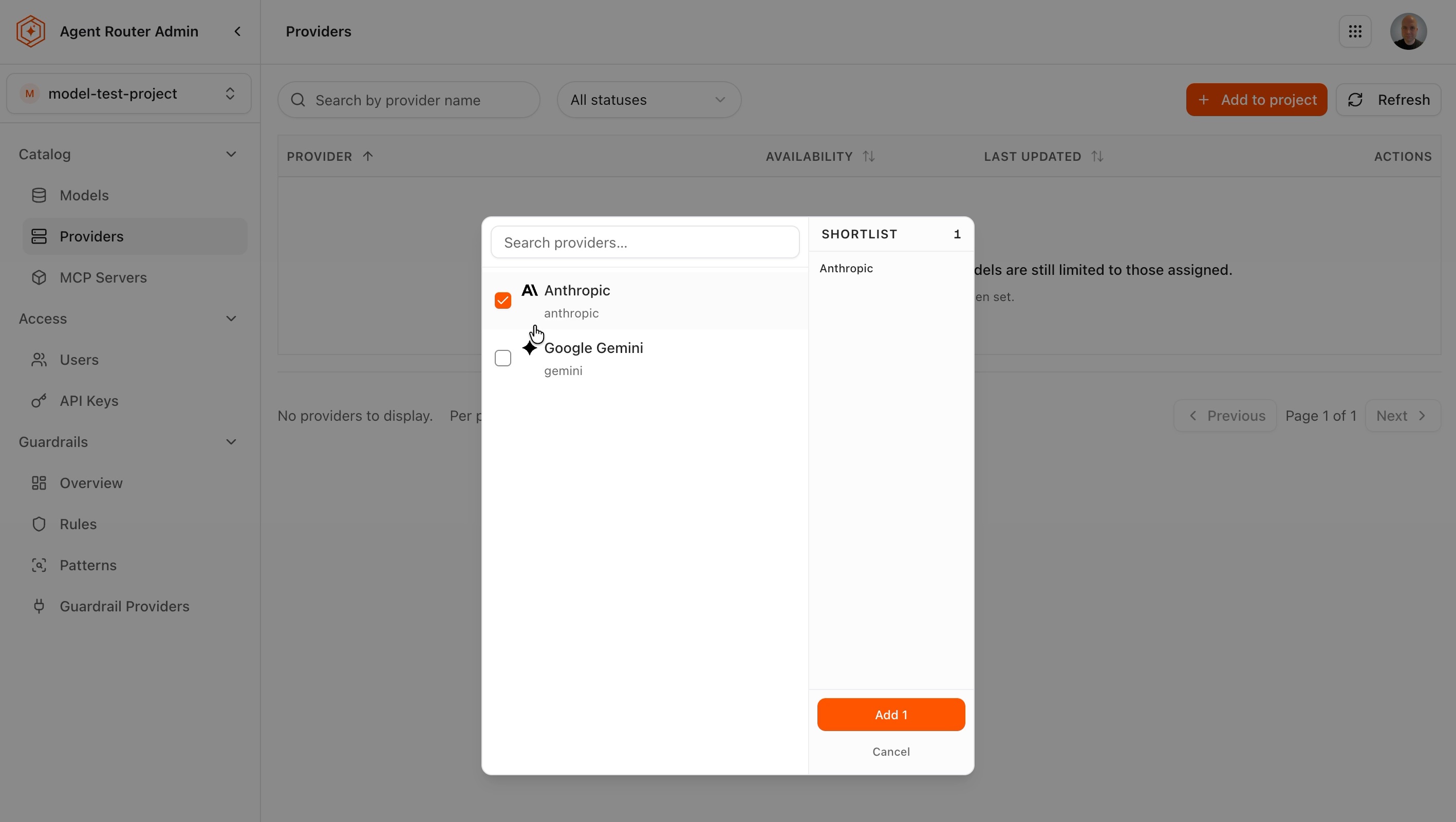
A confirmation appears and the list reloads with one row per granted provider.
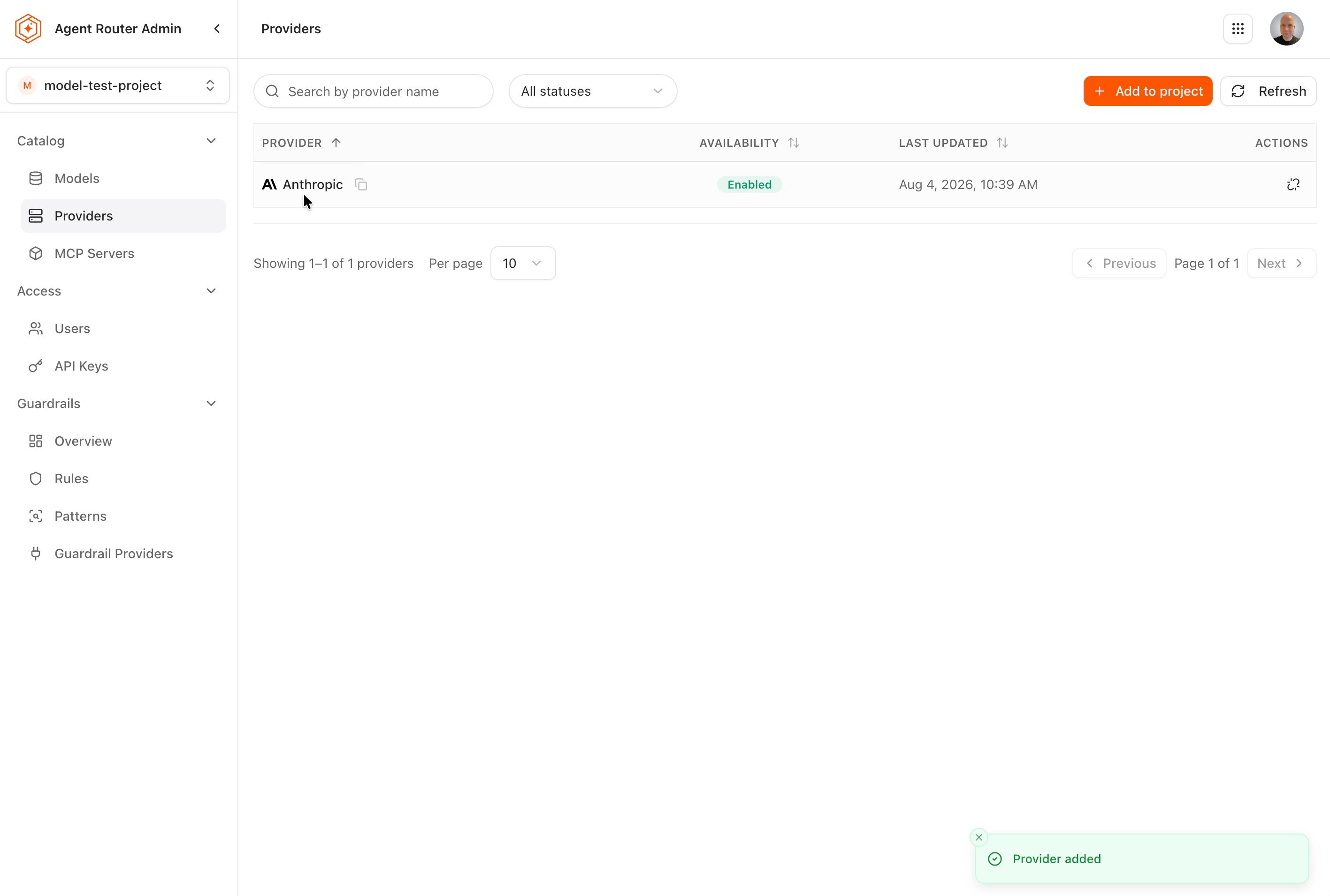
Field reference: project provider list
| Column | Description |
|---|---|
| Provider | The provider's display name, with a copy control beside it |
| Availability | Whether the provider is currently enabled. A provider disabled in the organization catalog cannot serve this project's traffic, whatever the project's own list allows |
| Last updated | When this project's assignment last changed |
| Actions | An unlink control that withdraws the provider from the project |
The search box and the status filter above the table narrow the list, which matters on projects that carry many providers.
Step 4: add models to the project
-
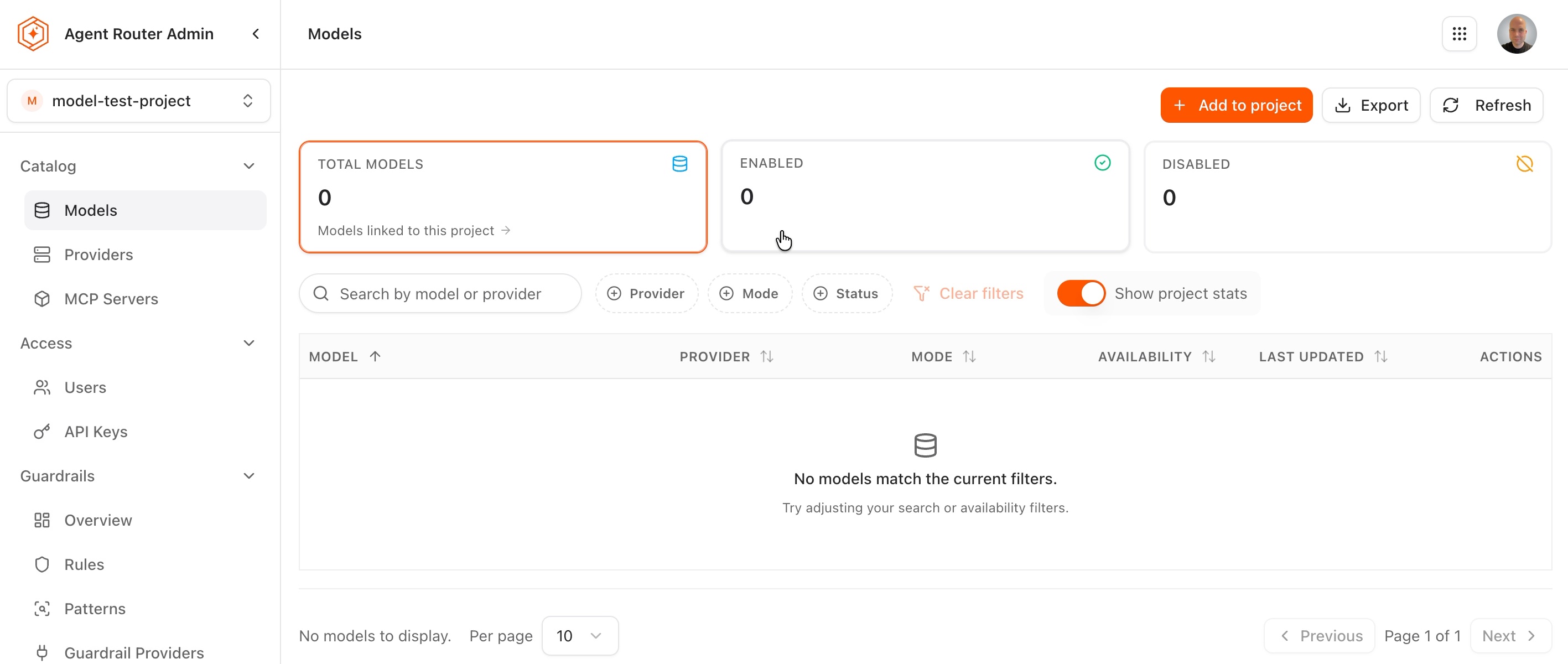
Open Catalog → Models. Three cards summarize the project: Total models, Enabled, and Disabled. On a project with no grants, all three read 0 and the table is empty.
-
Select Add to project.
-
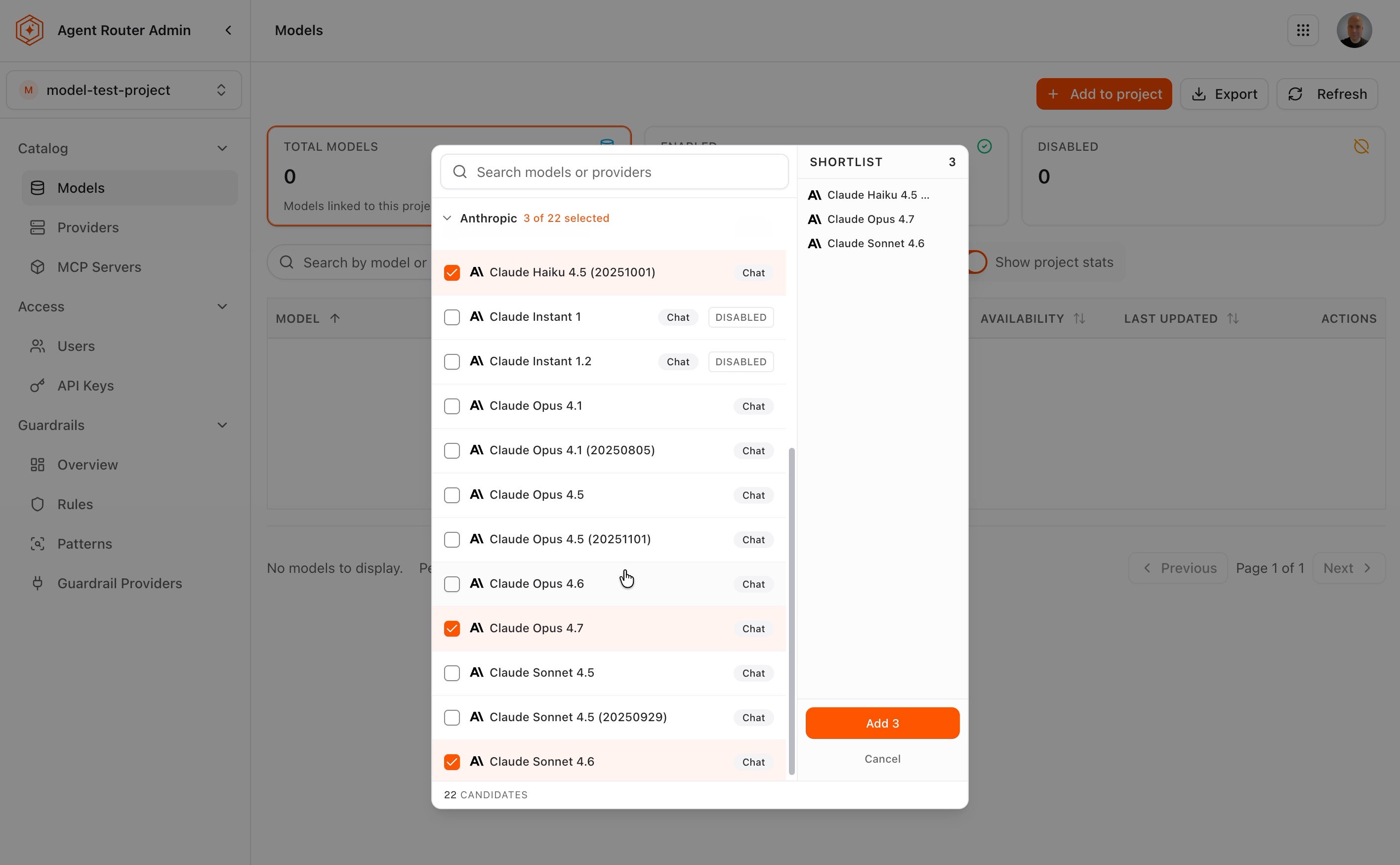
Work through the candidates, which are grouped by provider. Each group header carries the provider's candidate count and, once ticking starts, the running selection (3 of 22 selected). The footer reports the total number of candidates offered.
-
Read each candidate row: the model's display name, the mode it serves (Chat, for example), and a DISABLED badge on any model that is not enabled in the organization catalog.
-
Tick the models the project may call. The Shortlist panel lists them and the confirm button counts them.
-
Select the confirm button.
A confirmation reports how many models were added, and the table reloads with one row per grant. The stat cards move with it: the total counts the grants, and the enabled and disabled figures show how many of those grants can actually serve traffic.
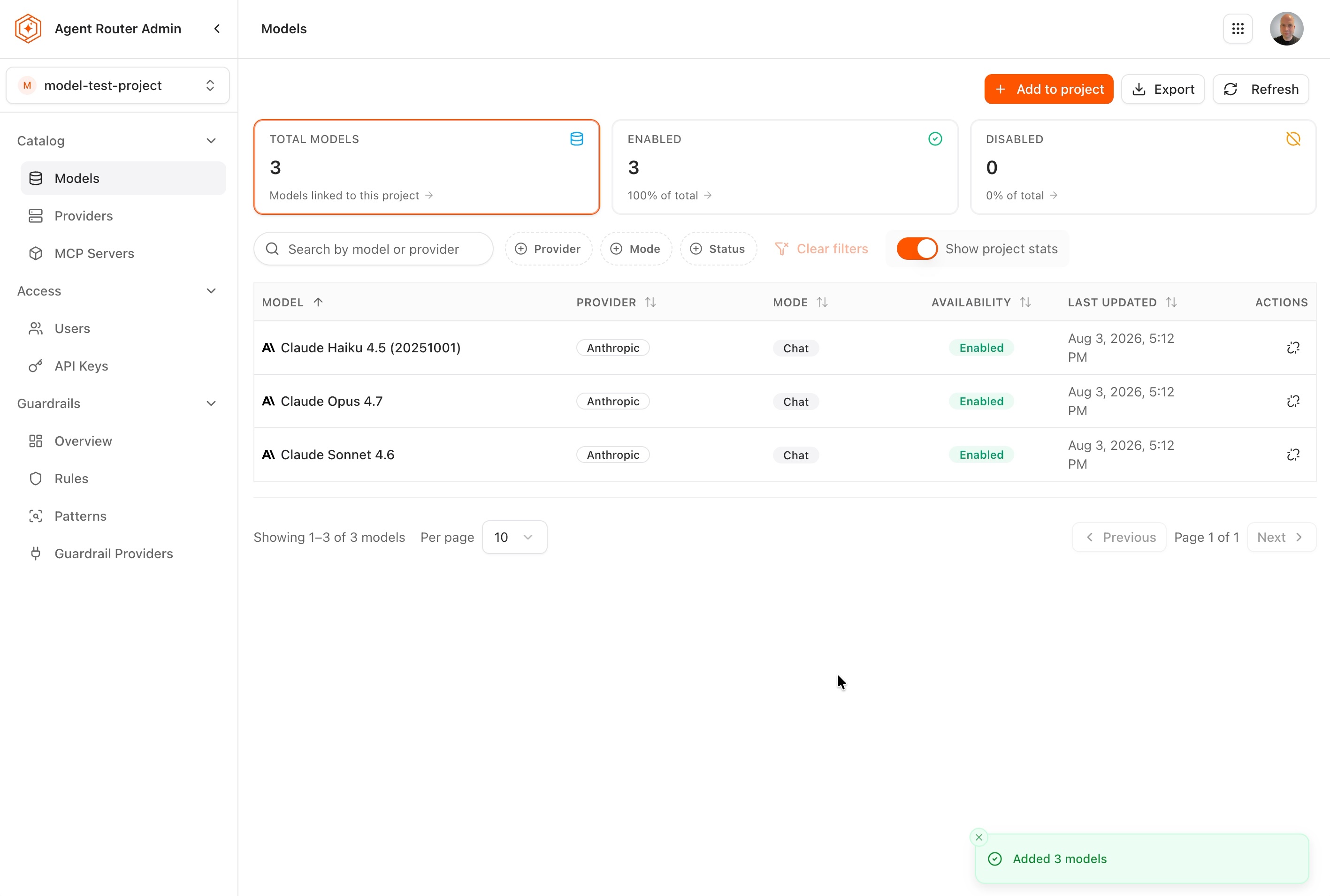
Field reference: project model list
| Column | Description |
|---|---|
| Model | The model's display name, including the dated revision where the catalog carries one |
| Provider | The provider that serves the model |
| Mode | The API mode the model is offered under, for example Chat |
| Availability | Enabled for a model that can serve traffic, Disabled for one that cannot |
| Last updated | When this project's assignment last changed |
| Actions | An unlink control that withdraws the model from the project |
Above the table, the search box matches on model or provider, and the Provider, Mode, and Status filters narrow the list further. Clear filters resets all of them, Show project stats hides or shows the three cards, and Export downloads the current list.
When a candidate is missing, or marked disabled
- Marked DISABLED in the picker. The model exists in the organization catalog but is not enabled there. Granting it records the assignment and nothing more; requests naming it continue to fail until the model is enabled in the catalog. Enabling models is covered in Provision models and providers.
- Absent from the picker entirely. Either the model is not in the organization catalog at all, or its provider falls outside the project's provider list from Step 3. Reviewing the provider list is the faster of the two checks.
Step 5: confirm the project can reach the models
Grants are configuration, so the result is worth confirming from where requests actually arrive:
- Confirm the project has a gateway. A project without one has nowhere to send traffic. See Provision a gateway for a project.
- Use an API key issued for this project, as described in Issue a project-scoped API key.
- Send a request that names one of the granted models.
A request naming a model the project has not been granted is refused at request time. That refusal is the mechanism behind per-project model isolation, and it is the quickest way to prove the boundary holds.
Remove a provider or a model from a project
Both lists carry an unlink control in the Actions column of every row. What removal means differs by list:
- A model loses the project's access to it. The model itself is untouched in the organization catalog, and grants held by other projects are unaffected. Requests from this project that name the model are refused from that point on.
- A provider narrows the set the project is confined to. Removing the last remaining provider returns the project to the unrestricted state described in Step 2, where any enabled provider may be used, rather than to a state where none may be.
Because a project's model grants are the allow-list, withdrawing a model is the direct way to take capability away from a team. Withdrawing a provider is a change of policy about which vendors the project may reach, and is worth pairing with a review of the models still granted under it.
Where to go next
Provision a gateway for a project
Give the project a live inference URL by selecting a data plane.
Issue a project-scoped API key
Mint the credential developers use to call the granted models.
Provision models and providers
Connect providers and enable models in the organization catalog so there is something to grant.
Provision models via API
Automate provider, model, and project assignment through the Catalog API.