Move a project to another data plane
A project moves to another data plane by being served from both for a while: the target data plane declares the same hostname and is labelled with the project, DNS moves to it, and the label on the source data plane is removed. The hostname and the API keys stay the same throughout, so applications need no change.
A project names no data plane, and a key names no hostname: a key resolves to its project on every data plane labelled with that project. Two data planes of one organization may declare the same hostname. Upgrading a data plane in place is a different operation, covered in Upgrade a self-hosted data plane.
Persona: Platform operator with data-plane operations access, working in the Admin Console and coordinating the DNS change.
Estimated time: 30 to 60 minutes, plus DNS propagation and drain time.
Outcomes
By the end of this guide:
- The project is served from the target data plane under the hostname applications already call.
- The source data plane no longer serves the project, and was drained before its label was removed.
- No key was reissued and no application was reconfigured.
Prerequisites
- Administrator access to the Admin Console, with data-plane operations permissions.
- A target data plane on 0.7.0 or later, deployed and registered. See Deploy and register a data plane.
- Control of the DNS record for the hostname applications call.
- A certificate on the target data plane's load balancer that covers that hostname.
Step 1: declare the hostname on the target data plane
-
Add the hostname applications call to the target data plane's declared hostnames, by either route. Both replace the installed list, so keep every hostname the data plane already declares.
-
With Helm, add it to the serve-helm values and run
helm upgrade:global:gateway:hostnames:- ai.acme.example.com # the hostname applications call today -
With the CLI, repeat
--gateway-hostnamefor each hostname to keep:tetrate agentrouter dataplane upgrade /path/to/data-plane-credentials.json \--gateway-hostname=ai.acme.example.com
-
-
Read back what the chart rendered:
kubectl -n tars-system get configmap tars-gateway-declaration -o jsonpath='{.data.gateway-hostnames}'The output is a JSON list that includes the hostname, such as
["ai.acme.example.com"]. -
In the Admin Console, navigate to Directory > Data Planes, locate the target data plane, and click the More info icon at the far right of its row.
-
On the more-info pop-out, read the Address row. The hostname appears once the data plane has polled for configuration. An address tagged from the management plane is a stored address, which means the data plane still declares nothing.
-
Confirm the certificate behind the hostname covers it. The data plane reports the certificate it reads beside each declared hostname, and the same reading is available from the command line:
tetrate agentrouter doctor /path/to/data-plane-credentials.json --only gatewayA reading that the certificate does not cover the hostname, or that it has expired, must be fixed on the target data plane's load balancer before DNS moves.
Both data planes now declare the hostname. DNS still points at the source data plane, so no traffic moves yet.
Step 2: label the target data plane with the project
- In the Admin Console, navigate to Directory > Data Planes.
- Locate the target data plane and click the More info icon.
- On the more-info pop-out, select Manage, toggle the project on in the Project labels dialog, confirm, and select Done. See Serve a project from a data plane.
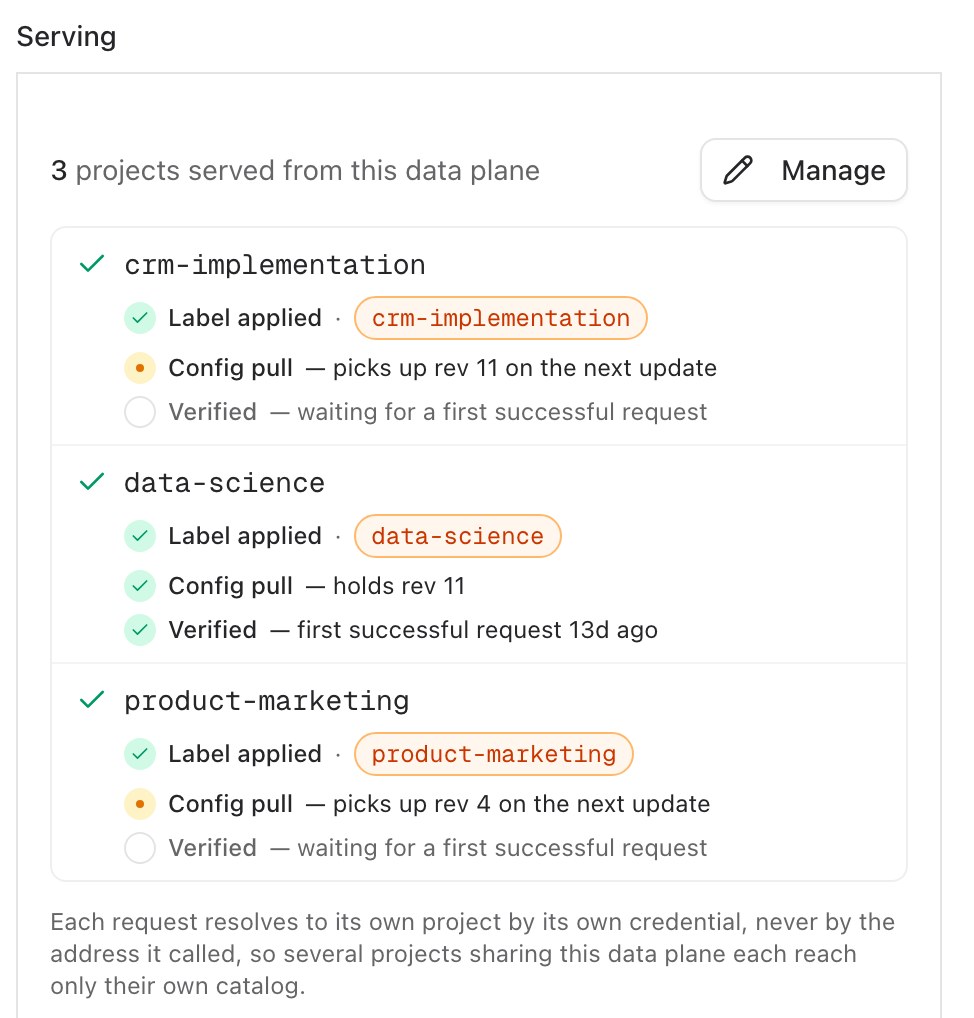
- Under Serving, wait until the project's Config pull step reads holds with a revision, instead of picks up the revision on the next update. The target data plane now holds the project's current configuration.
A target data plane that already serves another project accepts the label only once it reports 0.7.0 or later.
Step 3: move DNS to the target data plane
-
In the DNS provider, point the hostname's record at the target data plane's load balancer, or shift its weight there.
-
Wait out the record's TTL, then confirm the hostname resolves to the target data plane's load balancer from a client network:
dig +short ai.acme.example.com -
Send one request that completes successfully, using an API key issued for the project and a model the project has been granted:
curl -sS https://ai.acme.example.com/v1/chat/completions \-H "Authorization: Bearer ${PROJECT_API_KEY}" \-H "Content-Type: application/json" \-d '{"model": "'"${MODEL}"'", "messages": [{"role": "user", "content": "ping"}]}'A label is verified only by the project's own traffic. Requests for another project on the same data plane never verify it.
-
In the Admin Console, navigate to Directory > Data Planes, locate the target data plane, and click the More info icon.
-
On the more-info pop-out, find the project under Serving and confirm its Verified step reads a first successful request with a time, rather than waiting for a first successful request.
The VERIFIED column on the Directory > Data Planes list shows the same reading for each project label on the data plane: yes once a request has been answered, not yet before.

Do not continue until the label reads verified. A label that stays unverified means requests for the hostname are not reaching the target data plane, usually because of a stale DNS cache or a load balancer route that does not match the hostname.
Step 4: drain the source data plane
The Admin Console does not break requests down by data plane, so the drain is read from the request-log statistics API, which attributes every request to the data plane that served it. The query is scoped to the project, because a source data plane that serves other projects keeps counting their traffic.
-
In the Admin Console, navigate to Directory > Data Planes and copy the source data plane's ID from the ID column.
-
Query the project's request count grouped by data plane, with a
start_timelater than the moment the DNS record's TTL expired. An earlierstart_timeincludes traffic that arrived before the move and reads as a failed drain.curl -sS "https://management.example.com/v1/customers/${CUSTOMER_ID}/projects/${PROJECT_ID}/request-logs/stats?group_by=dataplane&metric=count&start_time=2026-07-22T14:30:00Z" \-H "Authorization: Bearer ${ADMIN_API_KEY}"Each entry is keyed by the reporting data plane's ID. Requests recorded before data plane attribution existed group under the empty key
"", which is unattributable and never counted against the source data plane. -
Find the entry keyed by the source data plane's ID. No entry, or a count of zero, means the drain is complete. A count that stays above zero means a client still resolves the old record or calls the source data plane by another name, and the label must stay in place until that client is found.
-
Repeat the query after a few minutes, with the same
start_time, to confirm the count is not still growing.
Step 5: remove the label from the source data plane
- In the Admin Console, navigate to Directory > Data Planes.
- Locate the source data plane and click the More info icon.
- On the more-info pop-out, select Manage, toggle the project off in the Project labels dialog, confirm, and select Done.
- If the source data plane no longer serves anything under the hostname, remove the hostname from its
global.gateway.hostnamesas well.
The source data plane drops the project's configuration on its next configuration update. Removing the label first and moving DNS second would refuse the project's callers on the source data plane with 403 until DNS moved.
What stays fixed
Throughout the move:
- The hostname applications call does not change.
- Existing API keys continue to work, because a key belongs to the project, not to a data plane or a hostname. Before 0.9.1, a key could instead be served on the managed provider credential rather than the project's own provider keys after the project was labelled on a data plane that had no default gateway yet, or after a gateway was added, removed, or moved on it; a key served that way before the upgrade to 0.9.1 is reissued (v0.9.1 release notes).
- The project's configuration does not change. Both data planes receive the same project revision, and the label on each shows which revision it holds.
Rate-limit counters do not move: each data plane counts only the traffic it sees, so callers meet a fresh window on the target data plane.
Data planes before 0.7.0
A data plane before 0.7.0 cannot declare hostnames, and two project gateways cannot share a hostname. Move a project gateway between such data planes with SetProjectGatewayWorkspace over the admin API, after provisioning the target's DNS record and certificate, and cut DNS over immediately afterward: between the move and the DNS change, requests to the hostname reach the source data plane, which no longer serves it, and are refused. Upgrading the target data plane to 0.7.0 first allows the sequence above instead.
Where to go next
Fail over between data planes
Keep both data planes labelled to run a high-availability pair.
Manage a data plane's addresses and projects
Operate the labels on the source and target data planes.
Plan high availability and disaster recovery
Use a move as part of a broader resilience plan.
Load balance across regional deployments
Distribute model backends and traffic across regions.