Use your own provider credentials (BYOK)
Bring Your Own Key (BYOK) authenticates requests with a consumer-supplied provider key instead of the centrally managed one, so rate limits, access tiers, billing, and provider-side usage records all attach to that account directly.
Persona: Developer working in the Developer Console.
Estimated time: 10 to 15 minutes per provider credential, including a verification step against the provider's own usage dashboard.
When this guide applies
BYOK is the right tool when any of the following are true:
| Situation | Why BYOK helps |
|---|---|
| Billing and cost center attribution require that a specific team's traffic shows up on a specific provider account | The provider sees the BYOK account directly, so its usage records and invoices match the responsibility boundary |
| Rate limits or access tiers on a private account exceed those available on the centrally managed account | Traffic that needs the higher ceiling can be routed through the BYOK account specifically |
| Compliance or contractual obligations require that traffic land on a particular provider relationship | Routing the relevant API key through BYOK makes the contractual identity the one that actually serves the request |
| A new provider or a new model from an existing provider is being evaluated against a fixed quota | Isolating the traffic on its own credential keeps the evaluation clean |
For traffic that is purely centrally managed (general developer access on centrally managed credentials), BYOK is unnecessary. The two models coexist on the same Console without conflict.
Outcomes
By the end of this guide:
- A BYOK credential is registered against at least one supported provider.
- A test request has been routed through the BYOK credential, and the request appears in the provider's own usage dashboard.
- The credential's rotation and removal behavior has been exercised.
Prerequisites
- A working API key that routes to at least one backend, as set up in Route requests across providers.
- A valid API key for one of the supported upstream providers: OpenAI, Anthropic, Google (Gemini), Azure OpenAI, Mistral, Together, Perplexity, or Cohere.
- Access to that provider's usage dashboard for the verification step. For OpenAI, this is
platform.openai.com/usage; the other providers have equivalent surfaces.
Step 1: register the BYOK credential
BYOK credentials are configured at the Console account level, not per API key: once registered for a provider, the credential serves every request the account makes to that provider's models, whichever Tetrate Agent Router API key is presented.
- Sign in to the Console.
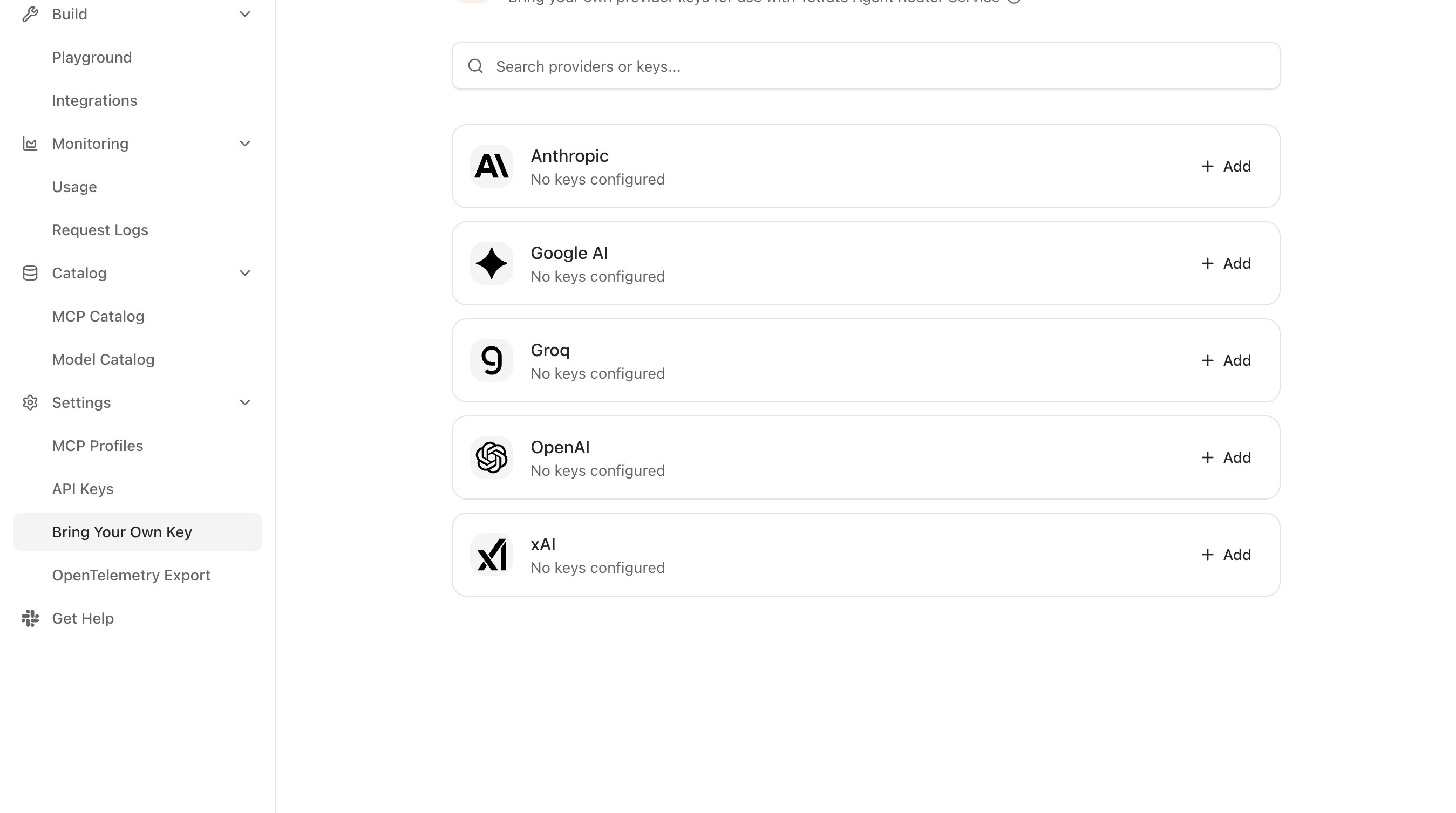
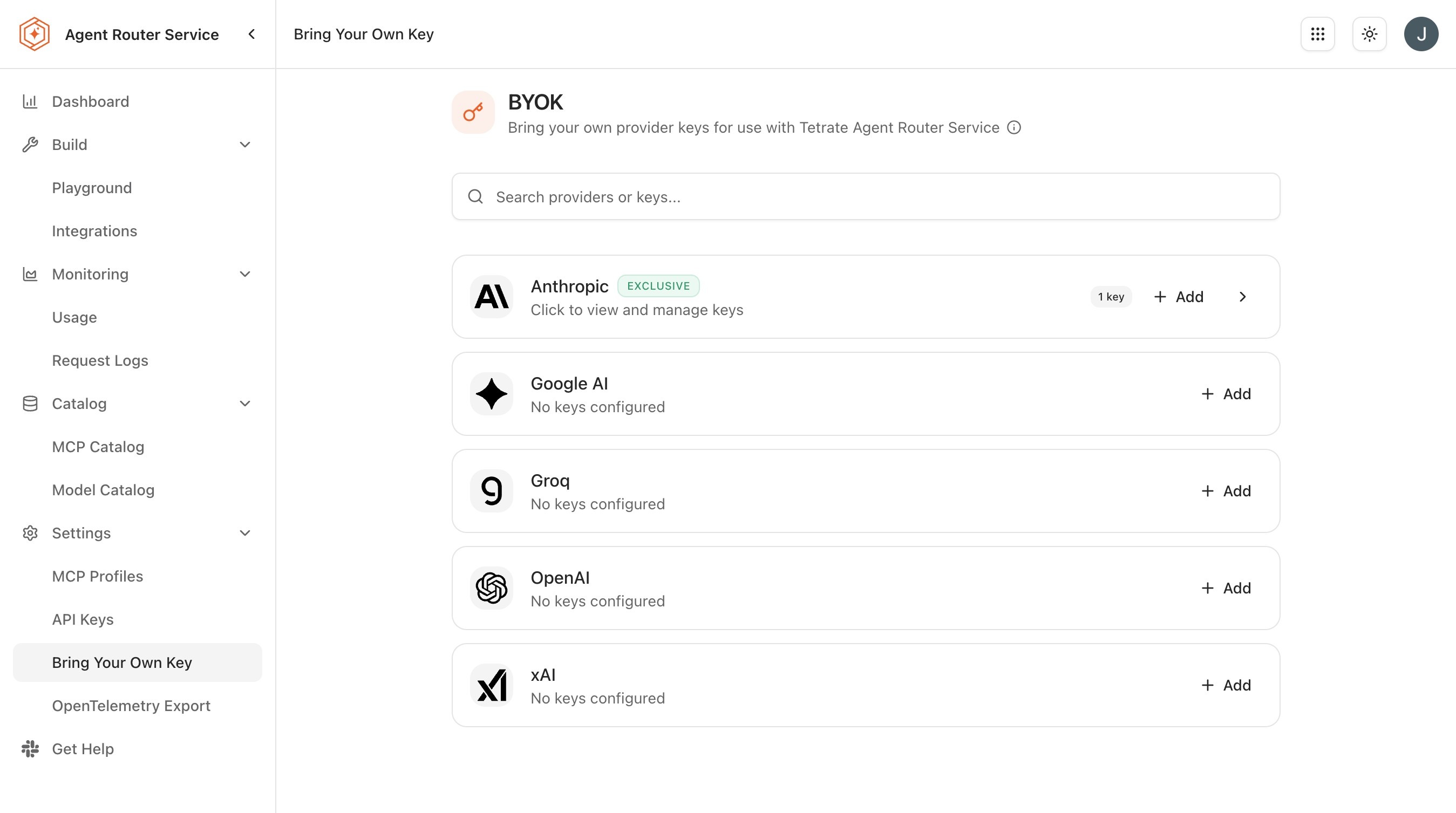
- Open Settings → Bring Your Own Key from the sidebar.
- The page lists the supported providers, each with the current configuration status. Locate the provider whose credential should be registered.
- Click the provider card to open the configuration form.
- Paste the provider API key into the API Key field. Each provider has a distinctive key format (OpenAI keys begin with
sk-, and most other providers follow comparable conventions), and verifying the prefix before saving avoids the most common mistake. - Click Save.
- Confirm that the provider card updates to show the credential as Active or Configured.
The credential is encrypted at rest, never logged or returned in API responses, and can only be updated or removed by the account that owns it. After the initial save the Console shows only a masked version, so even the user who saved the credential cannot retrieve the original value.
Provider independence
Keys for several providers can be configured at once, and each provider operates independently: configuring an OpenAI key has no effect on how Anthropic requests are handled.
A BYOK credential applies to every Agent Router API key on the Console account. To apply it to only a subset of traffic, use a separate Console account for that subset, or manage the credential's lifecycle in step with the traffic that needs it.
Step 2: send a request through the BYOK credential
The credential takes effect within a minute of saving, not instantly, as the Console notes on save. A request to any model from the configured provider exercises it. PROXY_URL stands for the proxy endpoint from the Console Dashboard, scheme included and ending in /v1.
curl PROXY_URL/chat/completions \
  -H "Authorization: Bearer YOUR_AGENT_ROUTER_API_KEY" \
  -H "Content-Type: application/json" \
  -d '{
    "model": "gpt-4o",
    "messages": [{"role": "user", "content": "Confirm this request is routed through the BYOK credential."}]
  }'
The request looks identical to any other gateway request; nothing in the request shape indicates whether BYOK or centrally managed credentials are being used. The decision happens inside the gateway, based on the BYOK configuration of the account. For each request, the provider that hosts the target model is resolved, and that provider's BYOK configuration is checked:
- When a BYOK credential exists for the provider, the request is forwarded upstream with the consumer-supplied key, and usage is tracked by the provider directly against the BYOK account.
- When no BYOK credential exists for the provider, the request is served with the centrally managed credential instead.
The Playground is an alternative way to exercise the credential without leaving the Console:
- Open Build → Playground in the Console sidebar.
- Select a model from the BYOK-configured provider.
- Send a short test message.
- Confirm a successful response is returned.
Step 3: verify the credential was used
Two signals confirm that the BYOK credential served the request: the Console request log, and the provider's own usage dashboard. The provider-side check is authoritative, because Agent Router cannot fake it: a request that appears under the BYOK account was served with the BYOK credential.
- In the Console, open Monitoring → Request Logs.
- Filter by the API key used in the test.
- Locate the request and expand its detail row.
- Confirm the request metadata indicates the BYOK credential was used. The exact field name depends on the Console build, but a BYOK-served request is clearly distinguished from a centrally served one.
- Cross-reference with the provider's own usage dashboard. For OpenAI, the request should appear at
platform.openai.com/usage, attributed to the account that owns the BYOK credential, within a few minutes of the call. For the other providers, the equivalent surface offers the same confirmation.
Step 4: rotate or remove the credential
To rotate a credential:
- Open Settings → Bring Your Own Key.
- Select the provider whose credential should be rotated.
- Paste the new key into the API Key field.
- Click Save.
The old credential is replaced on save; the next request to that provider uses the new key. In-flight requests authorized with the old key still complete with it.
To remove a credential entirely:
- Open Settings → Bring Your Own Key.
- Select the provider.
- Click Remove, or clear the key field and save.
Subsequent requests to that provider's models revert to the centrally managed credential, starting with the next request.
Rotate BYOK credentials in step with the provider's own key-rotation schedule. A credential that has expired on the provider side but is still configured in the Console produces authentication failures that look, at first glance, like provider outages. A scheduled rotation cadence on the Console side (written into the team's runbook rather than Agent Router) eliminates this category of incident.
How BYOK composes with key policies
BYOK credentials and key policies are independent: the policies decide which backend serves a request, and the BYOK configuration decides which credential is used to reach that backend. The two compose without conflict.
Common patterns:
- Fallback with BYOK primary and centrally managed secondary. The fallback chain has a BYOK-hosted model at priority 0 and a centrally managed model at priority 1. Under normal conditions, the BYOK account serves all traffic; if the BYOK account experiences a quota or availability problem, traffic falls through to the centrally managed account without disruption.
- Traffic split between BYOK and centrally managed accounts. Two routes resolve the same logical name; one is hosted by the BYOK provider and one by the centrally managed account. A weight distribution shifts traffic between them, useful when a BYOK quota needs to be smoothed out across the month.
- BYOK plus model-name override. Logical names defined under Apply advanced routing rules compose naturally with BYOK, because the override is applied before credential selection.
The BYOK credentials configured above remain attached to the Console account for subsequent guides.
Where to go next
Aggregate MCP servers into a profile
The next agent-infrastructure concern after credentials.
Monitor traffic and usage
Distinguish BYOK and centrally managed traffic in usage analytics over time.
Export telemetry to an observability stack
Push the BYOK and centrally managed distinction into existing dashboards.