Dev Console quickstart
This 10-minute walkthrough takes you from sign-in to your first routed AI request through the gateway. By the end you will have an API key, a proxy endpoint URL, a working request in at least one language, and a verified entry in Request Logs. The Console is the developer-facing application. It gives you everything you need to call AI models, configure routing policies, and monitor usage, without managing provider credentials directly. All AI requests pass through the gateway, which handles authentication, routing, fallback, guardrail enforcement, and observability transparently.
The screenshots in this guide show a redacted URL. Your URL in a production environment will be something like router.<custom-name>.tetrate.ai. Your console URL will differ based on deployments in production and non-production.
Step 1: sign in
- Navigate to your Console URL (e.g.,
https://router.poc.tetrate.ai)
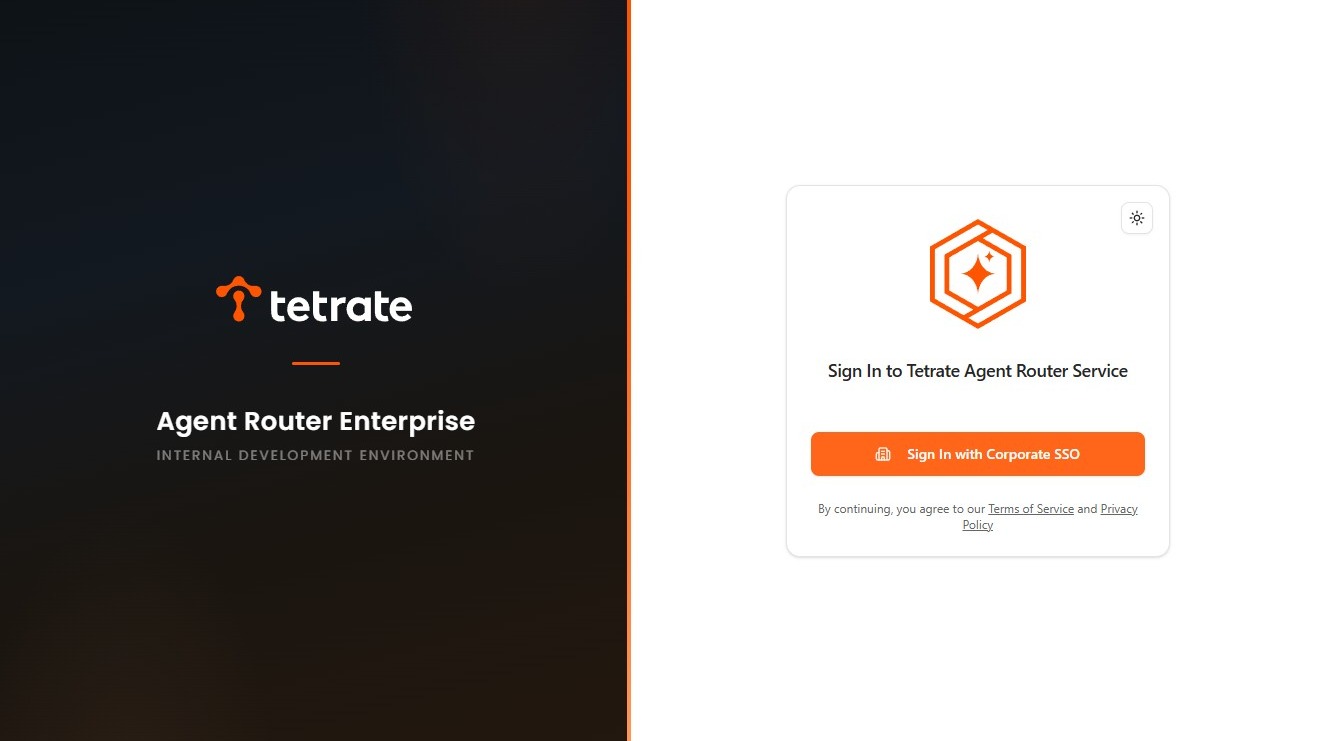
- Click Sign In with Corporate SSO to authenticate through your organization's identity provider. If your deployment uses email/password authentication, enter your credentials directly.
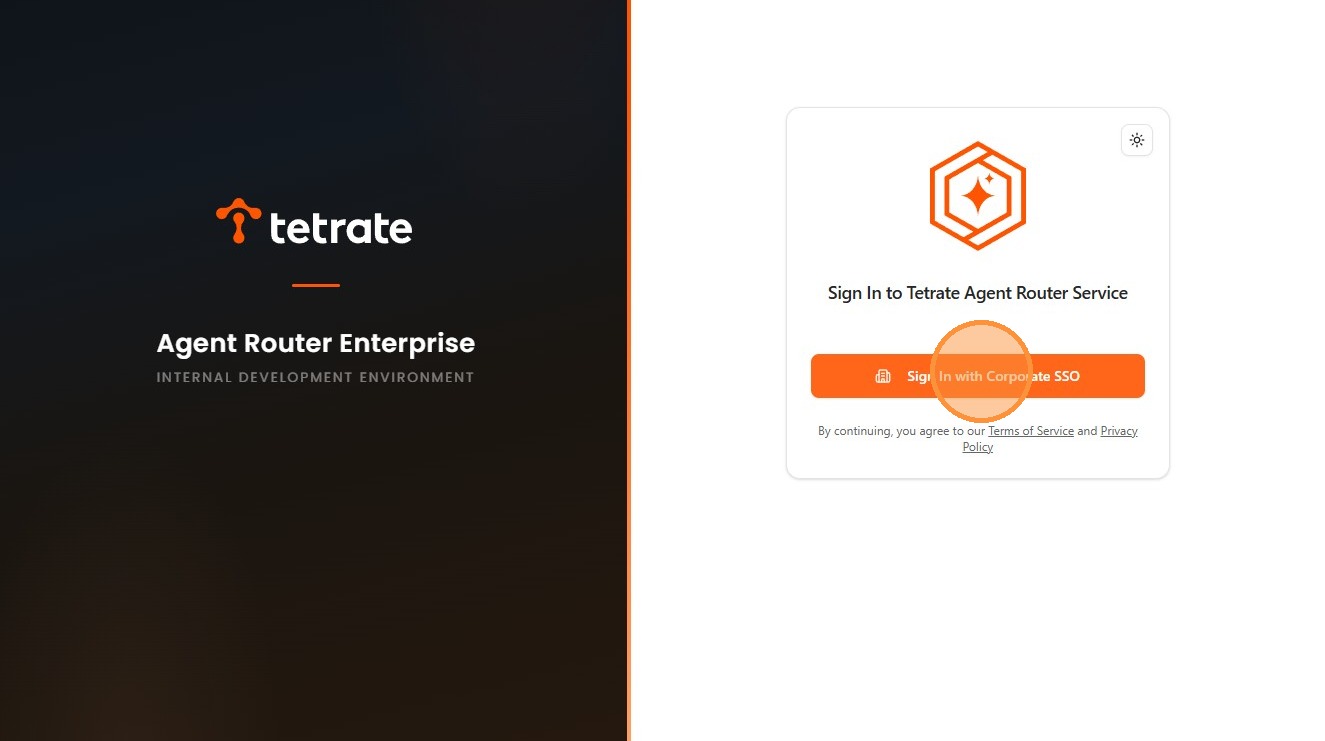
- You land on the Dashboard, which displays your proxy endpoint URL and a summary of recent usage activity. Note the proxy endpoint URL; you will need it in Step 3.
Step 2: create an API key
API keys authenticate your application's requests to the gateway. Each key can be assigned its own routing policy (fallback chain, traffic splitting), rate limits, and model scope. For this quickstart, you will create a basic key with default settings.
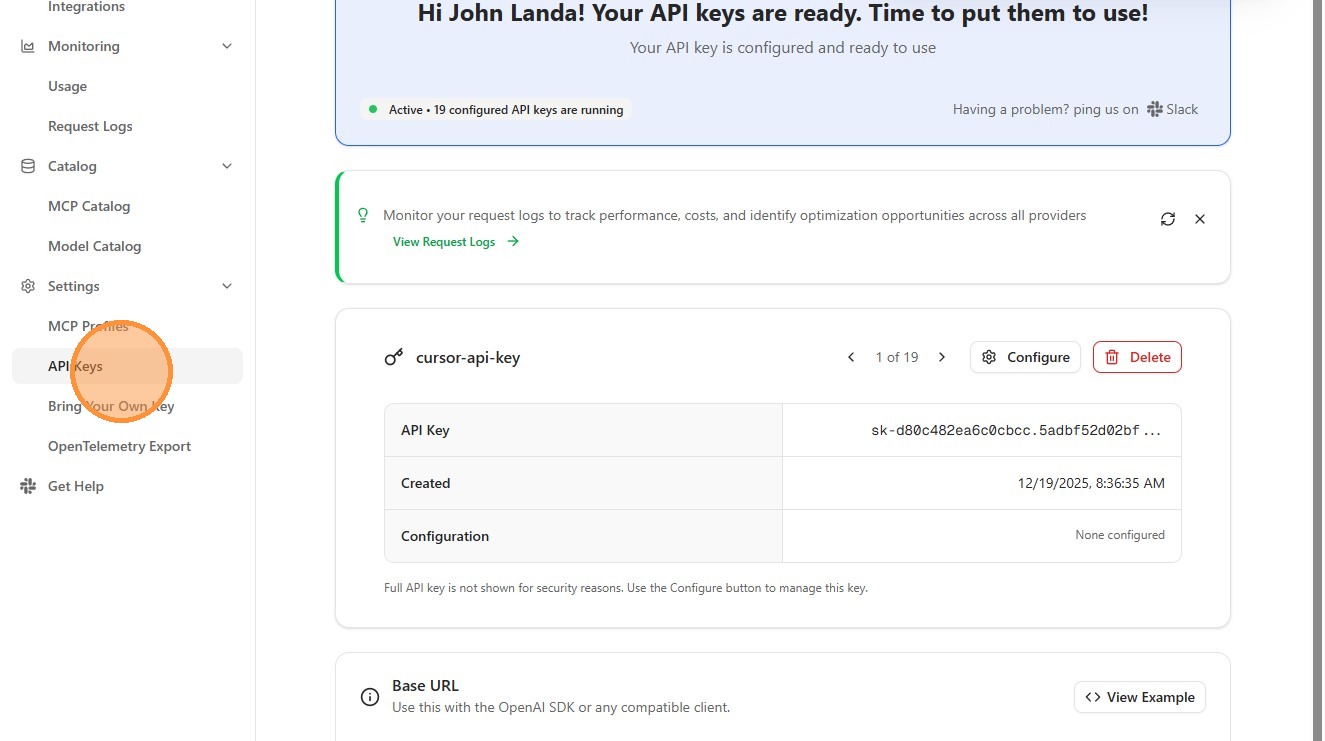
- In the sidebar, click API Keys
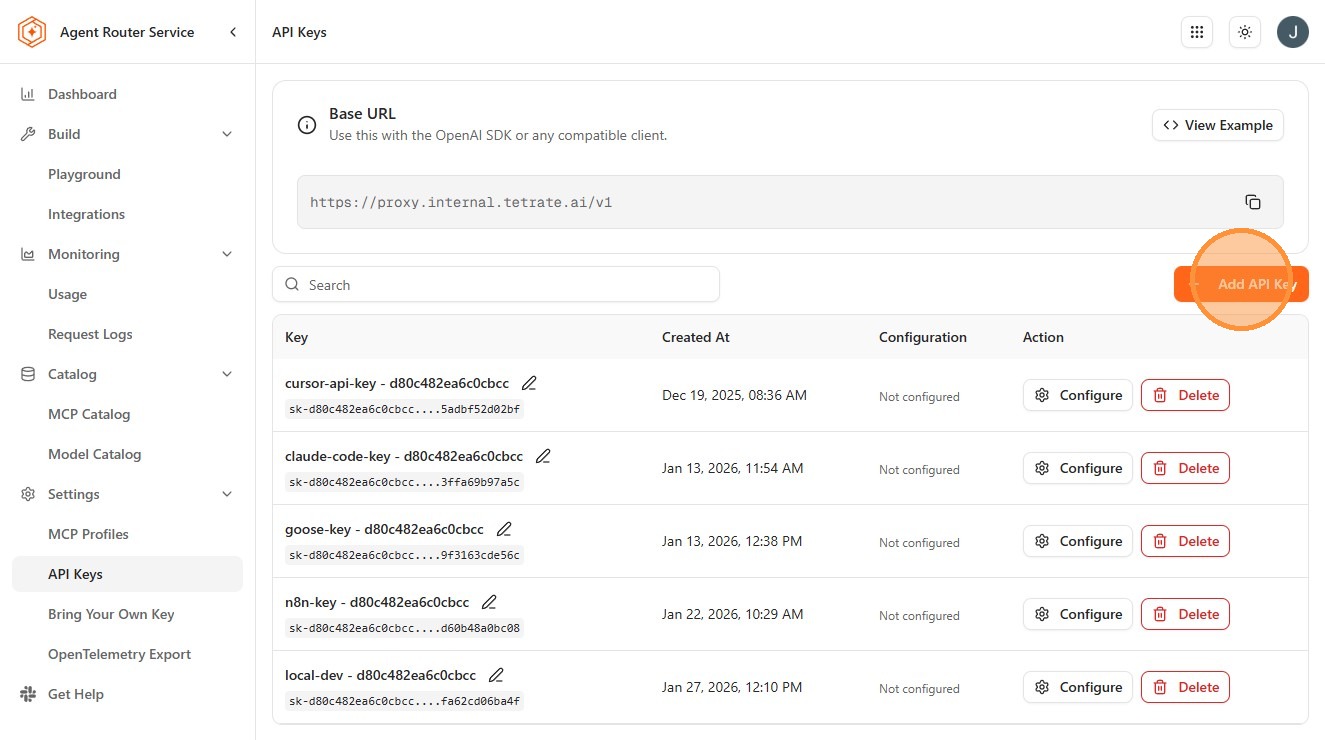
- Click Add API Key
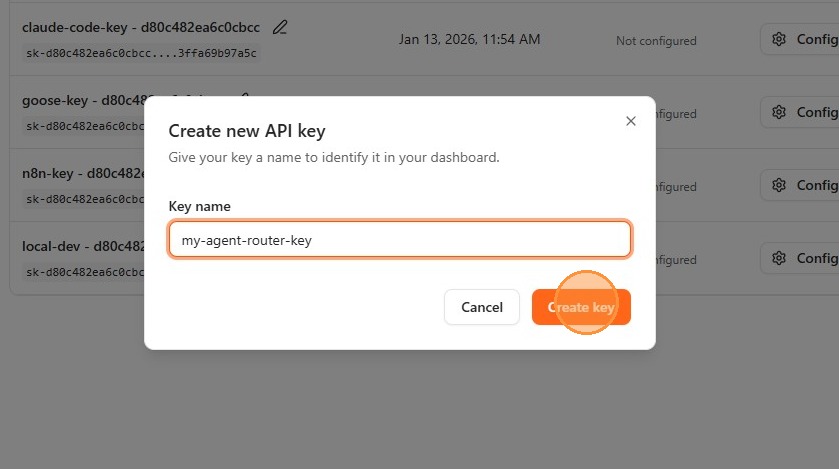
- Enter a descriptive name for your key (e.g.,
my-agent-router-key). Choose a name that identifies the application or workload this key will serve; the key value is shown only once, but you can always identify keys by name in logs and usage reports.
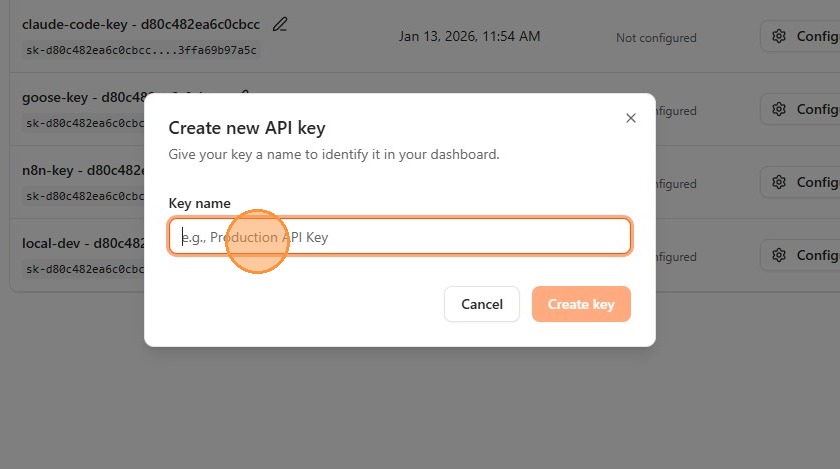
- Click Create key
- Copy the generated key immediately and store it in a secure location (a secrets manager or environment variable). This is the only time the key value is displayed.
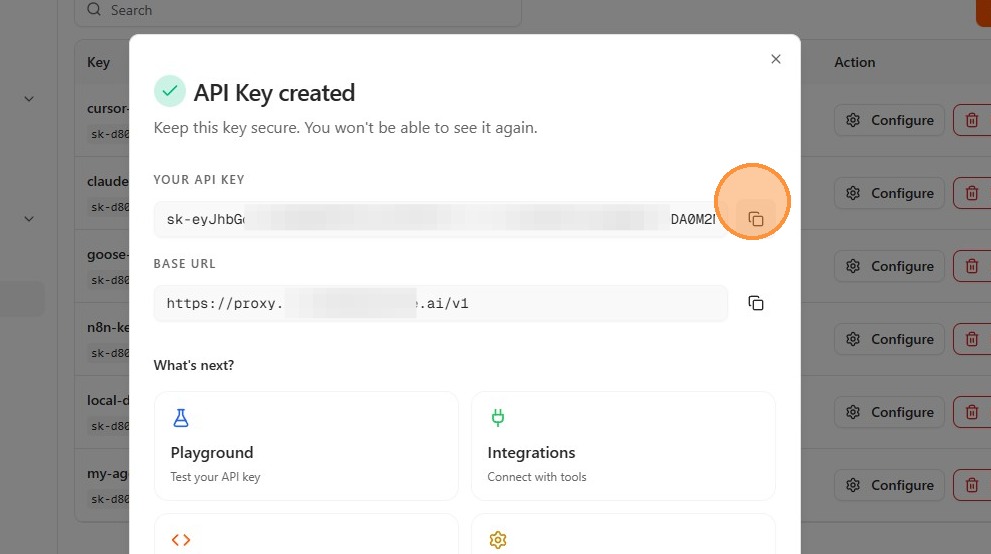
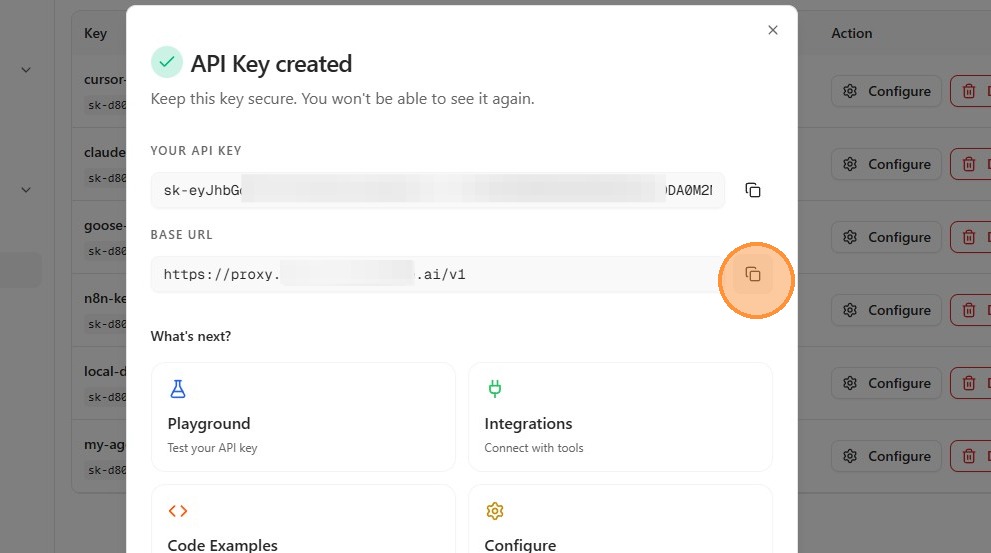
API keys grant the bearer the ability to route requests through the gateway and consume AI quota. Store your key securely; do not commit it to source control or include it in logs or error messages.
Step 3: find your proxy endpoint
Your proxy endpoint URL is the address your application calls instead of calling AI providers directly. When a request arrives at the proxy, the gateway:
- Authenticates the request using your API key
- Applies the routing policy configured for that key (fallback chain, traffic splitting rules)
- Translates the request format if routing to a different provider (e.g., OpenAI format to Anthropic backend)
- Returns the normalized response, including error normalization if the upstream provider returns an error
The proxy endpoint URL is displayed on your Dashboard and typically looks like:
https://proxy.poc.tetrate.ai/v1
Append the appropriate path for the API format you intend to use:
| Format | Path | Description |
|---|---|---|
| OpenAI Chat Completions | /v1/chat/completions | Most widely supported format; compatible with all OpenAI-compatible SDKs and agent frameworks |
| OpenAI Responses | /v1/responses | Newer OpenAI Responses API with a simplified interface |
| Anthropic Messages | /v1/messages | Anthropic native format for Claude models |
For detailed examples of each format including streaming, see Gateway APIs.
Step 4: make your first request
Replace YOUR_API_KEY with the key you created in Step 2. All examples below call gpt-4o, but you can substitute any model name from your Model Catalog. To discover models programmatically for the same key, call GET /v1/models — see Models API.
The only difference between calling the gateway and calling a provider directly is the base_url (or the curl URL). All other parameters, response formats, and SDK behaviours are identical.
Using curl
curl https://proxy.poc.tetrate.ai/v1/chat/completions \
  -H "Authorization: Bearer YOUR_API_KEY" \
  -H "Content-Type: application/json" \
  -d '{
    "model": "gpt-4o",
    "messages": [{"role": "user", "content": "Hello, world!"}]
  }'
Using Python
from openai import OpenAI

client = OpenAI(
    base_url="https://proxy.poc.tetrate.ai/v1",
    api_key="YOUR_API_KEY"
)

response = client.chat.completions.create(
    model="gpt-4o",
    messages=[{"role": "user", "content": "Hello, world!"}]
)

print(response.choices[0].message.content)
Streaming with curl
curl https://proxy.poc.tetrate.ai/v1/chat/completions \
  -H "Authorization: Bearer YOUR_API_KEY" \
  -H "Content-Type: application/json" \
  -d '{
    "model": "gpt-4o",
    "messages": [{"role": "user", "content": "Hello, world!"}],
    "stream": true
  }'
Streaming with Python
from openai import OpenAI

client = OpenAI(
    base_url="https://proxy.poc.tetrate.ai/v1",
    api_key="YOUR_API_KEY"
)

stream = client.chat.completions.create(
    model="gpt-4o",
    messages=[{"role": "user", "content": "Hello, world!"}],
    stream=True
)

for chunk in stream:
    content = chunk.choices[0].delta.content
    if content:
        print(content, end="", flush=True)
Using the playground
The Playground lets you test model routing interactively without writing any code, useful for evaluating models or verifying routing behaviour before integrating into an application.
- In the sidebar, go to Build > Playground
- Select a model from the dropdown. The list shows all models currently enabled by your administrator.
- Type a message and press Send
- View the response alongside token usage, latency, and the upstream provider that served the request
Step 5: check your request logs
Every request the gateway processes is recorded in Request Logs. This is your primary tool for debugging, auditing, and analysing cost.
- Go to Monitoring > Request Logs
- You should see your request with the model name, upstream provider, token counts, estimated cost, and total latency
- Click any row to view the full request and response payloads, including which provider was selected and whether any fallback attempts were made
Request Logs also display the x-request-id correlation header that the gateway attaches to every response. Use this ID to locate the corresponding span in your OpenTelemetry tracing backend. See Gateway Behavior for details on correlation IDs and the full debugging workflow.
Step 6: view usage analytics
Usage Analytics provides aggregated metrics across all your requests. Use it to track consumption trends, compare model costs over time, and understand traffic distribution across API keys.
- Go to Monitoring > Usage
- Select a time range (e.g., Last 24 hours)
- View breakdowns by model and API key, including total tokens consumed, estimated cost, and request volume
Evaluation checkpoint
- Successfully signed in to the Console
- Created an API key and stored it securely
- Located the proxy endpoint URL on the Dashboard
- Made a successful request via curl, Python, or the Playground
- Confirmed the request appears in Request Logs with provider, latency, and token details
- Reviewed usage analytics for the time period
Where to go next