API tags
A tag in Tetrate Agent Router is a key/value label used to group API keys along a dimension the fixed user and team breakdowns cannot express, such as an application, an environment, or a cost center. Tags are governed rather than free-form: the Admin Console holds a catalog of allowed key/value pairs, and only pairs present in that catalog can be attached to API keys, targeted by policies, or used to filter the usage analytics. Keeping the tag space closed is what makes a tag-grouped cost report summable, because an ungoverned tag space accumulates near-duplicate labels that no report can add together.
The API key tag catalog managed in the Admin Console and the free-form tags map carried on secrets in the Secret API are independent of one another: the catalog constrains which pairs may be attached to API keys, while secret tags are arbitrary strings validated by no catalog. See Tags on secrets for the API surface.
The tag catalog
The catalog is reached in the Admin Console under Directory > API Keys, then the Tags tab. The page caption states the contract directly: allowed key/value pairs that can be attached to API keys and targeted by policies.
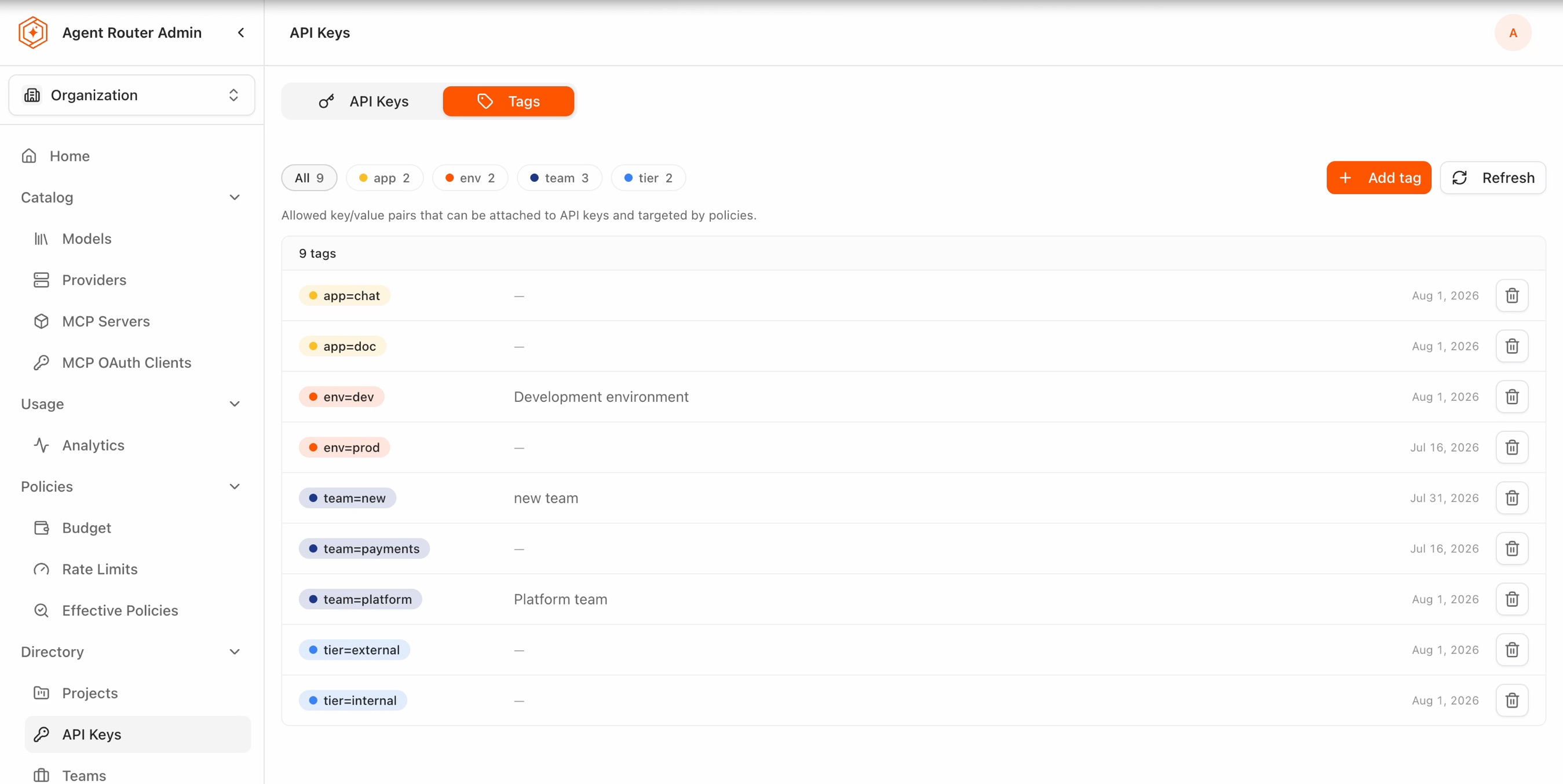
Each entry is one complete key=value pair, not a bare key. Declaring env as a dimension is not sufficient: env=dev and env=prod are two separate catalog entries, and a third value such as env=sandbox has to be added before any API key can carry it.
Keys are assigned a color automatically and consistently, so entries sharing a key read as a group in the list and on the filter chips.
Catalog list
The list is sorted by key, then by value. Each row carries the following.
| Element | Description |
|---|---|
| Tag chip | The pair, rendered as key=value with the color dot of its key |
| Description | The optional description recorded with the pair, or — when none was given |
| Date | When the pair was added to the catalog |
| Delete | Trash icon that removes the pair from the catalog |
Above the list, a row of filter chips summarizes the catalog: an All chip with the total number of pairs, then one chip per key with the number of values defined for that key. The header inside the list card repeats the total, for example 9 tags.
Filtering the list by key
Selecting a key chip narrows the list to the values defined for that key. The card header changes to name the key and its value count, and a Show all control clears the filter.
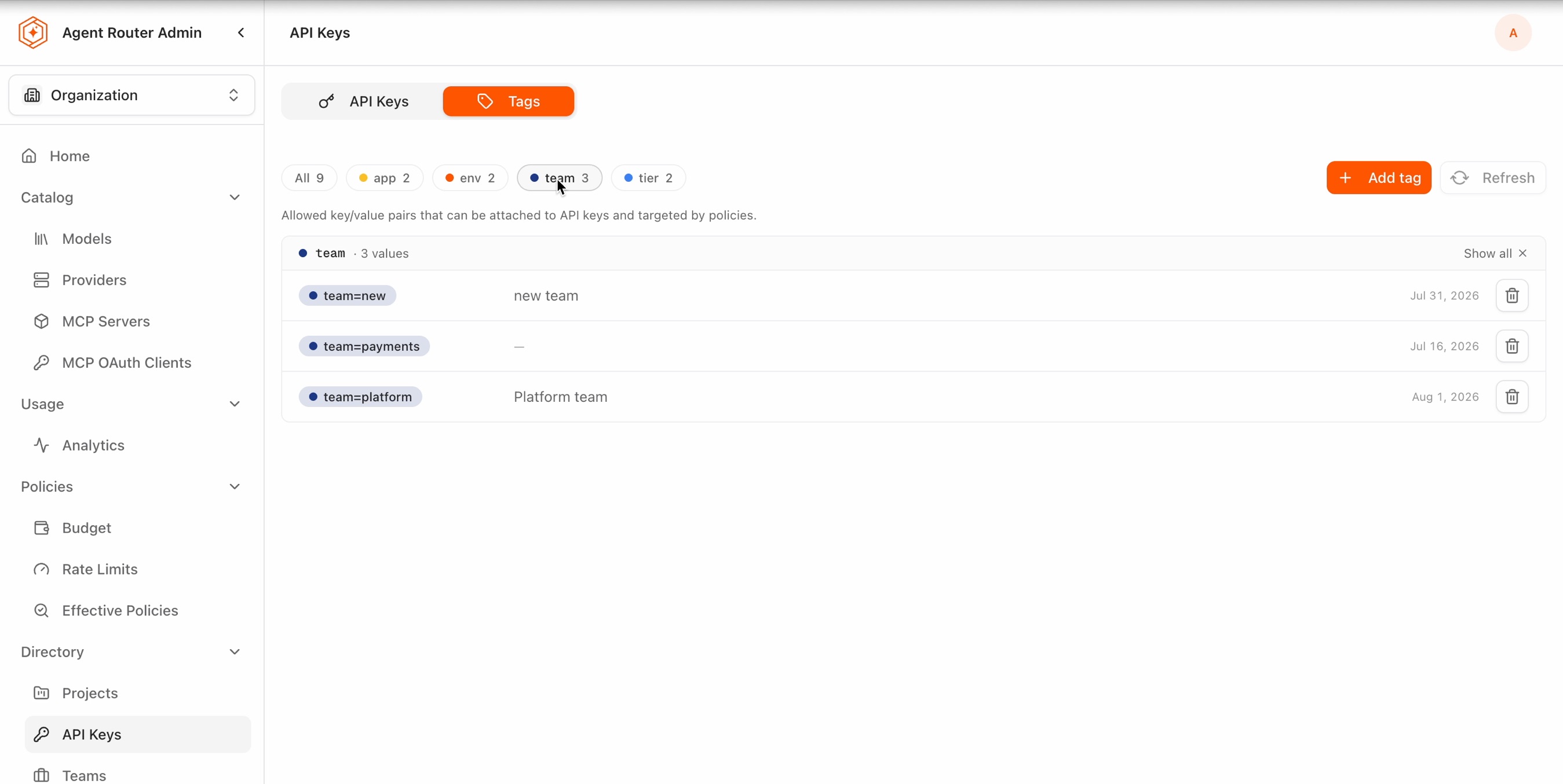
Refresh re-reads the catalog from the management plane. The filter chip counts and the list are refreshed independently, so a count may update a moment before the rows do.
Add a tag
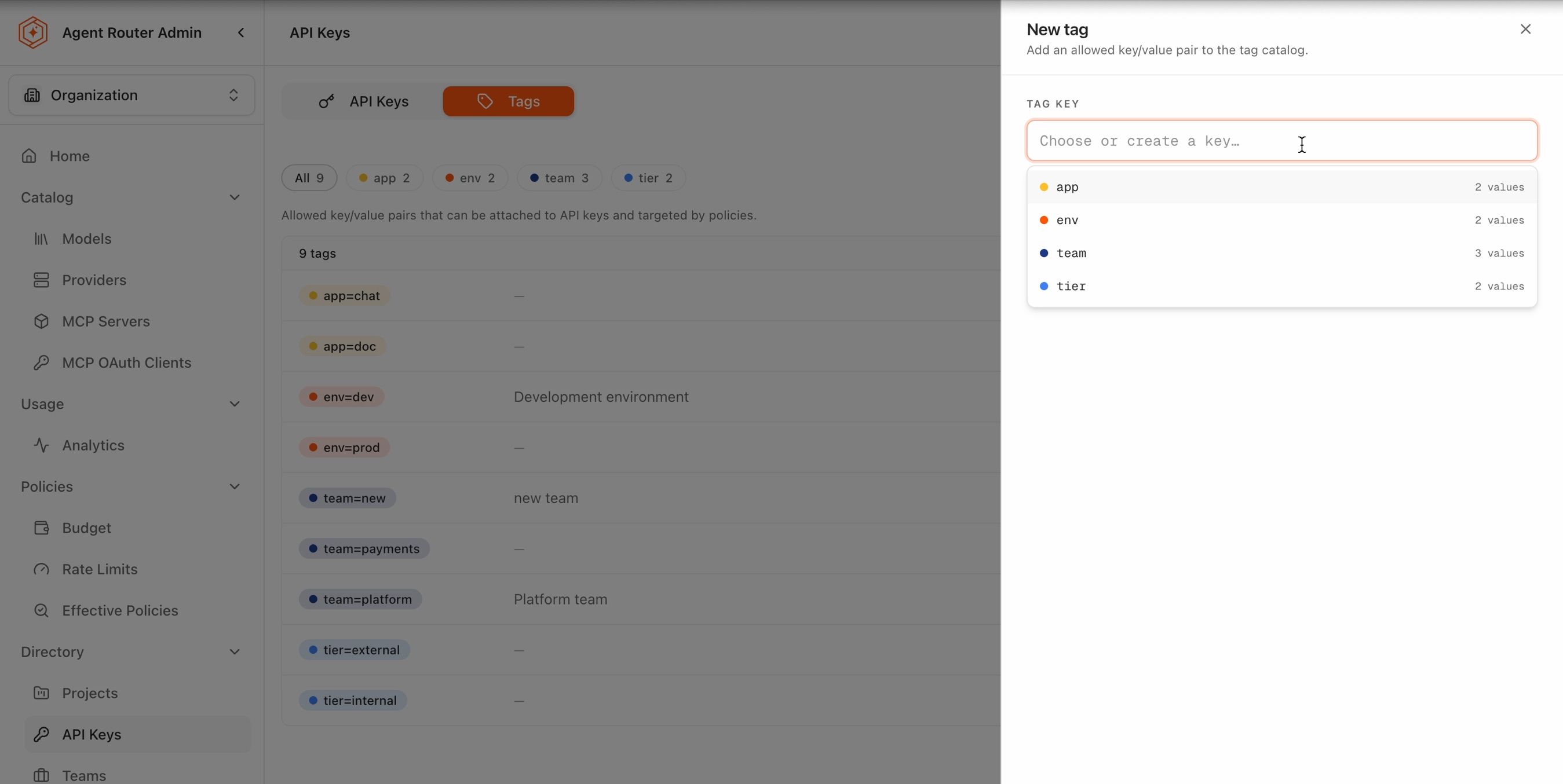
Add tag opens the New tag panel, described as adding an allowed key/value pair to the tag catalog.
- Select or type a Tag key. The field is a combo box, placeholder
Choose or create a key…, that lists the keys already in the catalog with the number of values defined for each. An existing key can be picked from the list, or a new key typed to open a new dimension. - Enter a Tag value. The value field stays disabled until a key is chosen, showing the placeholder
pick a key first. Once a key is set, the field is prefixed with akey=chip so the pair being created is visible while typing. - Optionally expand Add description (optional) and record what the pair means. Descriptions are shown in the catalog list and are the only place the intent of a value is written down.
- Select Create. The button reports progress while the pair is written, then a toast confirms the result, for example
Tag "env=sandbox" created, and the new pair appears in the list with its key count incremented.
Field reference
| Field | Required | Notes |
|---|---|---|
| Tag key | Yes | Chosen from the existing keys or typed to create a new dimension |
| Tag value | Yes | Enabled only after a key is set; suggestions offered from the values already defined for that key |
| Description | No | Free text, shown in the catalog list |
Validation
The panel footer states why creation is currently blocked, and the Create button stays unavailable until both fields are set.
| Footer message | Meaning |
|---|---|
Blocked: key required | No key has been chosen or typed |
Blocked: value required | A key is set but the value is empty |
Creating key=value | Both fields are set and the pair shown will be created |
Two further checks guard the shape of the catalog rather than the shape of the input.
Near-duplicate keys. Typing a key close to one already in the catalog raises a warning that near-duplicate keys fragment the catalog, naming the existing key and offering a Use control that replaces the typed text with it. This is the guard against app and appp both existing as dimensions, which would split a cost report in two along a typo.
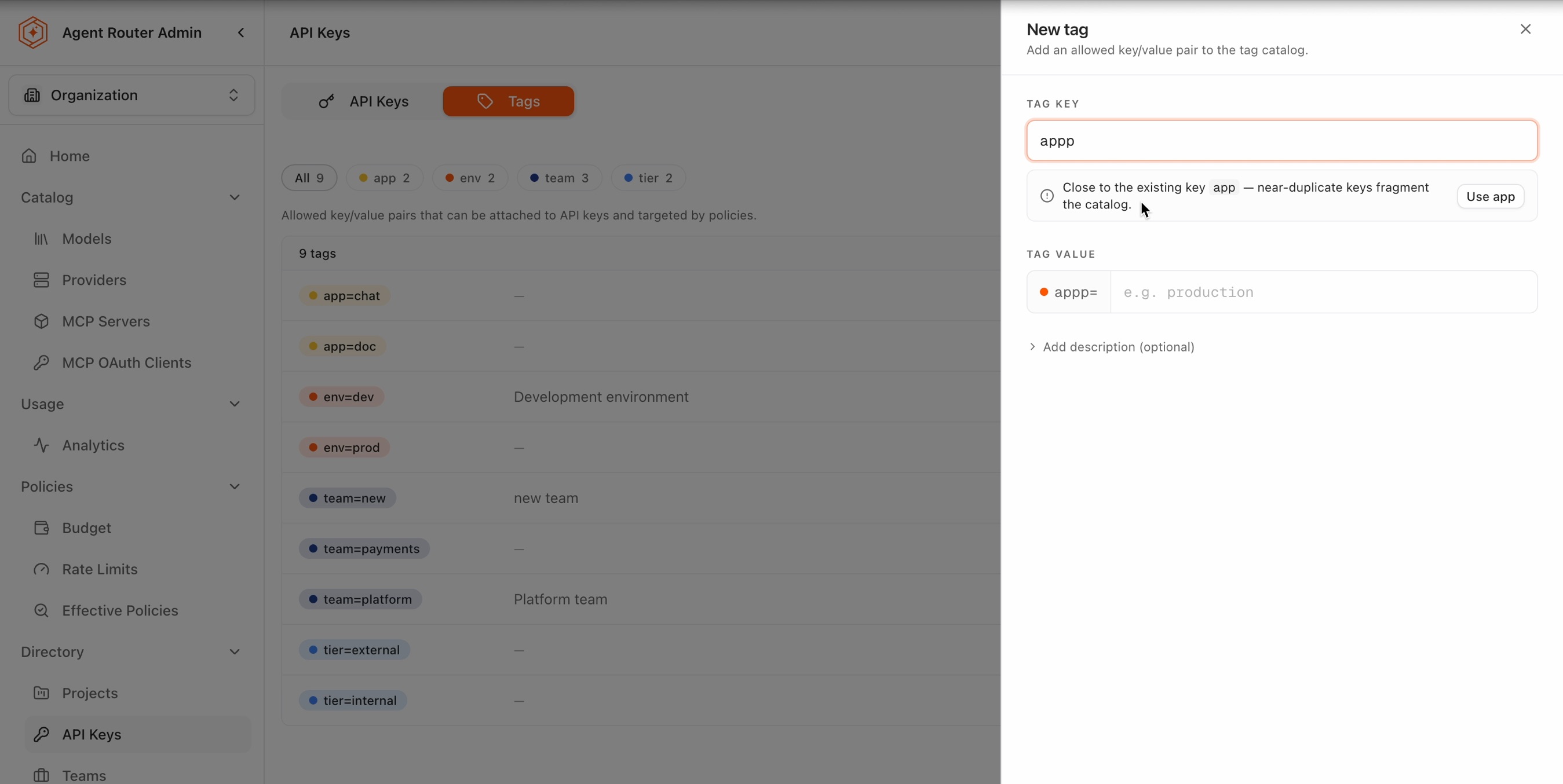
The warning is advisory: a genuinely new key that merely resembles an existing one can still be created by ignoring it.
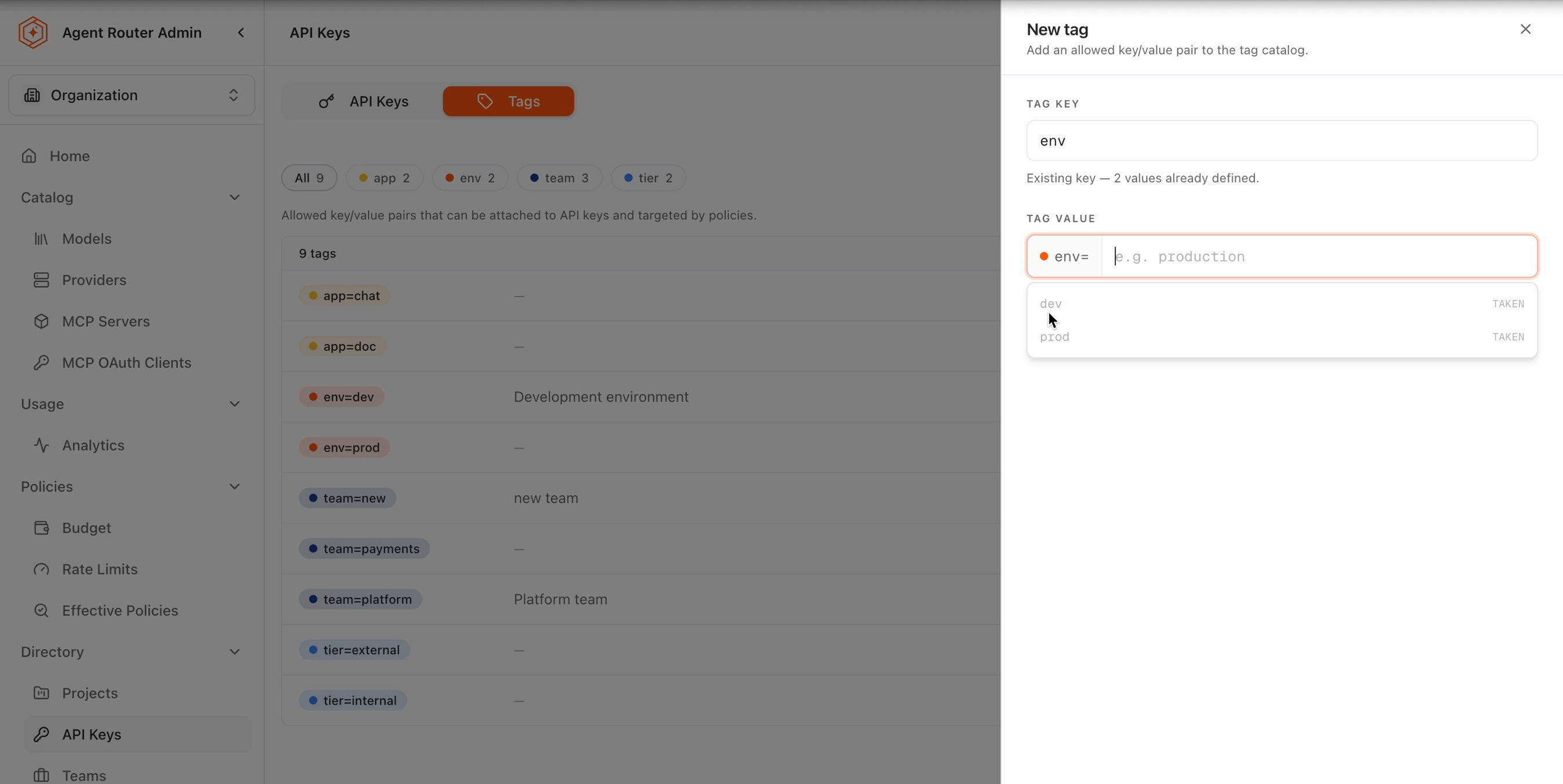
Existing keys and taken values. When the key already exists, a hint below the field reports how many values are defined for it. The value field then suggests those values, each marked TAKEN, so an already-cataloged pair is not submitted a second time.
Delete a tag
The trash icon on a row removes that key/value pair from the catalog. When the last value of a key is removed, the key stops being a dimension and its filter chip disappears.
The catalog is the set of pairs that policies may target and that API keys may carry. Removing a pair that a budget or rate limit policy selects on, or that keys in service already carry, changes which traffic that policy matches. Confirm that a pair is unused before removing it, and record the change alongside the other governance changes described in Audit Agent Router activity.
Filter usage by a key tag
The usage analytics draw on the catalog directly. The Analytics page under Usage carries a Key tag filter chip alongside the existing User, Team, and Group chips. Selecting one cataloged pair narrows the view to the API keys carrying that tag, which is what turns a tag dimension into a cost report rather than a label.
Applying the filter
- Open the Analytics page under Usage and select the Cost or Tokens tab.
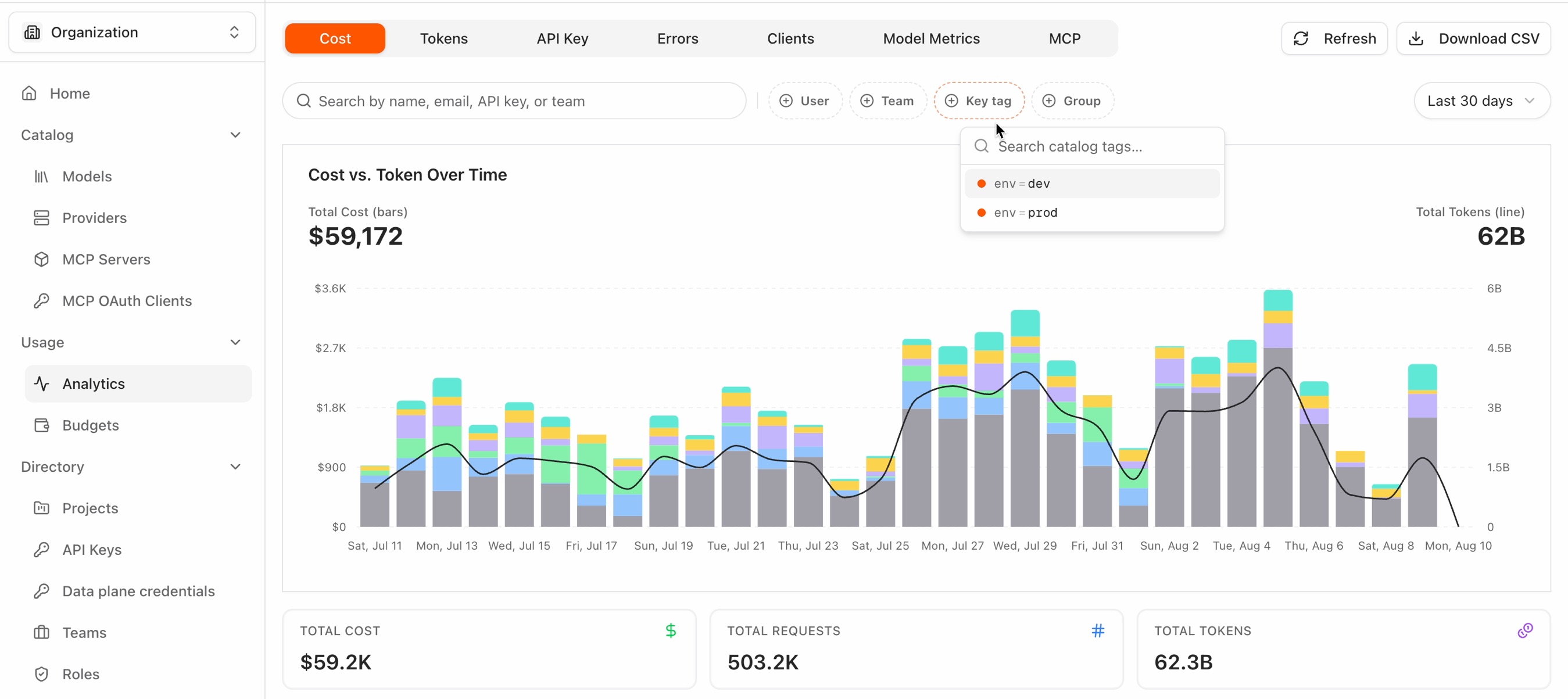
- Select the Key tag chip. A picker opens with a Search catalog tags… field above the pairs available from the catalog, and typing narrows that list.
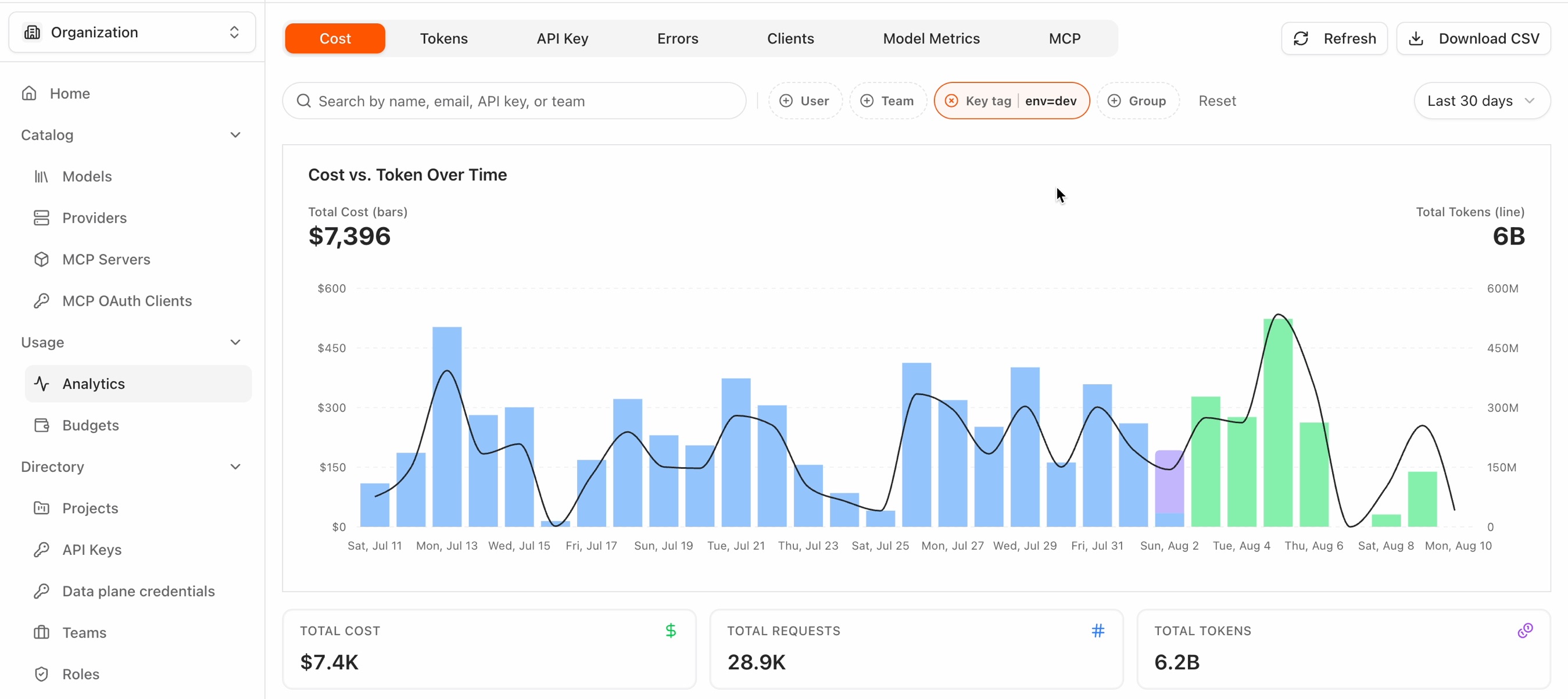
- Select a pair. The chip becomes active and shows the selected pair next to its label, for example
env=dev, and a Reset control appears at the end of the filter row.
Everything on the tab narrows to keys carrying the selected pair: the chart, the Total cost, Total requests, and Total tokens summary tiles, the per-key table and its result count, and the Download CSV export.
The filter is cleared by selecting the same pair again, by the clear icon on the chip itself, or by Reset.
Where the filter applies
| Tab | Key tag filter |
|---|---|
| Cost | Applied |
| Tokens | Applied |
| API Key, Errors, Clients, Model Metrics, MCP | Not applied; the chip is dimmed |
On the tabs where it does not apply, the chip reports that the key-tag filter is not applied on that tab yet. Those tabs are built from data that does not record which API key served the request, so there is nothing for the filter to match on. A selection made on Cost or Tokens is retained while another tab is open, and takes effect again on return.
Sharing a filtered view
The selection is held in the page URL as two separate parameters, tagKey and tagValue:
/usage?tagKey=env&tagValue=prod
A filtered view therefore survives a page reload, can be bookmarked, and can be sent to a colleague. Where the parameters are hand-edited into something invalid, the filter is dropped and unfiltered data is shown rather than an error.
How matching works
- Current tags, not historical. Matching uses a key's tags as they stand now, so tagging a key today brings that key's entire usage history into the filter, including usage recorded before the tag existed. There is no view of what a key was tagged at the time a request was served.
- One pair at a time. Pairs cannot yet be combined into a compound filter.
- Tags are per project, usage is organization-wide. Filtering on
env=prodreturns usage from every key carrying that pair, across all projects visible to the operator. - Reserved tags are excluded. Tags in the reserved
internal:namespace cannot be used as a filter, consistent with the rest of the product.
Permissions
Applying the filter needs only the usual usage read access. Browsing the catalog to pick a pair needs tag catalog read access, and the two are checked separately.
That split has a useful consequence: a shared filtered link opened by someone without catalog access still shows correctly filtered figures. The chip reports that the filter is applied but that the catalog is not available, and offers a control to clear it, so the numbers can be read but a different pair cannot be chosen. Where the tags feature is not enabled in an environment, or a role carries no tag permissions at all, the chip is not shown.
Why the catalog is governed
A tag is only useful for chargeback if everyone producing requests and everyone reading reports uses the same names. Where the tag space is open, the long tail of near-duplicate labels arrives quickly: env=prod beside env=production, app beside application. No report can sum across them, and a cost line item becomes arguable rather than billable.
Closing the tag space is what removes that argument. Because a pair has to exist in the catalog before an API key can carry it, the set of values a report can group by is known in advance, and the near-duplicate warning stops the catalog fragmenting as it grows. A report grouped by a tag that Agent Router required and validated carries the same authority as the user dimension behind it.
The governance intent behind these dimensions, and the reports they feed, are covered in Know what every app and project costs. Where a tag dimension sits among the other cost controls is covered in Choose the right cost control.
Naming conventions
The catalog constrains which pairs exist; it does not choose good ones. The following conventions keep a catalog readable as it grows.
- Use lower case keys with hyphens, so that
cost-centeris never competing withCostCenterandcostCenter. - Prefer one spelling of a dimension and keep it:
environmentorenv,apporapplication, not both. - Keep values short and enumerable, so a key such as
envcarries a handful of known values rather than free text. - Record a description on each pair. The catalog is the only place the meaning of
tier=externalis written down. - Add a value when it is needed rather than pre-declaring dimensions, since every cataloged pair is a pair a report may have to account for.
Tags on secrets
Secrets carry their own tags map, independent of the API key tag catalog. The map is free-form: keys and values are arbitrary strings, and no catalog constrains them.
Replace https://api.<your-domain> with the gateway base URL for the deployment. For the hosted service this is https://api.tetrate.ai.
Setting tags on a secret
POST /v1/secrets creates or updates a secret. The tags field is an object whose values are strings.
curl -X POST https://api.<your-domain>/v1/secrets \
  -H "Authorization: Bearer $API_KEY" \
  -H "Content-Type: application/json" \
  -d '{
    "name": "openai-prod-key",
    "realm": "llm-providers",
    "value": "sk-...",
    "description": "OpenAI API key for production",
    "tags": {
      "app": "chatbot",
      "environment": "production",
      "cost-center": "engineering"
    }
  }'
The realm field scopes the secret. The values documented in the specification are llm-providers, byok, mcp, telemetry, and kek.
Because the same operation creates and updates, the tags map submitted is the map stored. A request that omits a key previously present does not merge with what was there.
Reading tags
GET /v1/secrets/{name} returns the secret's metadata, including its tags. Secret responses never include the plaintext value, which is retrieved separately through POST /v1/secrets/{name}/value.
{
  "secret": {
    "id": "sec_abc123",
    "name": "openai-prod-key",
    "realm": "llm-providers",
    "description": "OpenAI API key for production",
    "tags": {
      "app": "chatbot",
      "environment": "production",
      "cost-center": "engineering"
    },
    "status": "SECRET_STATUS_ACTIVE",
    "createdAt": "2026-03-15T10:30:00Z",
    "updatedAt": "2026-03-15T10:30:00Z"
  }
}
Filtering by tag
GET /v1/secrets accepts tags.key and tags.value as query parameters. These name the key and the value of a single pair to match on; they are not a tags.<key>=<value> family of parameters, and one pair is filtered per request.
# All secrets carrying environment=production
curl -X GET "https://api.<your-domain>/v1/secrets?tags.key=environment&tags.value=production" \
  -H "Authorization: Bearer $API_KEY"

# Narrowed to one realm
curl -X GET "https://api.<your-domain>/v1/secrets?realm=llm-providers&tags.key=cost-center&tags.value=engineering" \
  -H "Authorization: Bearer $API_KEY"
realm, status, pageSize, and pageToken may be combined with the tag filter.
Operation summary
| Operation | Method and path | Tag behavior |
|---|---|---|
| ListSecrets | GET /v1/secrets | Filters on one pair through tags.key and tags.value |
| CreateSecret | POST /v1/secrets | Accepts a tags map; creates or updates the secret |
| GetSecret | GET /v1/secrets/{name} | Returns the stored tags in the secret metadata |
| RotateSecret | POST /v1/secrets/{name}/rotate | Takes newValue; returns the rotated secret's metadata, including its tags |
| DeleteSecret | DELETE /v1/secrets/{name} | Removes the secret and its tags |
Full request and response schemas are in the Secret API reference.
Related
Know what every app and project costs
Agreeing tag dimensions with finance, then exporting the reports grouped along them.
Choose the right cost control
Where a tag dimension sits among budgets, rate limits, and quotas.
Onboard developers and issue keys
The API Keys page the tag catalog sits alongside.
Audit log events
The event reference for tracking catalog and policy changes.