Admin Dashboard quickstart
This 10-minute walkthrough covers the essential Admin dashboard tasks: reviewing the model catalog, managing provider connections and user accounts, and monitoring platform-wide usage and audit history. The Admin dashboard is the operator-facing application. Administrators control which AI models are available to developers, manage the credentials the gateway uses to reach upstream providers, configure user access and roles, and maintain a tamper-resistant audit trail of all platform changes.
The screenshots in this guide show a redacted URL. Your URL in a production environment will be something like dashboard.<custom-name>.tetrate.ai. Your Admin dashboard URL will differ based on deployments in production and non-production.
Step 1: sign in
-
Navigate to your Admin dashboard URL
-
Sign in with your administrator credentials or SSO
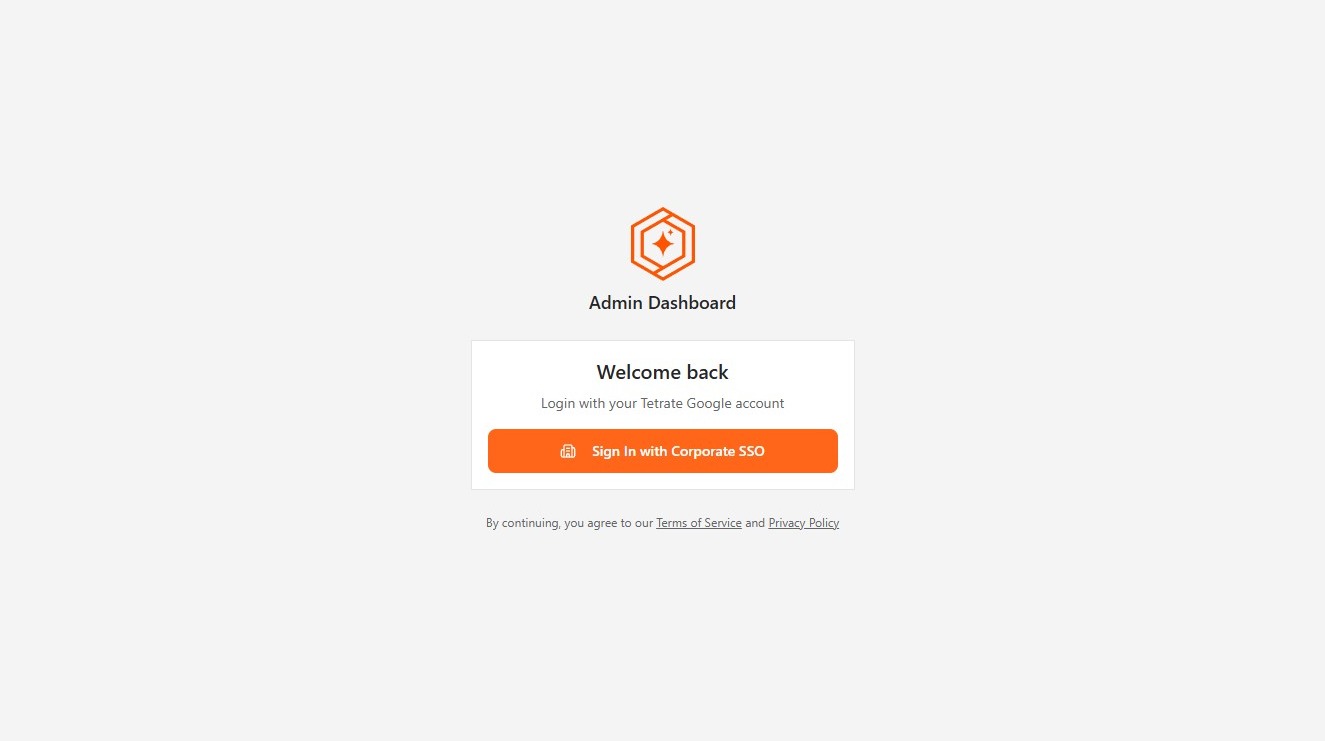
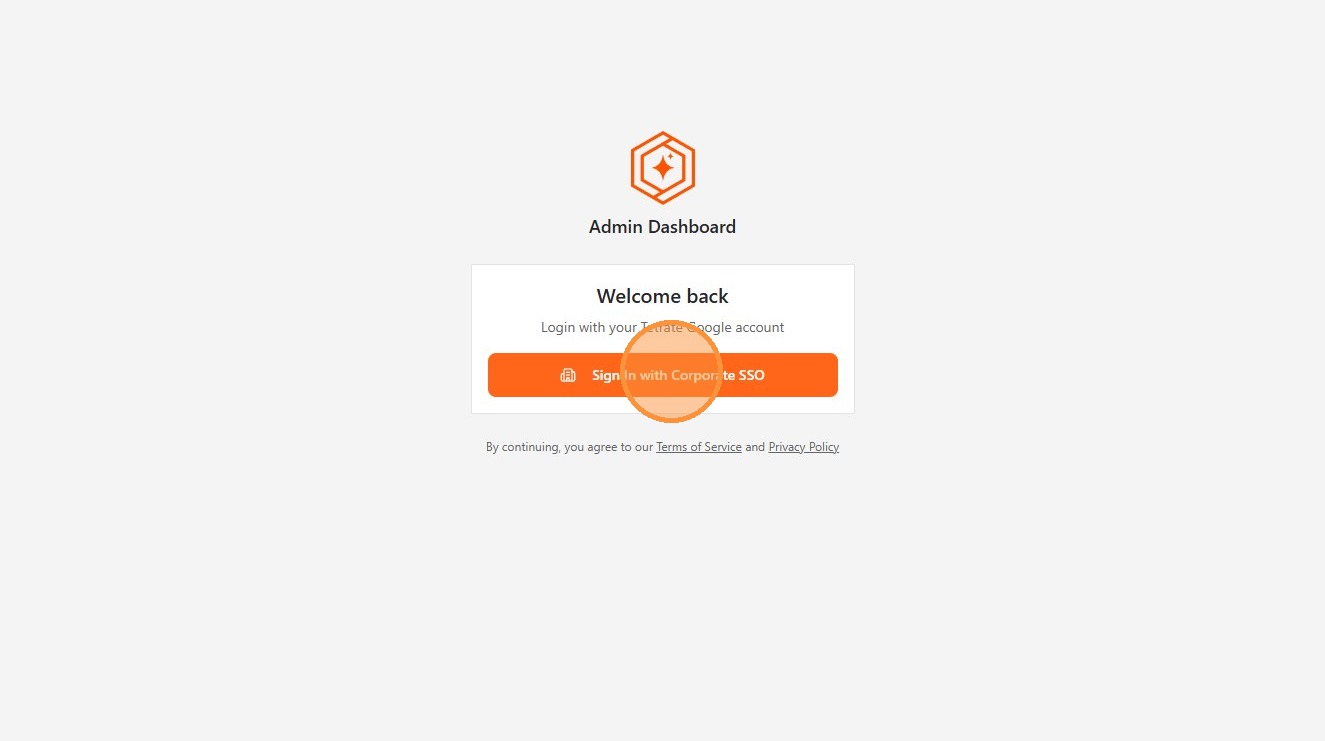
- If your organization uses single sign-on, click Sign in with SSO to authenticate through your corporate identity provider
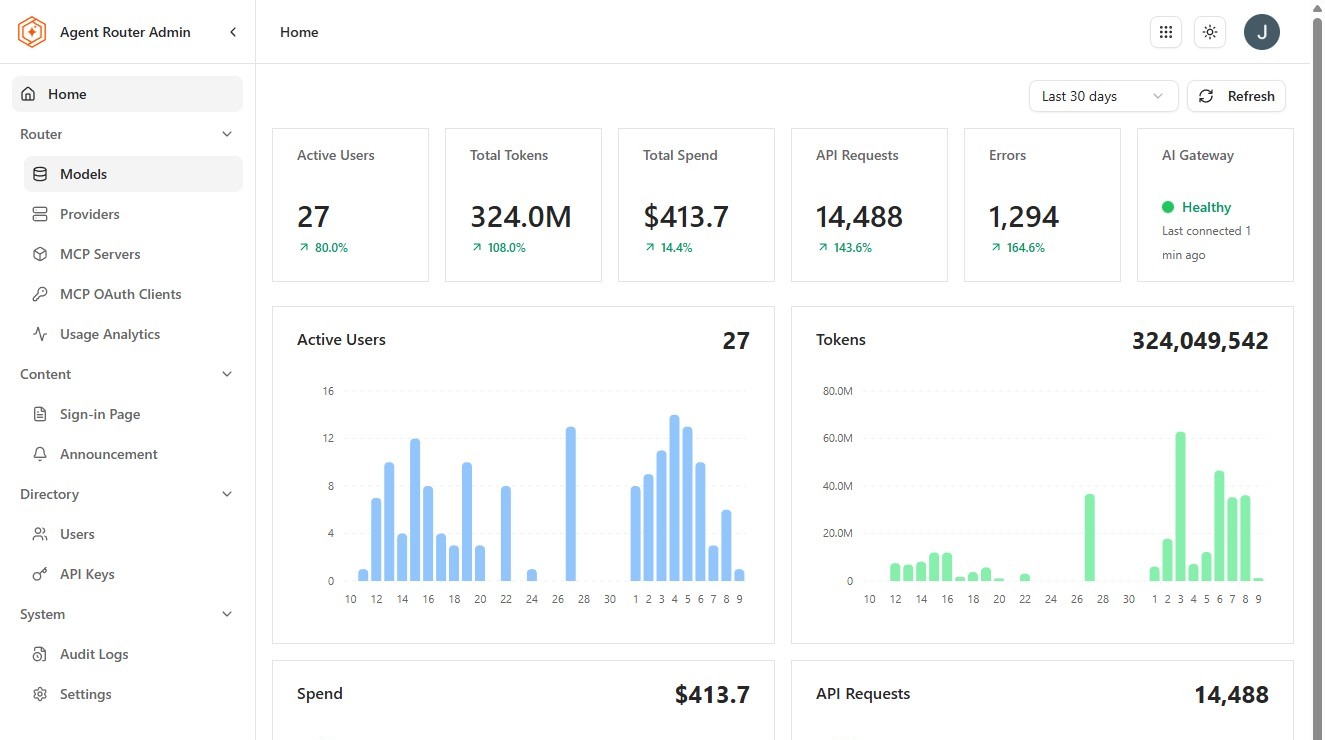
- You land on the Home page showing a platform-level overview: aggregate request volume, active users, model usage distribution, and any recent administrative events
Step 2: review available models
The model catalog controls which AI models are visible and accessible to Console users. Administrators can enable or disable models globally, and configure per-model settings such as context window limits or cost caps. Developers never interact with provider credentials; they select models by name, and the gateway routes to the appropriate provider automatically.
-
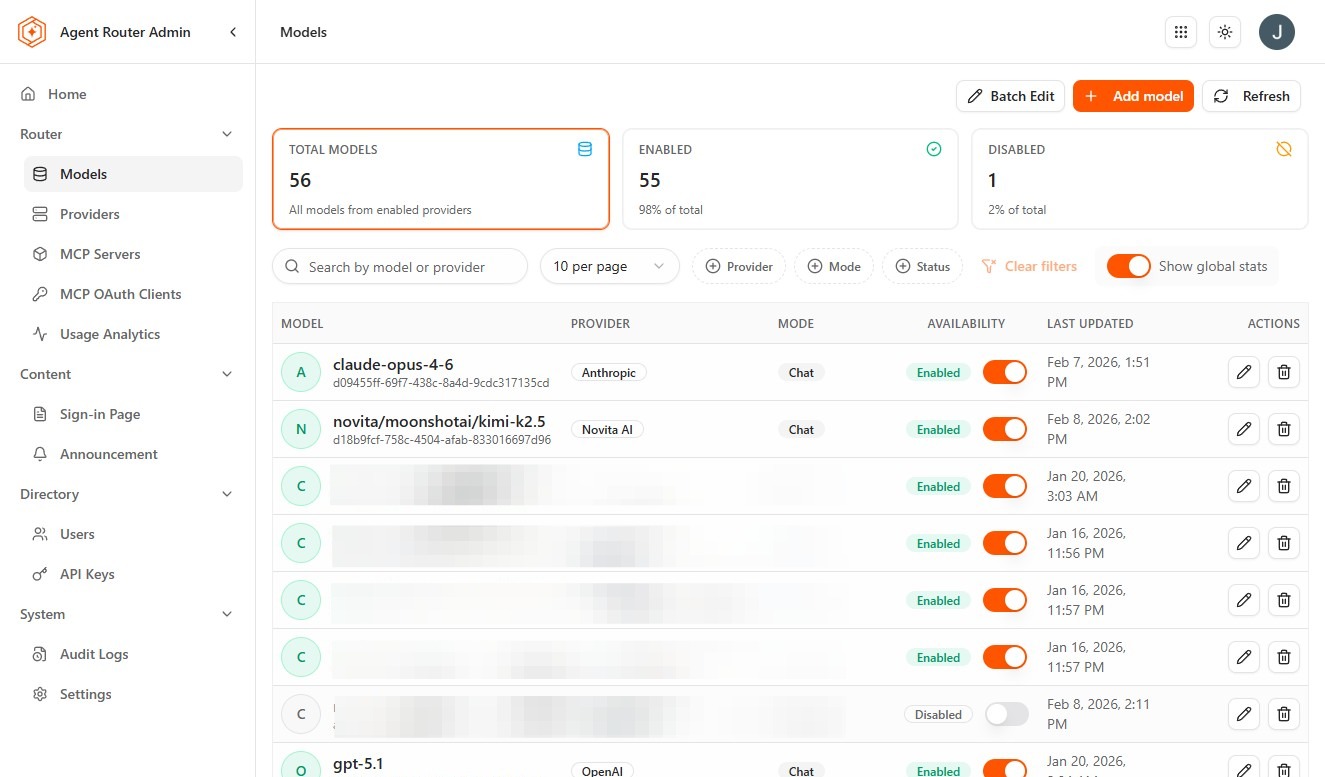
Go to Models in the sidebar
-
Browse the list of AI models on the platform. Each entry shows the model name, the provider it is sourced from, and its current availability status.
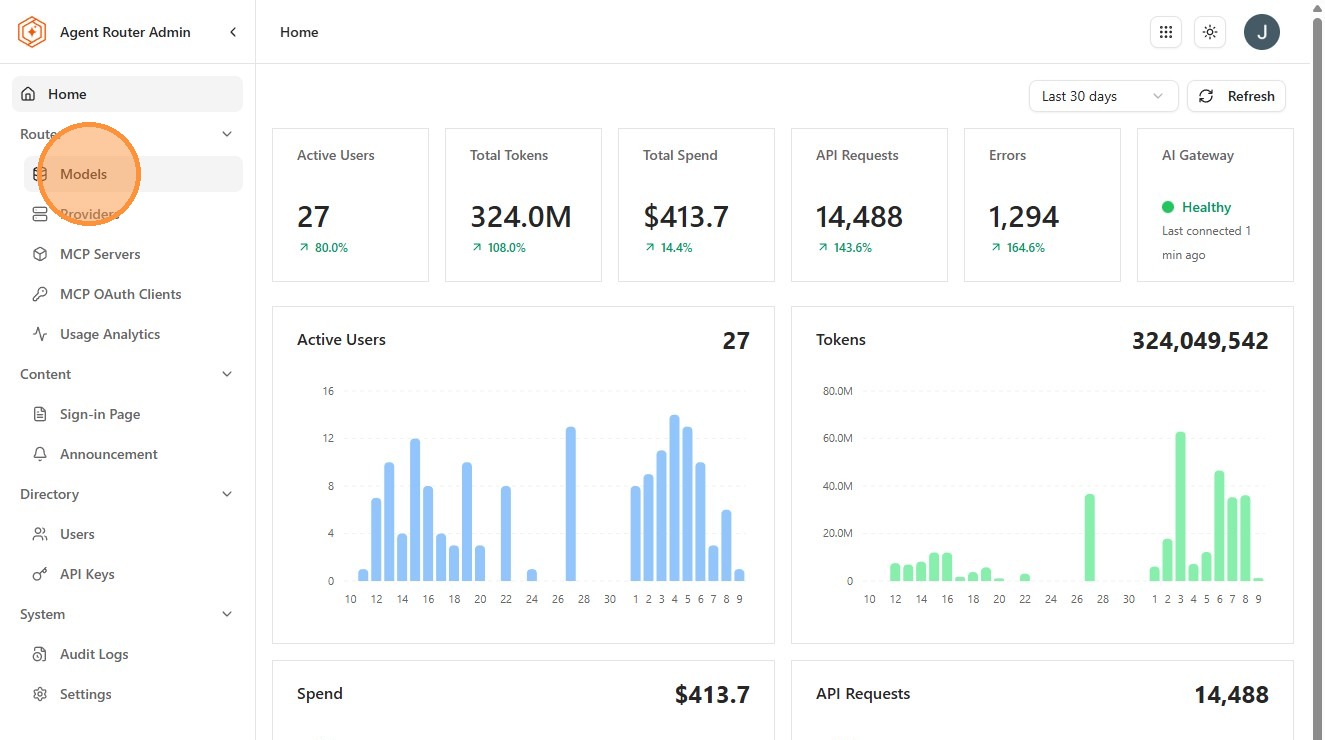
- Use the actions menu to enable or disable a model, or to update its configuration. Disabling a model removes it from the Console model catalog immediately; requests that reference it by name will receive a 404 error until the model is re-enabled or the developer updates their routing configuration.
Step 3: review providers
Providers are the upstream AI services that Agent Router routes requests to, for example, OpenAI, Anthropic, Azure OpenAI, or Google Vertex AI. Each provider entry in the Admin dashboard holds the credentials and endpoint configuration the gateway uses when forwarding requests. Developers never see or use these credentials directly.
-
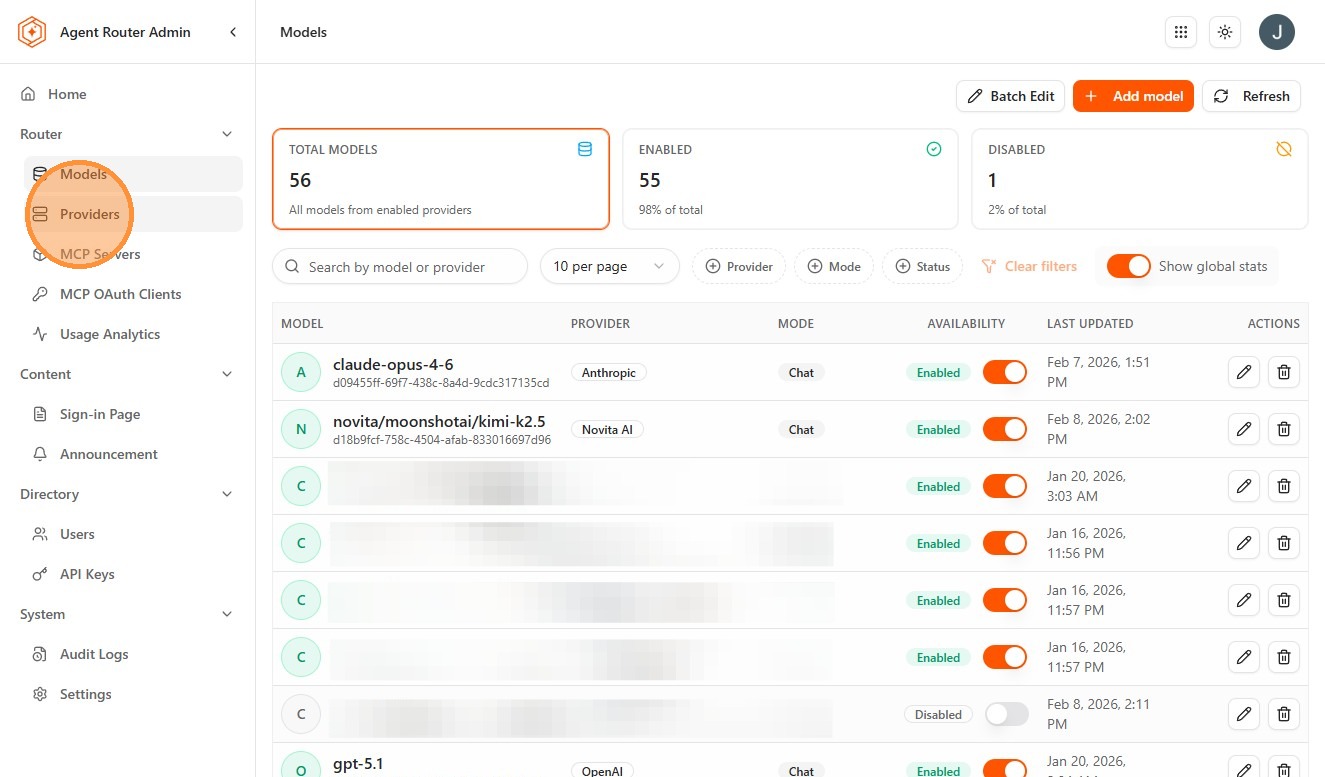
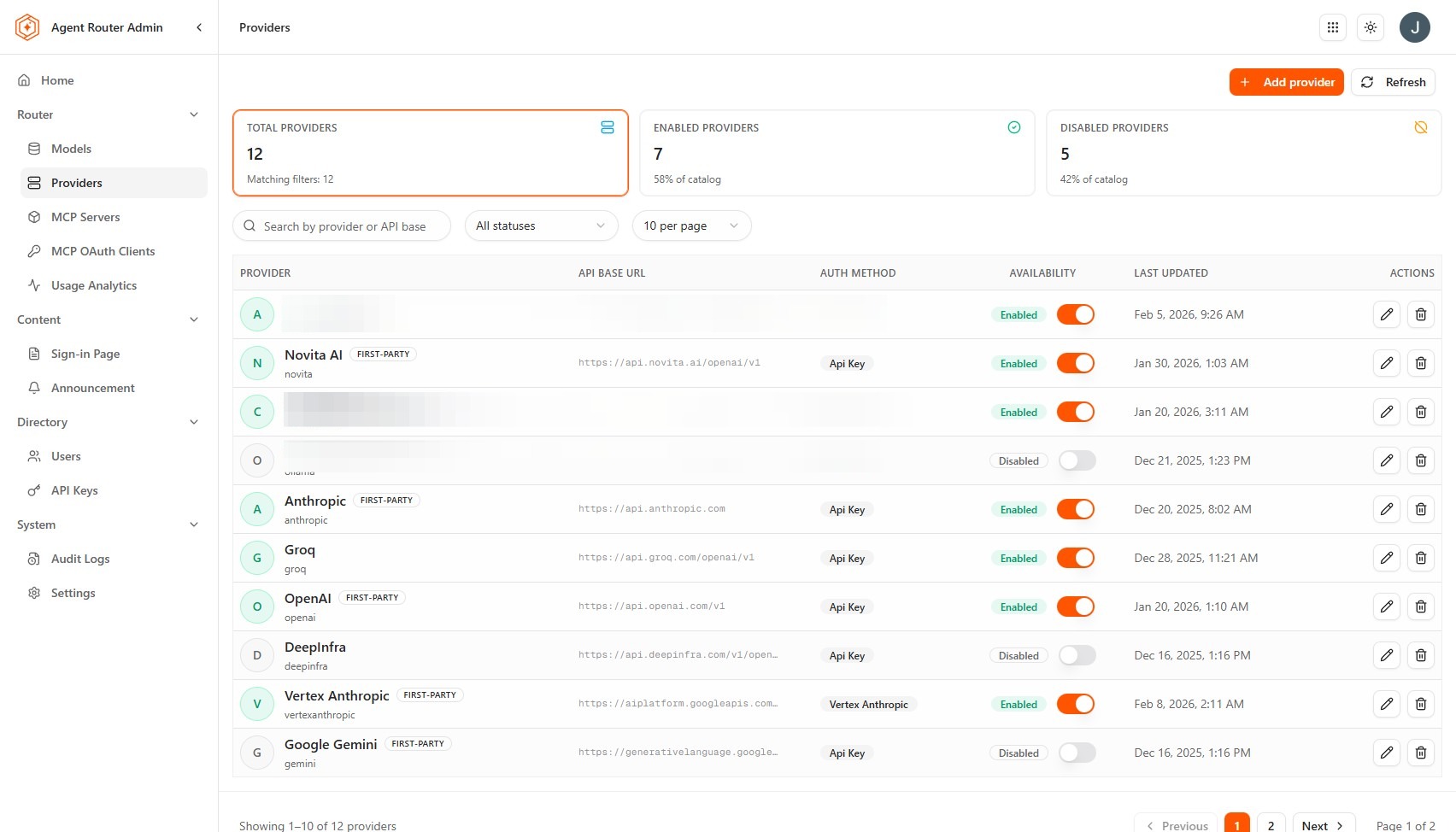
Go to Providers in the sidebar
-
View the list of configured AI provider connections. Each entry shows the provider name, connection status (healthy or unhealthy), and the number of models sourced from that provider.
- Use the actions menu to view connection details, update API credentials, or configure a custom endpoint URL (for example, a private endpoint for Azure OpenAI via Azure Private Link). Connection health is tested automatically; an unhealthy status indicates a credential or network issue that will prevent the gateway from routing to that provider.
Step 4: view users
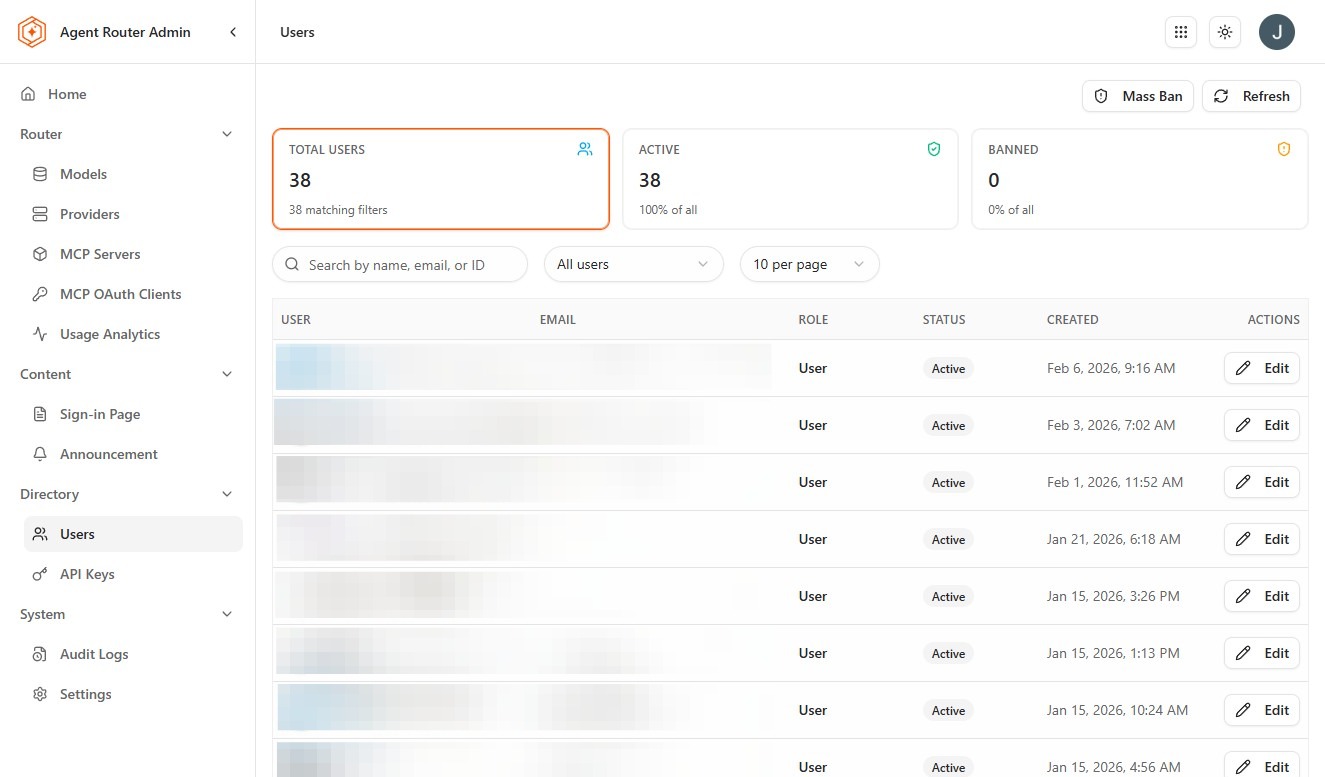
User management controls who can access the platform and with what level of permission. Each user is assigned one or more roles that determine which applications they can access (Console, Admin dashboard) and what operations they can perform within each.
-
Go to Users in the sidebar
-
Review the list of registered users, their assigned roles, and their last sign-in timestamps. This view is useful for identifying inactive accounts, confirming role assignments after onboarding, and auditing who has elevated access.
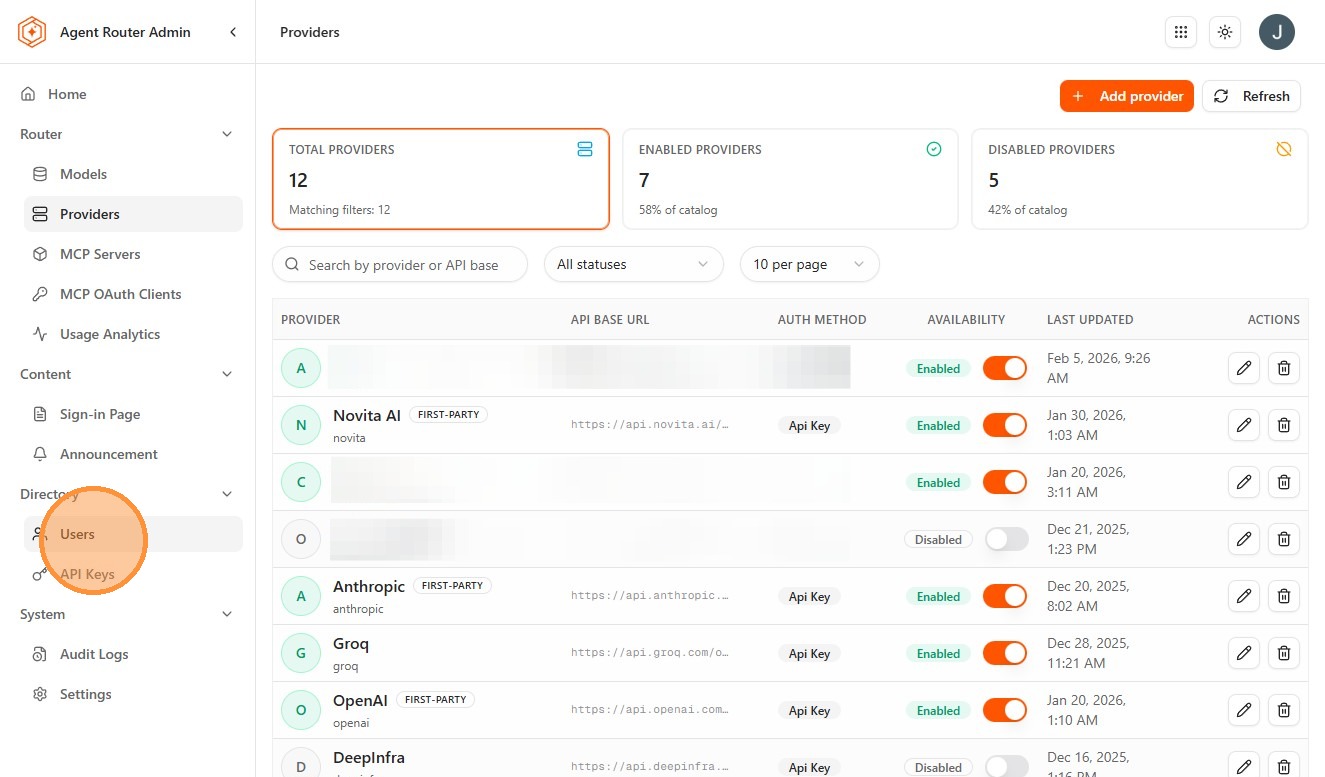
- Use the actions menu to modify a user's role, reset their credentials, or deactivate an account. Role changes take effect immediately; the user's next request is evaluated against their updated permissions.
Step 5: check usage analytics
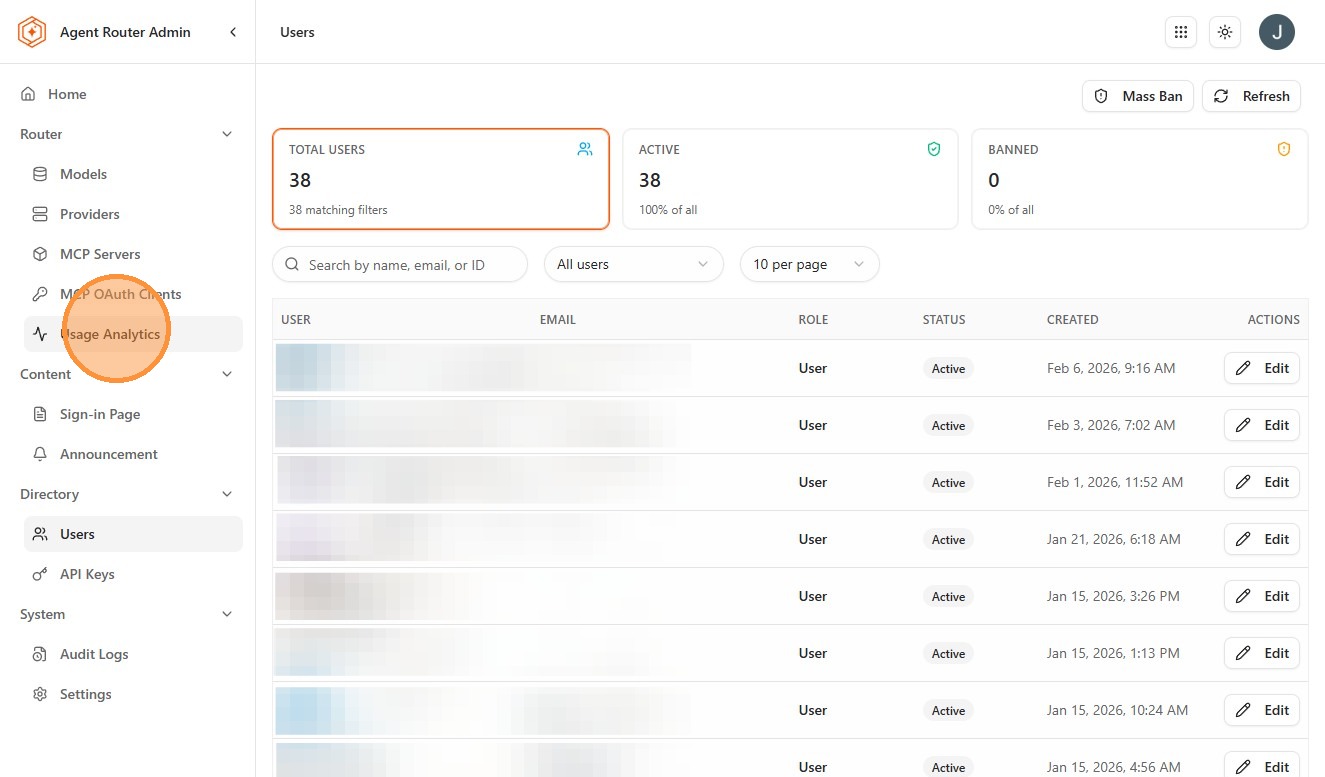
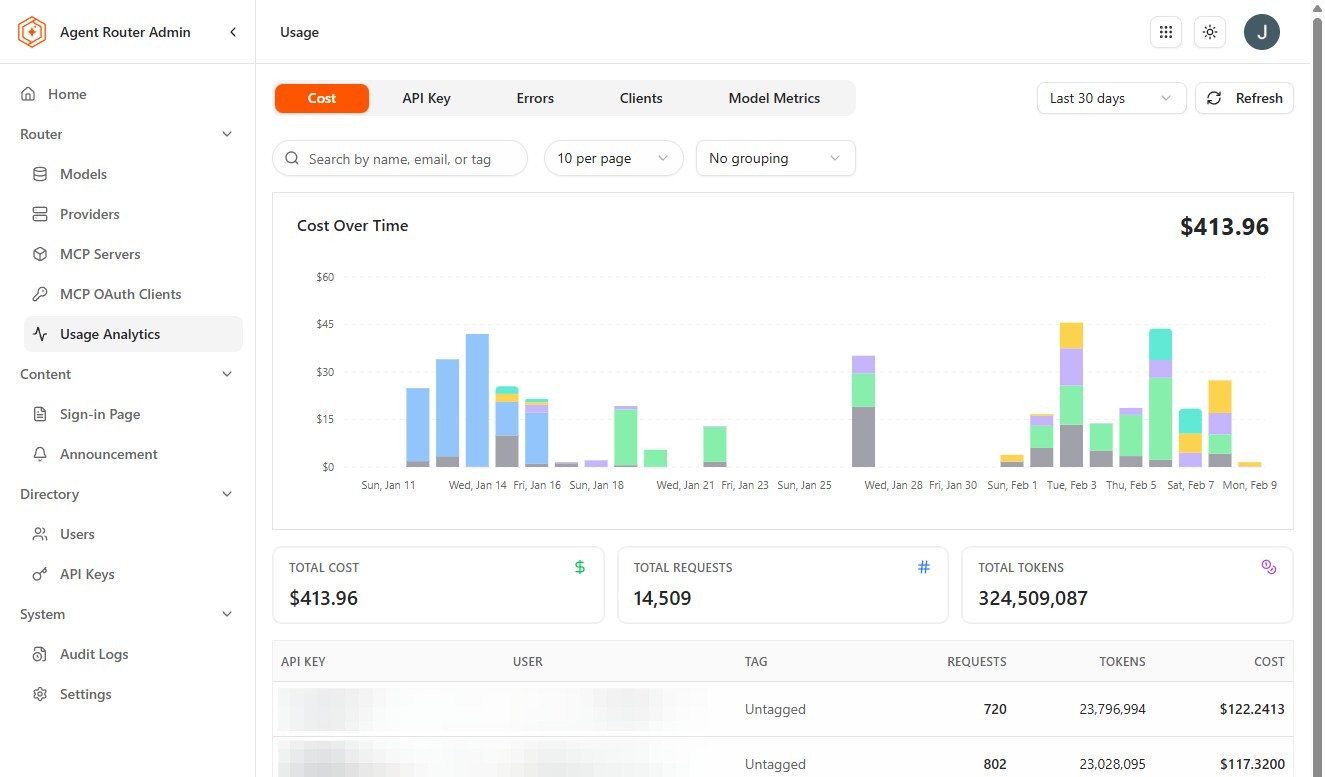
Usage Analytics provides a platform-wide view of AI consumption across all users and API keys. Use it to understand cost trends, identify the heaviest consumers, compare model popularity, and inform decisions about model availability.
-
Go to Usage Analytics in the sidebar
-
View aggregate usage across the platform. The default view shows total requests, token consumption, and cost estimates across all users and API keys.
-
Drill down to identify the top consumers by API key or user, the most frequently requested models, and cost trends over configurable time periods
Step 6: view model metrics
Model Metrics provides performance telemetry broken down by individual model. Use it to evaluate model reliability and latency before expanding availability, and to detect provider degradation early.
-
Go to Model Metrics in the sidebar
-
Review per-model performance data, including:
- Latency: median and p95 response times, which surface models with inconsistent performance
- Throughput: requests per minute, a measure of relative demand across the model catalog
- Error rates: the proportion of requests that resulted in provider errors, which surface degraded provider health before it reaches developers
Step 7: review audit logs
Audit Logs record every administrative action taken in the Admin dashboard: model changes, provider credential updates, user modifications, SSO configuration edits, and more. The log is tamper-resistant and provides a complete accountability trail suitable for compliance reporting and incident investigation.
-
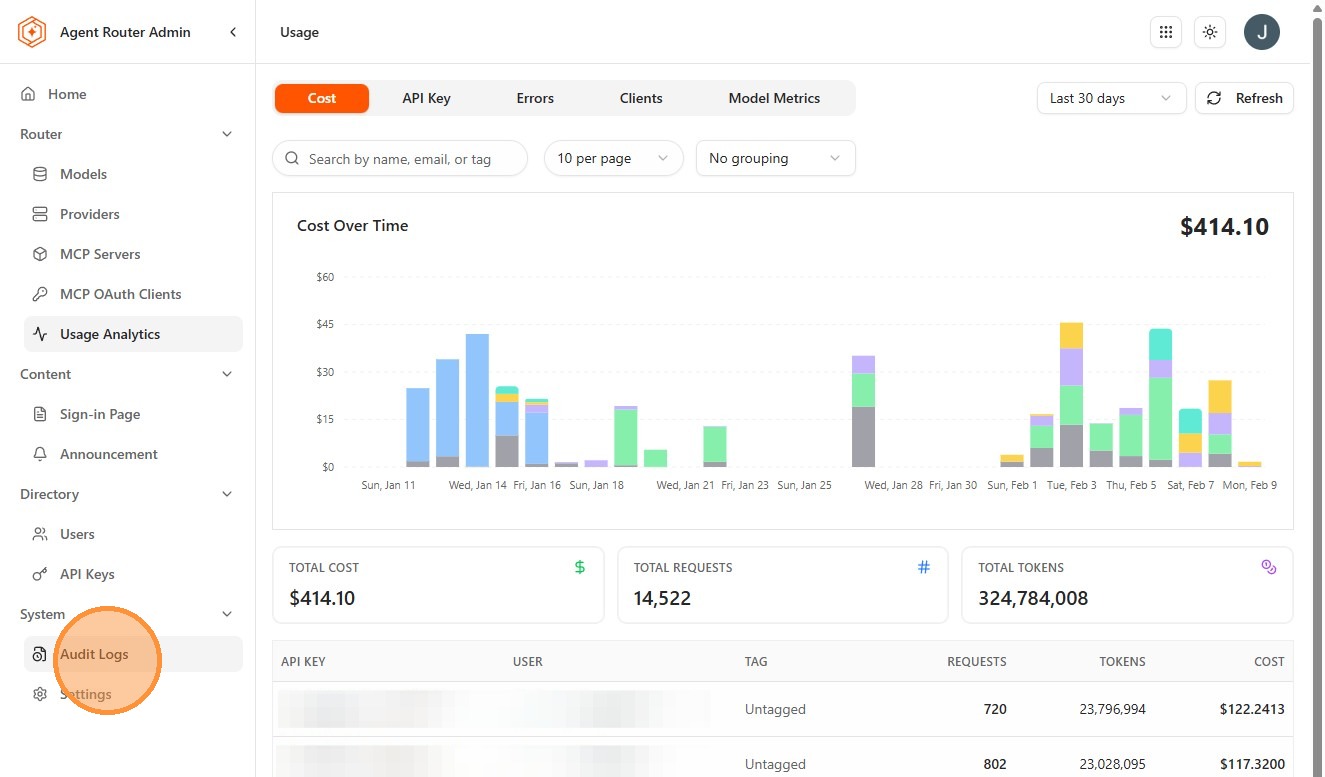
Go to Audit Logs in the sidebar
-
View a chronological history of administrative actions. Each entry records the actor, the action taken, the affected resource, and a precise timestamp.
- Click Refresh to load the latest entries
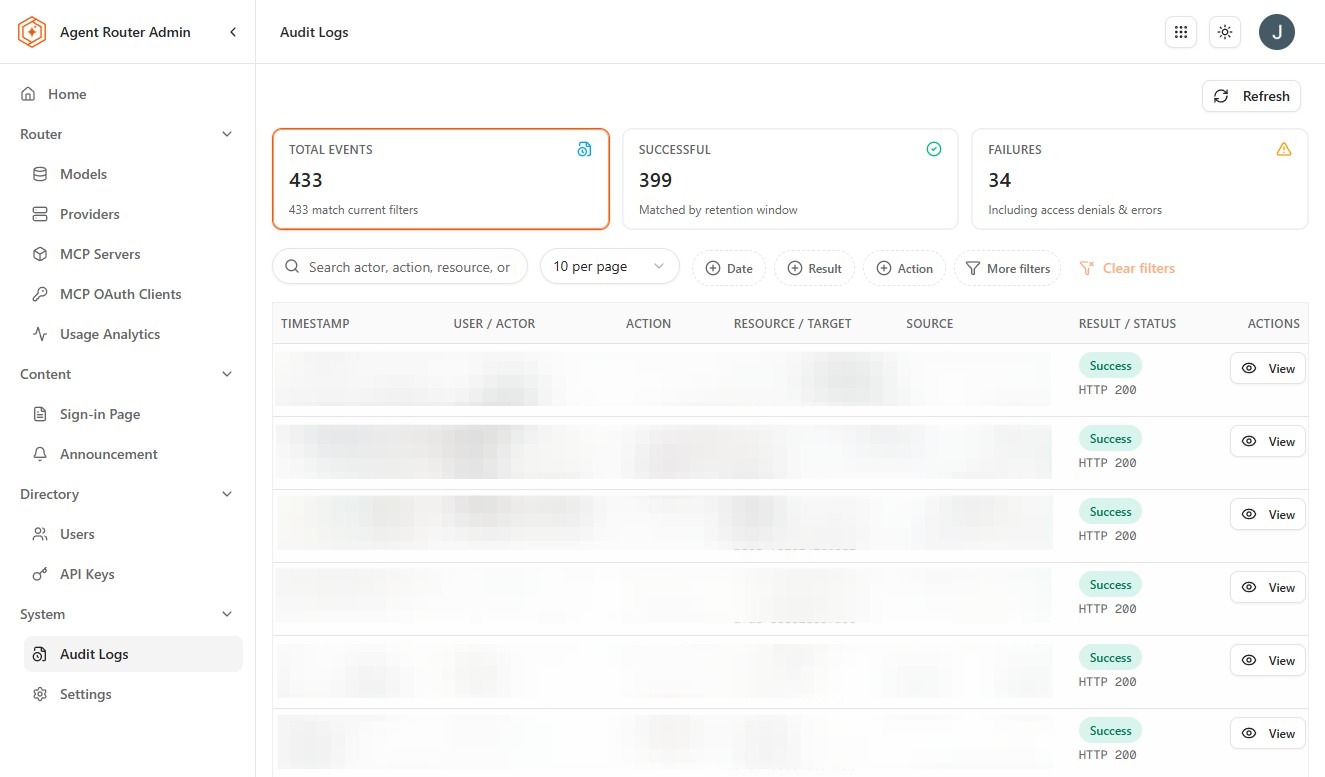
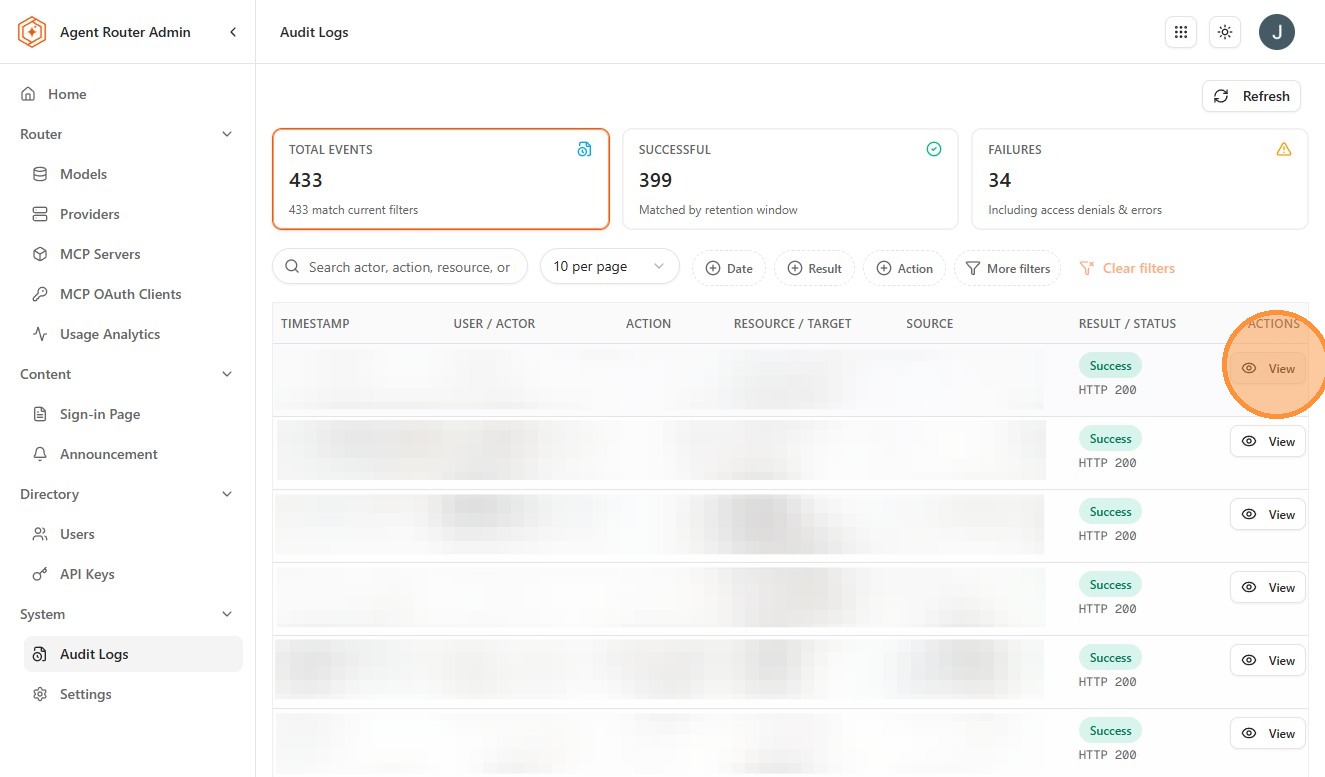
- Click on any log entry to expand its full details, including the before and after state of the modified resource. This is particularly useful when investigating unexpected configuration changes or rolling back to a known-good state.
Evaluation checkpoint
- Signed in to the Admin dashboard
- Reviewed the model catalog and understand how to enable and disable models
- Confirmed that all provider connections are healthy
- Reviewed the user list and verified role assignments are correct
- Reviewed platform-wide usage analytics and identified top consumers
- Reviewed per-model latency and error rate metrics
- Reviewed audit logs and understand what actions are captured
Where to go next