Set budgets for users and teams
A team is capped with one budget on the whole team; an individual user is capped through an API key they own. Each budget also declares what happens at its limit: Watch spend only reports, Hard stop enforces.
Persona: Platform operator working in the Admin Console.
Estimated time: 10 minutes to read; 5 minutes per budget.
Outcomes
By the end of this guide:
- A team carries one pooled monthly limit, created in the New budget drawer.
- One user's API key carries a limit of its own, alongside whatever team budgets already cover it.
- Every budget's action is a deliberate choice between monitoring and enforcement.
- The result is readable on the Budgets page: spend against limit, and a status per budget.
Prerequisites
- Write access to budgets in the Admin Console. Roles and permissions are listed in Set a budget and track spend against it.
- Teams populated from the identity provider, per Map Entra ID groups to business functions. A team budget covers exactly the members the mapping says it does.
- API keys issued per purpose, per Onboard developers and issue keys, so a budget on a key caps one workload rather than a shared credential.
Monitor or enforce: the action decides
A budget always measures spend against its limit. Whether anything is stopped at that limit is the budget's action, chosen in the form under When the limit is hit:
| Action | At the limit | Meant for |
|---|---|---|
| Watch spend | An alert is raised. No request is ever blocked | Monitoring and analytics: accountability, forecasting, and trialing a number before it is enforced |
| Hard stop | Requests are rejected until the period resets | Enforcing the cap |
| Degrade gracefully | Requests keep being served, rerouted to a cheaper fallback model | Enforcement without an outage, offered only when the scope is one API key |
The distinction decides whether the number holds. A Watch spend budget is a meter, not a cap: when it is exhausted, the caller is free to keep calling, and the overage shows up in dashboards and alerts only. A Hard stop budget is the cap: the gateway rejects further requests until the period resets, and nothing has to be manually re-enabled afterward.
Enforcement acts on live traffic but lags the spend by a few minutes, because spend is totaled from usage rollups before it reaches the gateway, and it fails open: a request is served rather than refused while the totals catch up. An immediate, inline cutoff is a rate limit, not a budget. Which arrangement of budgets and actions fits which situation is worked through in Enforce budget caps with policies.
Step 1: set a budget for a team
-
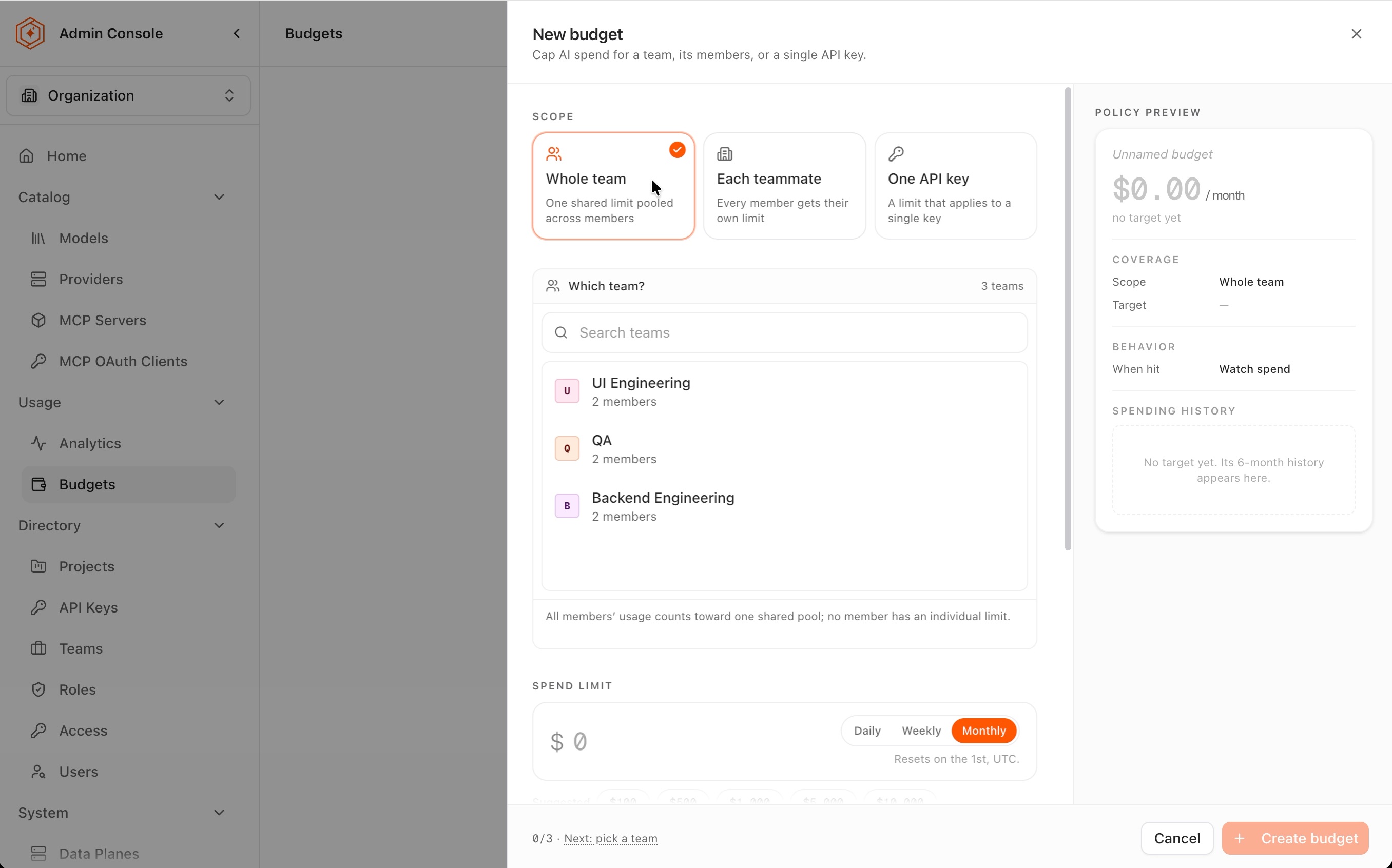
In the Admin Console, open Usage → Budgets and select Add budget. The New budget drawer opens with a Policy preview panel that restates every choice as it is made; the footer tracks the remaining steps.
-
Under Scope, keep Whole team: one shared limit pooled across members. The caption under the picker states the consequence: all members' usage counts toward one shared pool, and no member has an individual limit.
-
Pick the team. A team that already carries a budget is labeled Already budgeted, with its amount and period, so a duplicate is visible before it is created.
-
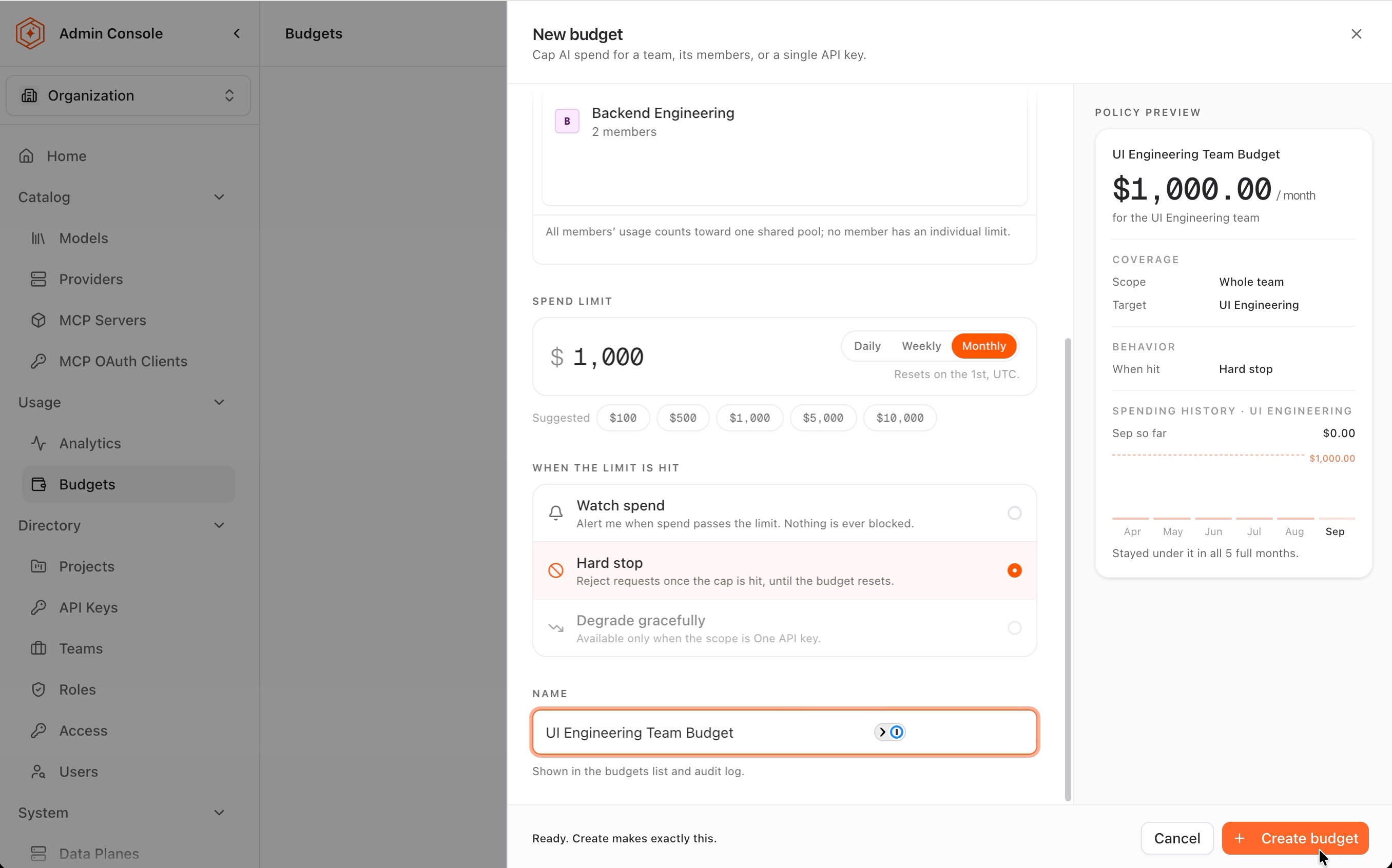
Set the Spend limit in US dollars and pick the period: Daily resets at midnight UTC, Weekly on Monday, Monthly on the 1st. Suggested amounts follow the period, and the Policy preview shows the target's billed spend over the last six months as a sanity check on the number.
-
Under When the limit is hit, choose the action. Watch spend is the default and never blocks; Hard stop makes the limit a real cap. Degrade gracefully is disabled at team scope, with the reason stated inline.
-
Name the budget (Use suggested fills a name from the target) and select Create budget. The footer reads "Ready. Create makes exactly this.", and a toast confirms the creation.
Each teammate gives every member the same individual limit, tracked per person, and accepts only the Watch spend action: it makes a heavy spender visible, it stops nobody. To stop one member, cap the API keys that member owns, which is Step 2.
Step 2: cap an individual user through their API key
No budget scope stops a single user directly. A user is stopped by capping an API key they own, which is precise exactly when keys follow the per-purpose convention: the budget then caps one workload, attributed to one owner.
-
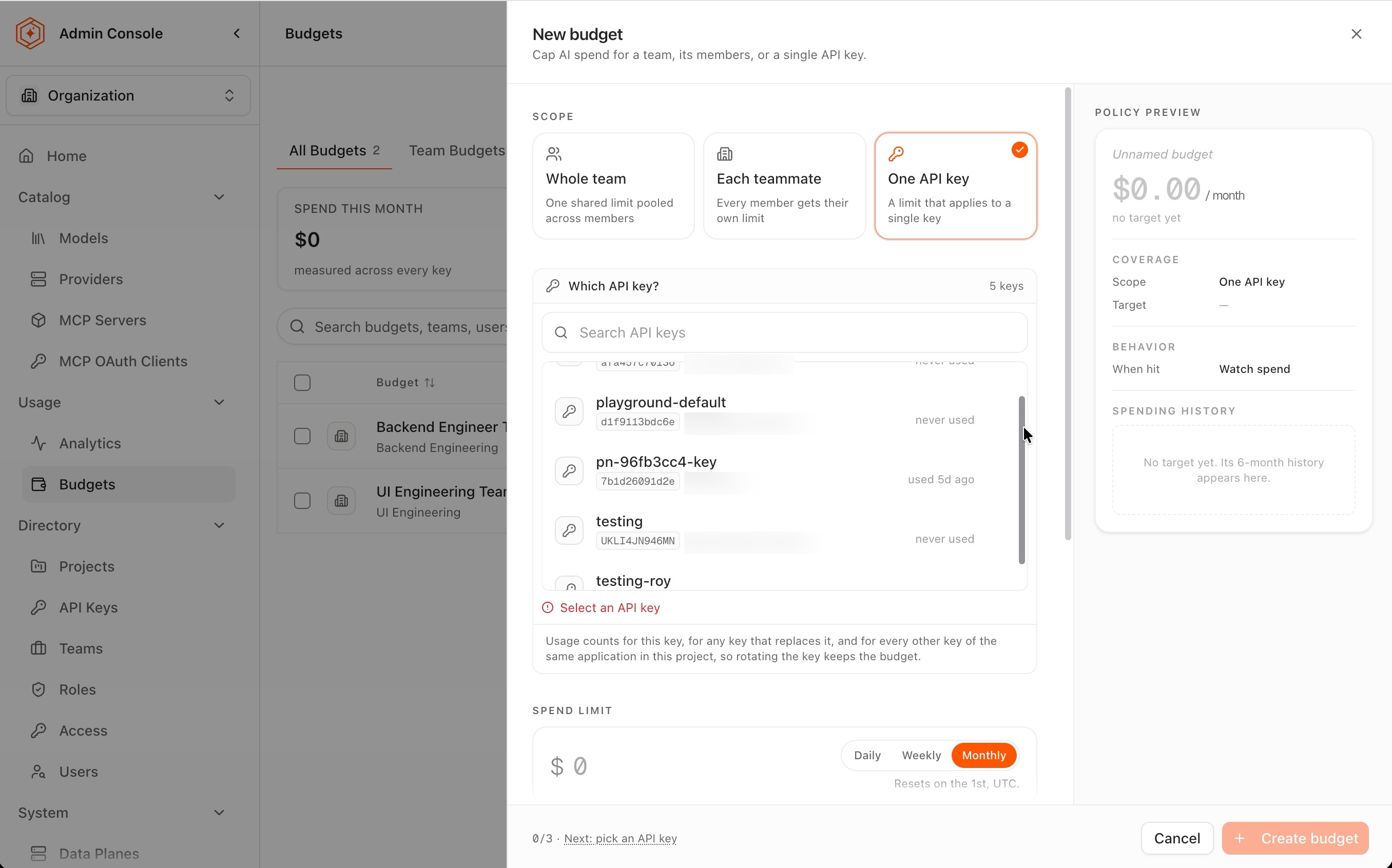
Select Add budget and choose the One API key scope.
-
Pick the key. Each row shows the key's identifier prefix, its owner, and when it was last used, and the form refuses to proceed until a key is selected.
-
Set the limit and period, choose the action, name the budget, and create it, as in Step 1. All three actions are available at this scope, including Degrade gracefully.
Two properties of a key budget worth knowing:
- It survives rotation. As the form states, usage counts for the key, for any key that replaces it, and for every other key of the same application in the project, so rotating the credential keeps the budget.
- It caps that key alone. A user who owns several keys needs a budget per key; the keys cannot share one number. The other keys stay covered by whatever team budgets apply, and where several budgets cover the same key, every one of them is a ceiling. The interaction is worked through in Enforce budget caps with policies.
Step 3: read the result on the Budgets page
The Budgets page lists every budget on the All Budgets, Team Budgets, and API Key Budgets tabs. The summary cards total spend across budgets and count the active ones, those near their limit, and those over it; each row shows the period's spend against the limit with a status.
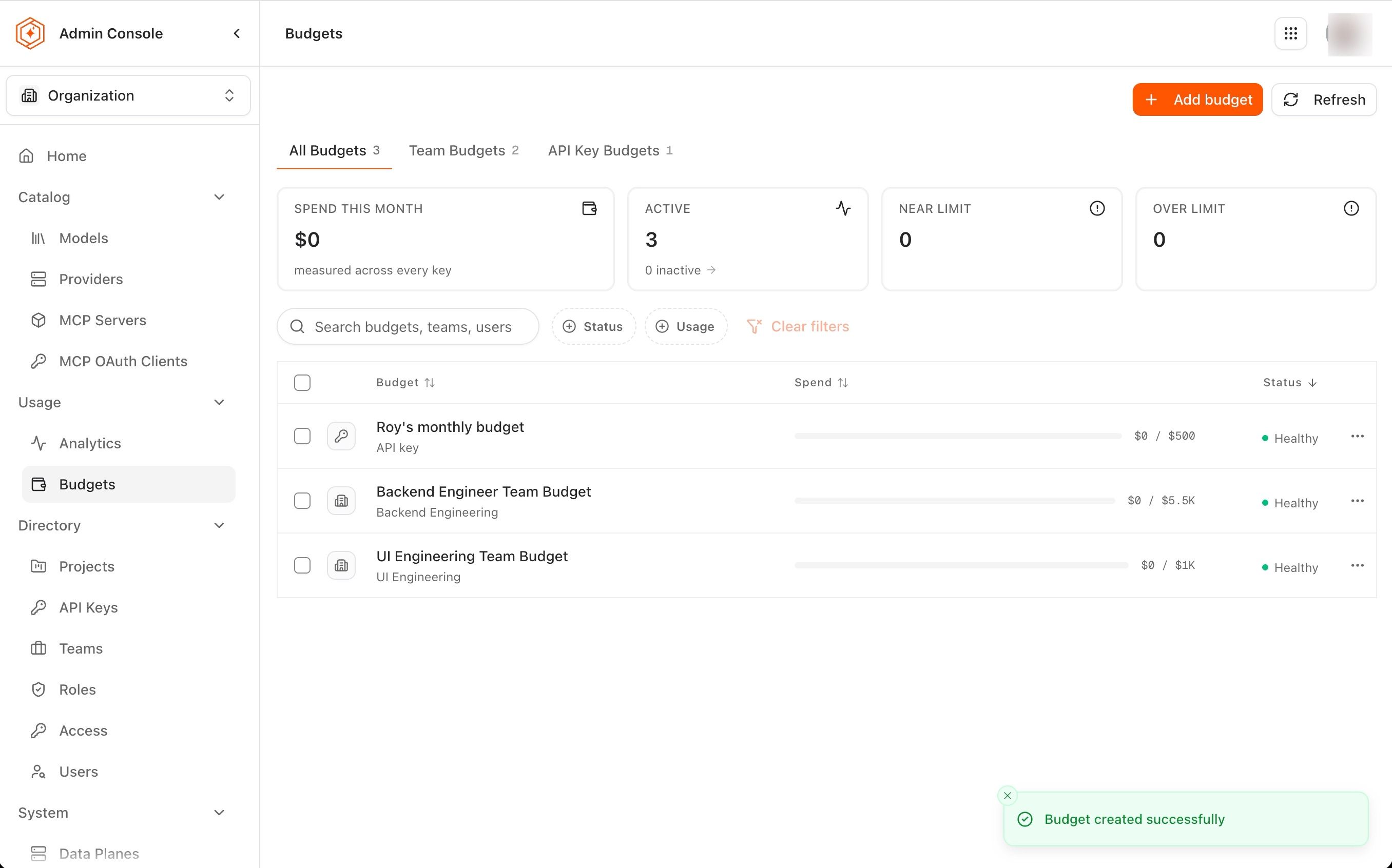
A budget's action is not fixed at creation: a budget trialed in Watch spend is switched to Hard stop from the row's Edit menu once the number has proven right. Spend already recorded this period counts against the limit immediately, so switching mid-period can cut a caller off straight away; the reading routine for catching that in time is in See budget exhaustion coming.
Where to go next
Set a budget and track spend against it
The full walkthrough: read the baseline first, then every field in the form.
Enforce budget caps with policies
Nine scenarios for combining team, member, and key budgets, and the cases a budget cannot cover.
Compare user and team spend in Analytics
Size the number from real consumption before any budget is created.
See budget exhaustion coming
Read burn and headroom in time to act before a cap fires.