Govern MCP server access
New MCP servers appear frequently: some open-source, some commercial, some assembled internally to wrap an organisation-specific tool. For the platform's operator, this is a governance problem: anything that calls itself an MCP server can request to be used, and the operator is the one who decides what is allowed to reach developers in the first place.
The Admin Dashboard's MCP surface is built around exactly that decision. MCP Servers is the catalogue of every server the platform has been told about: what URL it lives at, what kind of authentication it expects, and what tools it exposes. MCP OAuth Clients holds the OAuth client configurations needed for servers that authenticate users through an OAuth provider rather than a static token. Together they form the catalogue from which developers assemble profiles in the Console; nothing reaches the developer side that has not first been admitted to this catalogue. This guide covers the recurring work of curating that set: adding new servers, configuring the authentication each one requires, retiring servers that have outlived their usefulness, and keeping OAuth client credentials in step with the upstream providers.
Persona: Platform operator working in the Admin Dashboard, with the MCP catalogue as the unit of governance.
Estimated time: 15--25 minutes for an initial catalogue setup; ongoing thereafter as the MCP ecosystem grows.
When this guide applies
This guide is the right starting point in any of these situations:
| Situation | What it covers |
|---|---|
| Introducing a new MCP server to the platform | Adding the server to the catalogue with the correct authentication model |
| Configuring an OAuth provider for one or more MCP servers | Setting up the OAuth client used by every server that delegates auth to that provider |
| Retiring an MCP server that is no longer supported | Removing the server cleanly and understanding the impact on existing profiles |
| Rotating OAuth client credentials on schedule or after a security event | Editing the OAuth client without disrupting active sessions where possible |
| Auditing the catalogue to confirm what is currently exposed | Reviewing the server list, authentication types, and which servers map to which OAuth clients |
For the developer-side flow (assembling profiles, choosing the security type on the profile URL, and connecting from Claude Code, Cursor, or VS Code), the Aggregate MCP Servers into a Profile developer guide is the right surface. That guide assumes the catalogue this one builds.
Outcomes
By the end of this guide:
- At least one MCP server is present in the catalogue with a correctly configured authentication type.
- For any OAuth-authenticated servers, the corresponding OAuth client configuration exists and is mapped correctly.
- The mechanics of editing, retiring, and rotating both servers and OAuth clients are understood.
- The relationship between server-level authentication (which this guide governs) and profile-level authentication (which the developer guide governs) is clear.
Prerequisites
- Administrator access to the Admin Dashboard, typically the
super_adminormcp_adminrole. - For each MCP server to be introduced: its endpoint URL, a description of the tools it exposes, and an understanding of what authentication it requires.
- For OAuth-authenticated servers: a client ID, client secret, authorization URL, and token URL from the upstream OAuth provider. These are typically obtained by registering an application with the provider in question.
Step 1: decide what authentication the server requires
Authentication is the first decision because everything else flows from it. The platform supports three models:
| Auth type | What the server expects | When to use it |
|---|---|---|
| Open Access | No authentication on requests | Internal servers on trusted networks; rare in production |
| Bearer Token | A static bearer token in the Authorization header | Servers with a simple shared-secret model |
| OAuth | An OAuth flow with per-user consent | Third-party servers that grant access on behalf of a specific user |
The right answer is usually determined by the server itself rather than by operator preference, so the server's documentation is the place to start. The most common mistake is to assume Bearer Token will work for an OAuth-only service; the service rejects the static token and the failure looks, from inside the gateway, like a generic upstream error.
For Open Access and Bearer Token servers, Step 2 is sufficient. For OAuth servers, Step 3 has to happen first; the OAuth client must exist before the MCP server can reference it.
Step 2: add the server to the catalogue
The MCP server entry carries the endpoint, the authentication settings, and the description that developers see when assembling profiles.
-
Sign in to the Admin Dashboard.
-
Open MCP Servers from the sidebar.
-
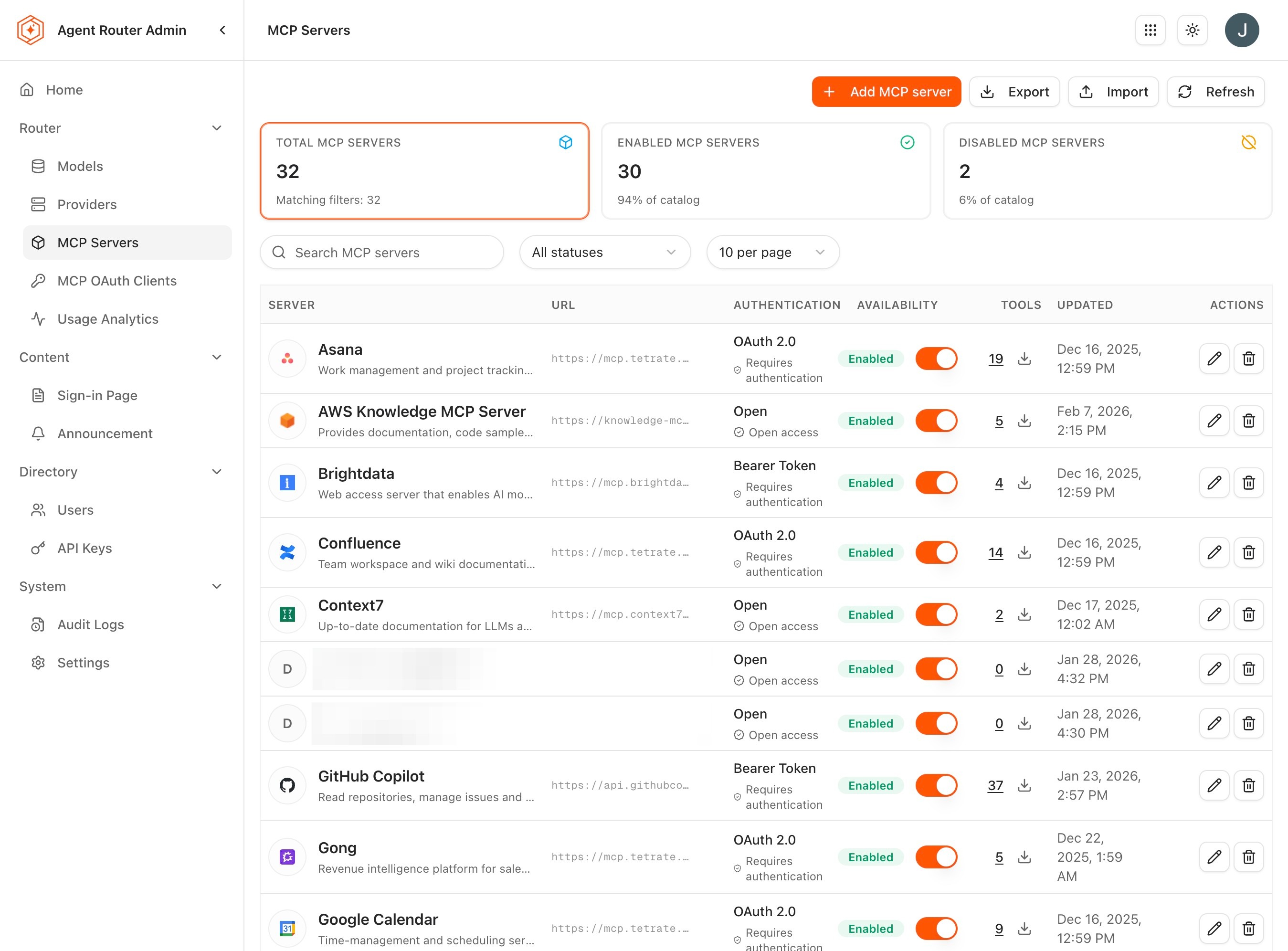
Review the current catalogue. Each entry surfaces the columns relevant for governance:
Column What it captures Server Name The display name shown in the Console MCP catalogue Description A summary of what the server provides Auth Type Open Access, Bearer Token, or OAuth Tools The number of tools the server exposes Status Whether the server is active and available in the Console catalogue -
Click Add Server at the top of the list.
-
Fill in the configuration:
- Name. A descriptive label that explains what the server does. The name appears in the Console catalogue, so a phrase like
GitHub Issues,Internal Wiki Search, orBrowser Automationis more useful than a generic label. - URL. The server's endpoint.
- Description. A short sentence on the server's purpose and capabilities.
- Auth Type. The authentication model chosen in Step 1.
- Name. A descriptive label that explains what the server does. The name appears in the Console catalogue, so a phrase like
-
If the auth type is Bearer Token, paste the token into the field that appears.
-
If the auth type is OAuth, select an existing OAuth client from the dropdown. If no suitable client exists, save the partial configuration after creating one in Step 3, or jump to Step 3 first.
-
Click Save.
The server appears in the catalogue immediately. Developers see the new entry the next time they open the MCP catalogue in the Console; existing profiles are unaffected.
Inspect the tools the server exposes
Once a server is in the catalogue, its tool list becomes visible:
- Click the server row to open the detail view.
- Scroll to the Tools section.
- Review every tool the server exposes, with its name and description.
This is the operator's last opportunity to evaluate what the platform is about to expose. Servers that present surprisingly broad tool surfaces, a "file system" server that turns out to expose arbitrary shell execution for example, are worth pausing on before they are made generally available. Where the tool list contains capabilities that should not be exposed, the right action is to either deselect those tools at the profile level (developers cannot opt in to tools that operators have not approved) or to choose a different server entirely.
Step 3: configure an OAuth client (only for OAuth-authenticated servers)
For servers that delegate user authentication to an OAuth provider, the corresponding client configuration has to exist in the MCP OAuth Clients screen before the server can reference it.
-
Open MCP OAuth Clients from the sidebar.
-
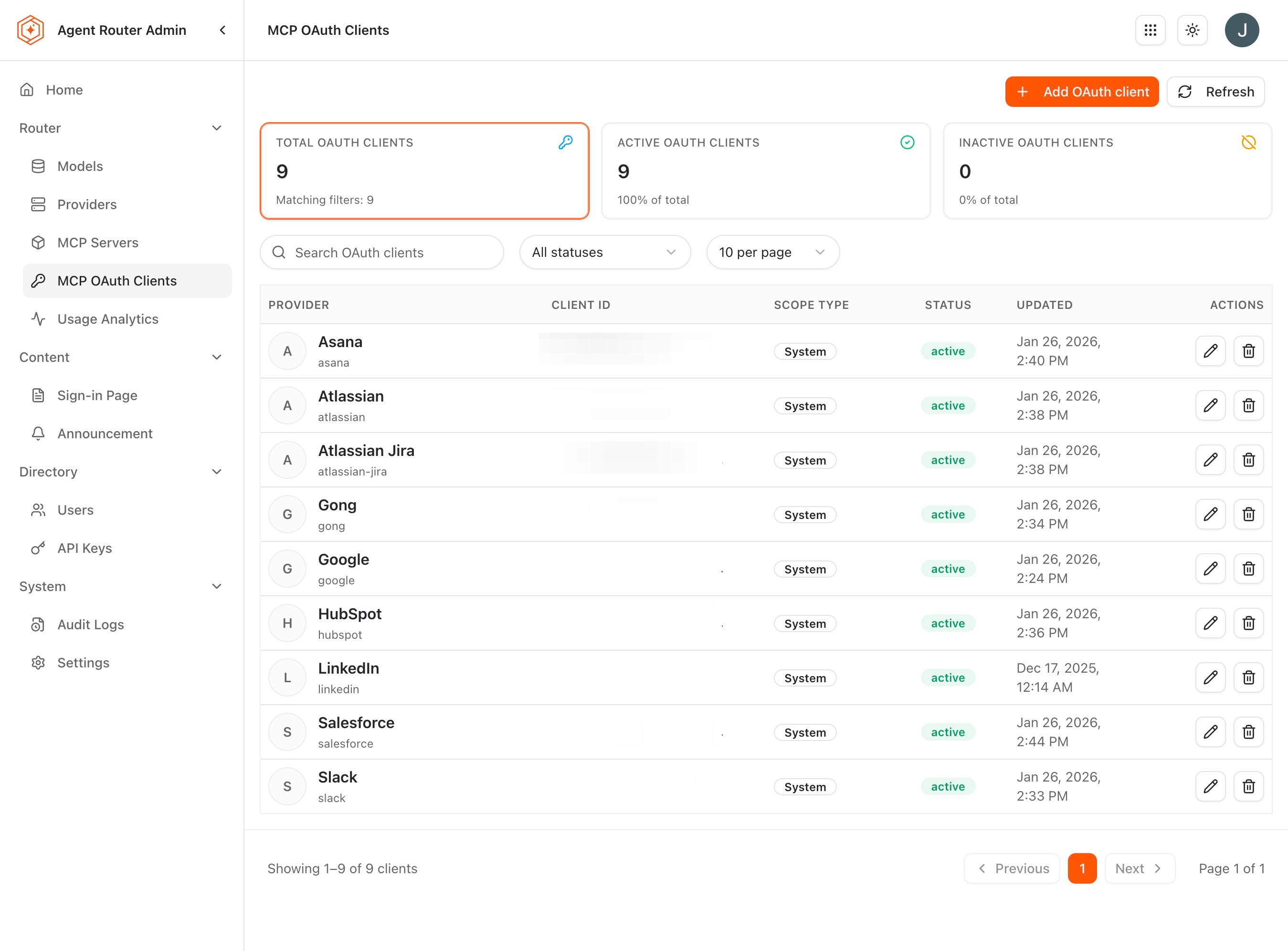
Review the existing clients. Each row surfaces the columns relevant for governance:
Column What it captures Client Name A descriptive label for the OAuth client configuration Client ID The OAuth client identifier registered with the provider Authorization URL The authorization endpoint users are redirected to Token URL The endpoint used to exchange authorization codes for access tokens Mapped Servers The MCP servers currently mapped to the client -
Click Add OAuth Client.
-
Fill in the required fields:
Field What it carries Client Name A descriptive label, used internally to identify the configuration Client ID The identifier issued by the OAuth provider Client Secret The secret issued by the OAuth provider, stored encrypted at rest Authorization URL The full URL of the provider's authorization endpoint, for example https://auth.example.com/authorizeToken URL The full URL of the provider's token endpoint, for example https://auth.example.com/tokenScopes An optional space-separated list of OAuth scopes to request -
Click Save.
-
Return to MCP Servers, open the relevant server, set its auth type to OAuth, and select the newly-created client.
The end-to-end flow that follows, when a developer adds the server to a profile and a Console user reaches the profile URL, is:
- The Console user is redirected to the Authorization URL with the configured client ID and scopes.
- The user authenticates and grants consent at the OAuth provider.
- The provider redirects back to the platform with an authorization code.
- The platform exchanges the code for an access token using the Token URL and the client secret.
- The access token is used for subsequent requests to the MCP server, on behalf of the consenting user.
This delegated-consent model is what makes OAuth the right choice for third-party services that grant access per user. The bearer-token model, by contrast, gives every consumer the same level of access regardless of who they are.
Step 4: maintain the catalogue over time
The catalogue is not write-once. Servers are added and retired; OAuth clients have their secrets rotated; URLs change when upstream services are migrated.
Edit a server
- Open the server's row in MCP Servers.
- Update the fields that need to change: name, URL, description, auth type, bearer token, or mapped OAuth client.
- Save.
Changes take effect immediately for new MCP profile connections. Connections that are mid-session at the moment of the change continue with the previous configuration until they next re-authenticate.
Edit an OAuth client
OAuth client credentials are the most security-sensitive part of this surface. Rotation typically happens on a schedule defined by either the OAuth provider or the organisation's own security policy.
- Open the OAuth client's row in MCP OAuth Clients.
- Update the fields. The most common edit is a new client secret after a scheduled rotation.
- Save.
Every MCP server mapped to that OAuth client picks up the change automatically. Users with currently-valid access tokens continue to use those tokens until they expire; refreshing or obtaining a new access token uses the new credentials.
Remove an MCP server
A removal cleanly takes a server out of circulation:
- Open the server's row.
- Click Delete or Remove Server.
- Confirm.
The server disappears from the Console MCP catalogue immediately. Profiles that already include the server may stop functioning depending on what tool calls they were about to make. Scanning the developer-side surfaces before removing a server that is in active use, or coordinating the removal through Communicate with Platform Users, is usually worth the trouble.
Remove an OAuth client
OAuth clients carry a protection that MCP servers do not: a client cannot be deleted while any MCP server still references it.
- Open the OAuth client's row.
- Click Delete.
- If any servers still map to the client, the deletion is refused. Unmap each server (either by changing its auth type or by mapping it to a different client) before retrying.
This refusal is deliberate; it prevents the orphaned-server state where a server's OAuth flow points at a configuration that no longer exists.
How server auth and profile auth relate
The two layers of authentication in the MCP world are sometimes confused, so it is worth being explicit. The Admin Dashboard governs server-level authentication: how the gateway authenticates to the upstream MCP server on the user's behalf. The Console governs profile-level authentication: how the MCP client (Claude Code, Cursor, VS Code) authenticates to the profile URL exposed by the gateway. Both layers operate, both have to be correct for a tool call to succeed, and they are configured in entirely different screens. The developer-side mechanics of profile authentication are covered in Aggregate MCP Servers into a Profile.
What to do next
- Audit platform activity: review the events generated by additions and removals to the MCP catalogue. See Audit Platform Activity.
- Communicate with platform users: announce a new server, deprecate an old one, or coordinate a maintenance window. See Communicate with Platform Users.
- Configure single sign-on: the SSO setup that governs Admin Dashboard access also touches the MCP OAuth surface for some deployments. See Configure Single Sign-On.
The MCP catalogue curated in this guide remains in place for subsequent guides.
Where to go next