Integrate the gateway with an app
Introduction
A working API key, a thoughtful routing configuration, and a tested fallback chain are all useful in isolation, but their value only materialises when an application actually talks to the gateway instead of talking to providers directly. In almost every case this is a trivial change: the gateway speaks the OpenAI HTTP API, so any tool, SDK, or framework that already supports a configurable OpenAI-compatible endpoint can be pointed at the gateway by changing two values: the base URL and the API key. The rest of the application code stays exactly as it was.
This guide covers the integration patterns that come up most often: the OpenAI Python and JavaScript SDKs that the majority of applications use directly, the AI frameworks (LangChain, Vercel AI SDK, Pydantic AI) that wrap those SDKs, the code-assistant tools (Aider, Continue, Cline, Cursor, Roo Code) that accept a configurable endpoint, and the agent frameworks (OpenAI Agent SDK, CrewAI, Goose, Open WebUI) that drive multi-step workflows. The mechanic is the same in every case; only the location of the two settings changes.
The Console surfaces the same recipes in the Build > Integrations panel, grouped by category, with a copy-paste snippet for each tool.
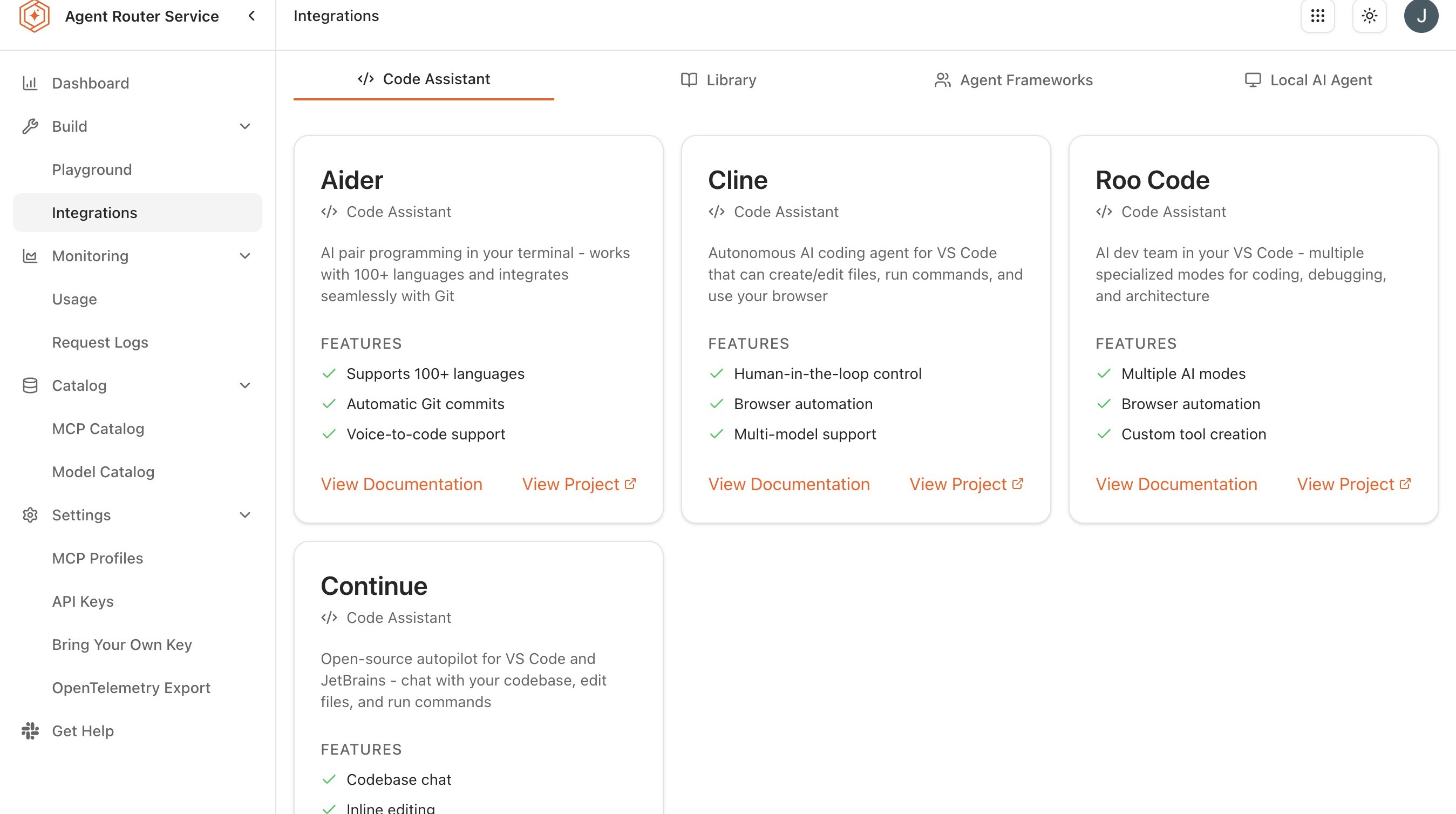
Persona: Developer working in the Agent Router Console and in the application's own codebase or configuration.
Estimated time: 5--15 minutes per integration, depending on whether the tool reads its configuration from environment variables, a config file, or an in-app settings panel.
When this guide applies
This guide applies whenever the goal is to send AI traffic from an application or tool through the gateway rather than directly to a provider. In practical terms, that is almost every situation: the gateway absorbs the variability of provider APIs and gives the routing, observability, and policy benefits covered in the earlier guides for free. There is rarely a reason to keep an application pointed directly at a provider once the gateway is in place.
The one consistent precondition is OpenAI compatibility on the application side. Tools and SDKs that accept a configurable OpenAI-compatible base URL, which now includes virtually every general-purpose AI library, integrate without code changes. Tools that hardcode a specific provider's SDK without offering a base-URL override are the rare exception and may require a small wrapper.
Outcomes
By the end of this guide:
- At least one application, SDK, or tool is pointed at the gateway through its base URL and API key.
- A request issued from that integration completes successfully end-to-end.
- The request appears in Request Logs, attributed to the API key used by the integration.
- The mental model for adding further integrations ("point base URL at the gateway, present the API key, leave everything else alone") is established.
Prerequisites
- A working API key with a routing configuration attached, as set up in Route Requests Across Providers.
- The gateway's proxy endpoint URL, displayed on the Console Dashboard. In the examples below this is referred to as
PROXY_URL. - The application, SDK, or tool that will be integrated. The integration steps in the rest of this guide assume it is already installed and working against a provider directly; the integration is a configuration change, not a fresh install.
The general pattern
Every integration in this guide follows the same shape:
- The application's base URL (sometimes called the API base, the endpoint, or the proxy URL) is changed from the provider's default to the gateway's
PROXY_URL. - The application's API key is changed from the provider's key to the Agent Router API key.
- The application's model identifier is set to any model the routing configuration exposes: either a provider model name such as
gpt-4oor a logical name defined under Apply Advanced Routing Rules.
The rest of the application's code is unchanged. Where a snippet in this guide shows PROXY_URL and YOUR_API_KEY, those are placeholders for the values from the Console.
SDK integrations
The OpenAI SDKs are the most common starting point because so many applications are built directly against them. The integration is a two-line change.
OpenAI Python SDK
from openai import OpenAI

client = OpenAI(
    base_url="PROXY_URL",
    api_key="YOUR_API_KEY",
)

response = client.chat.completions.create(
    model="gpt-4o",
    messages=[{"role": "user", "content": "Hello, world!"}],
)

print(response.choices[0].message.content)
The same client object handles the Chat Completions API (above), the Responses API (client.responses.create), and streaming variants of both; the gateway accepts all three. For a full reference of the supported API shapes including streaming examples, see Supported APIs.
The Responses API is reached through the same client with no change to the base URL or key:
from openai import OpenAI

client = OpenAI(
    base_url="PROXY_URL",
    api_key="YOUR_API_KEY",
)

response = client.responses.create(
    model="gpt-4o",
    input="Hello, world!",
)

print(response.output_text)
OpenAI JavaScript SDK
import OpenAI from "openai";

const client = new OpenAI({
  baseURL: "PROXY_URL",
  apiKey: "YOUR_API_KEY",
});

const response = await client.chat.completions.create({
  model: "gpt-4o",
  messages: [{ role: "user", content: "Hello, world!" }],
});

console.log(response.choices[0].message.content);
The same JavaScript client supports both the Chat Completions and Responses APIs. The Responses API is called on the same client:
import OpenAI from "openai";

const client = new OpenAI({
  baseURL: "PROXY_URL",
  apiKey: "YOUR_API_KEY",
});

const response = await client.responses.create({
  model: "gpt-4o",
  input: "Hello, world!",
});

console.log(response.output_text);
In environments where the API key cannot be hard-coded, which is most environments, standard secret-management practices apply: environment variables in development, secret managers or platform-supplied configuration in deployed environments.
Framework integrations
Higher-level frameworks wrap the OpenAI SDK and expose their own configuration surface. The mapping to a gateway integration is straightforward.
LangChain
from langchain_openai import ChatOpenAI

llm = ChatOpenAI(
    base_url="PROXY_URL",
    api_key="YOUR_API_KEY",
    model="gpt-4o",
)

response = llm.invoke("Hello, world!")
print(response.content)
LangChain's ChatOpenAI is implemented on top of the OpenAI SDK, so chains, agents, retrieval pipelines, and tool integrations all work without further change once the underlying client is pointed at the gateway.
Vercel AI SDK
import { createOpenAI } from "@ai-sdk/openai";
import { generateText } from "ai";

const provider = createOpenAI({
  baseURL: "PROXY_URL",
  apiKey: "YOUR_API_KEY",
});

const { text } = await generateText({
  model: provider("gpt-4o"),
  prompt: "Hello, world!",
});

console.log(text);
The Vercel AI SDK's streaming, tool-use, and structured-output features all flow through the same provider definition.
Pydantic AI
from pydantic_ai import Agent
from pydantic_ai.models.openai import OpenAIModel

model = OpenAIModel(
    "gpt-4o",
    base_url="PROXY_URL",
    api_key="YOUR_API_KEY",
)

agent = Agent(model)
result = agent.run_sync("Hello, world!")
print(result.data)
Code-assistant integrations
Code-assistant tools differ from SDKs in that they are configured outside the application's own codebase, through settings panels, configuration files, or environment variables. The mapping is still the same two-value change.
Aider
Aider reads its configuration from OPENAI_API_BASE and OPENAI_API_KEY:
export OPENAI_API_BASE=PROXY_URL
export OPENAI_API_KEY=YOUR_API_KEY
aider --model gpt-4o
Continue
Continue is configured through ~/.continue/config.json:
{
  "models": [
    {
      "title": "Agent Router",
      "provider": "openai",
      "model": "gpt-4o",
      "apiBase": "PROXY_URL",
      "apiKey": "YOUR_API_KEY"
    }
  ]
}
Cline, Cursor, and Roo Code
These tools accept an OpenAI-compatible endpoint through their settings UI. The steps are similar across all three:
- Open the tool's settings or preferences.
- Select OpenAI Compatible (or equivalent) as the API provider.
- Set the base URL to
PROXY_URL. - Enter the Agent Router API key.
- Set the model to any model the routing configuration exposes.
- Save and, if prompted, restart the tool.
The exact wording of each setting varies between tools; the mapping is consistent.
Agent-framework integrations
Agent frameworks add their own abstractions over the model client but ultimately call out through an OpenAI-compatible interface. The integration pattern is unchanged.
OpenAI Agent SDK
from openai import OpenAI
from agents import Agent, Runner

client = OpenAI(
    base_url="PROXY_URL",
    api_key="YOUR_API_KEY",
)

agent = Agent(
    name="my-agent",
    instructions="You are a helpful assistant.",
    model="gpt-4o",
)

result = Runner.run_sync(agent, "Hello, world!")
print(result.final_output)
CrewAI
from crewai import Agent, Task, Crew, LLM

llm = LLM(
    model="openai/gpt-4o",
    base_url="PROXY_URL",
    api_key="YOUR_API_KEY",
)

agent = Agent(
    role="Researcher",
    goal="Find information",
    backstory="You are a research assistant.",
    llm=llm,
)

task = Task(
    description="Summarize the latest AI trends.",
    agent=agent,
    expected_output="A summary of AI trends.",
)

crew = Crew(agents=[agent], tasks=[task])
result = crew.kickoff()
print(result)
Goose and other CLI agents
CLI-based agents pick up the OpenAI base URL and key from environment variables in the same way as Aider:
export OPENAI_API_BASE=PROXY_URL
export OPENAI_API_KEY=YOUR_API_KEY
goose session start --model gpt-4o
The same pattern works for any local agent or script that uses the OpenAI SDK without overriding its defaults. Where the agent reads its model from the environment as well, the model identifier can be exported alongside the base URL and key:
export OPENAI_API_BASE=PROXY_URL
export OPENAI_API_KEY=YOUR_API_KEY
export MODEL_NAME=gpt-4o
Open WebUI
Open WebUI is configured through its admin panel rather than environment variables:
- Go to Admin Settings → Connections.
- Under OpenAI API, set the base URL to
PROXY_URL. - Enter the Agent Router API key.
- Save and refresh the model list. Every model exposed by the routing configuration appears in the Open WebUI model picker.
Verifying the integration
A successful integration shows up in three places: in the application itself, in Request Logs, and in usage analytics.
- Issue at least one request from the integrated application. The expected outcome is a successful response in the application's normal output: console output, web UI, or wherever the application surfaces model responses.
- Open Request Logs and filter by the API key the integration is using. The request should appear within seconds. See Monitor Traffic and Usage.
- Confirm the request's metadata matches expectations: the resolved model, the latency, and the token counts.
For longer-term observation across many integrations, usage analytics aggregates traffic by API key and by model. A common operational pattern is to issue a separate API key per integrated application, which makes the per-application picture obvious without any further configuration.
What to do next
- Test prompts in the Playground: exercise model behaviour interactively before wiring an integration into application code. See Test Prompts in the Playground.
- Monitor traffic and usage: track each integration's traffic separately by per-integration API key. See Monitor Traffic and Usage.
- Export telemetry to an observability stack: push integration-level telemetry into the organisation's existing dashboards.
Where to go next