Test prompts in the playground
Iterating on a prompt usually involves the same boring loop: edit the prompt in source, redeploy or restart the application, send a request, read the output, repeat. The Playground breaks that loop. It is an interactive chat surface in the Console that talks to the same gateway, with the same routing rules and the same observability as production traffic, but without any of the round-trip cost of editing source code. This guide covers what the Playground is for, how it differs from production traffic, and the workflows it supports most cleanly: single-shot prompt evaluation, multi-turn conversation testing, head-to-head model comparison, and reproduction of issues seen in Request Logs.
Persona: Developer working in the Agent Router Console.
Estimated time: 5--10 minutes for the basic flow; longer for iterative prompt development.
When this guide applies
The Playground is the right surface in any of these situations:
| Situation | Why the Playground helps |
|---|---|
| Iterating on a system prompt or user prompt | Edits are free; the next attempt is one message away |
| Choosing between two models for the same task | The model selector switches between any enabled models without leaving the conversation |
| Verifying that the account can reach a specific model | A successful Playground exchange confirms end-to-end connectivity, credentials, and routing |
| Reproducing an issue seen in Request Logs | The same prompt, the same model, and the same account context can be replayed instantly |
| Showing a colleague how a model behaves | Screen-sharing the Playground avoids the need to share or paste application code |
For programmatic access from an application, the Playground is the wrong tool; the Integrate the Gateway with an App guide covers SDK and framework integrations.
Outcomes
By the end of this guide:
- At least one message has been sent through the Playground and the response has been read.
- A multi-turn conversation has been exercised, so the conversation-history behaviour is understood.
- The same prompt has been compared across at least two models using the model selector.
- The Playground request has been located in Request Logs, confirming that Playground traffic flows through the same gateway as everything else.
Prerequisites
- A Console account with access to at least one enabled model in the Admin Dashboard.
- A working API key associated with that account, as set up in Route Requests Across Providers. The Playground uses the account's own credentials; no separate setup is required.
Step 1: open the playground and send a message
The Playground is reached from the Console's primary navigation.
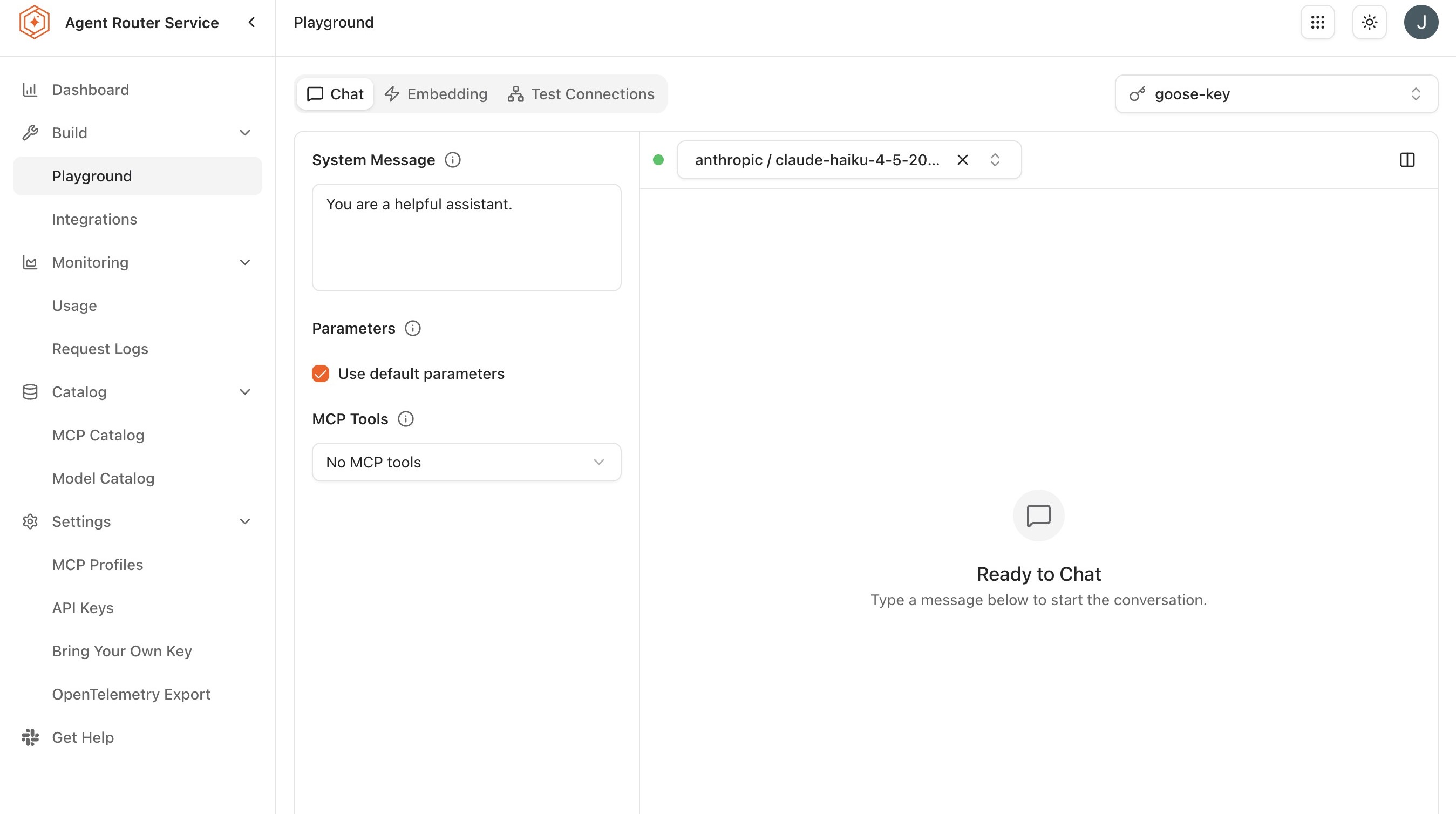
- Sign in to the Agent Router Console.
- Open Build → Playground from the sidebar.
- From the model selector at the top of the chat panel, choose a model. The selector lists every model enabled in the organisation's Model Catalog; an empty list indicates that no models are enabled yet, which is a platform-operator concern rather than a developer one.
- Type a message into the input area at the bottom of the chat panel.
- Press Send, or use the Enter key.
The model's response appears in the chat panel within a few seconds. Two pieces of metadata are surfaced underneath each response and are worth getting in the habit of glancing at:
- Token count. Input and output token counts for the exchange. Useful for understanding how a particular prompt sits relative to the model's context window, and for back-of-envelope cost estimation.
- Latency. End-to-end time the gateway observed for the call. The first request to a freshly-warmed model tends to be slower than subsequent ones; sustained latency is a more useful signal than a single measurement.
Playground controls
The chat panel exposes a small set of controls:
| Control | Location | Purpose |
|---|---|---|
| Model selector | Top of the chat panel | Lists every model enabled in the organisation's Model Catalog; selects the backend the next message is routed to |
| Input area | Bottom of the chat panel | Accepts the message text; submitted with Send or the Enter key |
| New Chat | Chat panel | Clears the current session and starts a fresh conversation with no prior context |
| Token count | Beneath each response | Input and output token counts for the exchange |
| Latency | Beneath each response | End-to-end time the gateway observed for the call |
Step 2: have a multi-turn conversation
The Playground maintains conversation context within a session. Follow-up messages are sent along with the full prior history, just as a real application would have to do explicitly when calling the gateway. The cumulative context is visible in the chat panel.
Two implications of this are worth keeping in mind:
- Cost grows turn over turn. Each subsequent message in a conversation includes every previous message as input. A long conversation can use significantly more tokens per request than a short one, even if the visible message at the bottom of the screen is short. The token counter under each response reflects the cumulative input cost rather than the cost of the latest message alone.
- The Playground does not summarise or truncate. When a conversation approaches the model's context window, the model itself will start to misbehave: losing track of earlier turns, returning errors, or both. This is a feature for testing how a model degrades, but it is also a reason to start a fresh session (New Chat in the chat panel, or a page refresh) when the current one has run long.
Step 3: compare models on the same prompt
Switching models mid-conversation is the Playground's most useful comparison tool. The model selector at the top of the panel can be changed at any time; the next message sent will be routed to the new model. Previous messages in the conversation remain visible and are included in the next request as context, which means a conversation can carry the same setup across models without retyping it.
A typical comparison workflow:
- Send a representative prompt to the first model.
- Read the response.
- Switch to the second model using the selector.
- Send a follow-up that asks the second model to perform the same task, for example, "answer the question I just asked, in the same format".
- Compare the two responses side by side in the chat panel.
This approach is faster and more honest than running two separate Playground sessions, because both models see the same prior context. Where the goal is to compare cold responses to the same prompt, New Chat before switching models keeps each side clean.
For larger comparison campaigns (statistically significant evaluations rather than informal side-by-sides), a traffic split is the right tool. See Reduce Cost with Traffic Splitting and Apply Advanced Routing Rules for the patterns that handle that case at scale.
Step 4: find the request in request logs
The Playground is not a separate surface from the gateway. Every Playground request flows through the same data plane, the same routing configuration, and the same observability path as a request from an application or an SDK integration. This is occasionally surprising, but it is the foundation of the Playground's usefulness for debugging.
- After sending a Playground message, open Monitoring → Request Logs in a new tab.
- Filter by the API key associated with the Playground session, or by the most recent time window.
- Locate the Playground request; it appears alongside any other recent gateway traffic.
- Expand the row to view the full request and response, the resolved model, the token counts, and the latency.
Two consequences of this design:
- A Playground session counts toward usage and cost reporting like any other traffic. For experimental sessions that should not contaminate production cost dashboards, consider issuing a dedicated API key for exploratory work and using a different API key for production integrations.
- A Playground session exercises the routing configuration on the account's API key. If a fallback chain is attached, a Playground request might be served by a secondary backend just as a production request would. The Resolved model field in Request Logs is the authoritative record of which backend actually answered.
Reproducing issues from request logs
The Playground is the most ergonomic surface for reproducing issues seen in Request Logs. The workflow:
- In Request Logs, locate the problematic request.
- Note the model that served it (or the logical name, if model-name overrides are in use) and the prompt content.
- Open the Playground in a new tab.
- Select the same model in the model selector.
- Paste the prompt into the input area.
- Send the message and observe.
If the issue reproduces, the prompt itself is at fault, which is a great outcome, because the Playground is then the right place to fix it. If the issue does not reproduce, the difference is somewhere in the application layer: a different system prompt, different sampling parameters, a different conversation history, or a different account context. Each of these is worth ruling out one at a time before assuming the gateway or the model is at fault.
What to do next
- Integrate the gateway with an app: once a prompt or a model choice has stabilised in the Playground, move the same configuration into application code. See Integrate the Gateway with an App.
- Monitor traffic and usage: track Playground and production traffic separately by per-purpose API key. See Monitor Traffic and Usage.
- Apply advanced routing rules: once a logical model name has been introduced, the Playground can drive it directly. See Apply Advanced Routing Rules.
Where to go next