Use your own provider credentials
Real organisations rarely use only one provider account per provider: a business unit insists on its own OpenAI account because the spending sits in their cost centre, a regulated subsidiary holds an Anthropic enterprise contract, a research team has a fixed quota for evaluating a new provider. Bring Your Own Key (BYOK) is the mechanism for these cases. When a BYOK credential is configured for a provider, requests to models hosted by that provider are authenticated with the consumer-supplied key instead of the platform-managed one, so rate limits, access tiers, billing, and provider-side usage records all attach to the BYOK account directly. This guide covers how to register a BYOK credential, how requests are authenticated once it is in place, and how the credential composes with the routing patterns covered in the earlier dev guides.
Persona: Developer working in the Agent Router Console.
Estimated time: 10--15 minutes per provider credential, including a verification step against the provider's own usage dashboard.
When this guide applies
BYOK is the right tool when any of the following are true:
| Situation | Why BYOK helps |
|---|---|
| Billing and cost centre attribution require that a specific team's traffic shows up on a specific provider account | The provider sees the BYOK account directly, so its usage records and invoices match the responsibility boundary |
| Rate limits or access tiers on a private account exceed those available on the platform-managed account | Traffic that needs the higher ceiling can be routed through the BYOK account specifically |
| Compliance or contractual obligations require that traffic land on a particular provider relationship | Routing the relevant API key through BYOK ensures the contractual identity is the one that actually serves the request |
| A new provider or a new model from an existing provider is being evaluated against a fixed quota | Isolating the traffic on its own credential keeps the evaluation clean |
For traffic that is purely platform-managed (general developer access on shared platform credentials), BYOK is unnecessary. The two models coexist on the same Console without conflict.
Outcomes
By the end of this guide:
- A BYOK credential is registered against at least one supported provider.
- A test request has been routed through the BYOK credential, and the request appears in the provider's own usage dashboard.
- The credential's behaviour against rotation and removal has been exercised, so the operational lifecycle is understood.
- Where appropriate, the BYOK credential is used in combination with the routing patterns from earlier in the dev guides.
Prerequisites
- A working API key with a routing configuration attached, as set up in Route Requests Across Providers.
- A valid API key for one of the supported upstream providers: OpenAI, Anthropic, Google (Gemini), Azure OpenAI, Mistral, Together, Perplexity, or Cohere. Additional providers become available over time.
- Access to that provider's usage dashboard for the verification step. For OpenAI, this is
platform.openai.com/usage; the other providers have equivalent surfaces.
Step 1: register the BYOK credential
BYOK credentials are configured at the Console account level, not per API key. Once a credential is registered for a provider, every request the account makes to models hosted by that provider uses the BYOK credential, regardless of which Agent Router API key was presented.
- Sign in to the Agent Router Console.
- Open Settings → Bring Your Own Key from the sidebar.
- The page lists the supported providers, each with the current configuration status. Locate the provider whose credential should be registered.
- Click the provider card to open the configuration form.
- Paste the provider API key into the API Key field. Each provider has a distinctive key format (OpenAI keys begin with
sk-, and most other providers follow comparable conventions), and verifying the prefix before saving avoids the most common mistake. - Click Save.
- Confirm that the provider card updates to show the credential as Active or Configured.
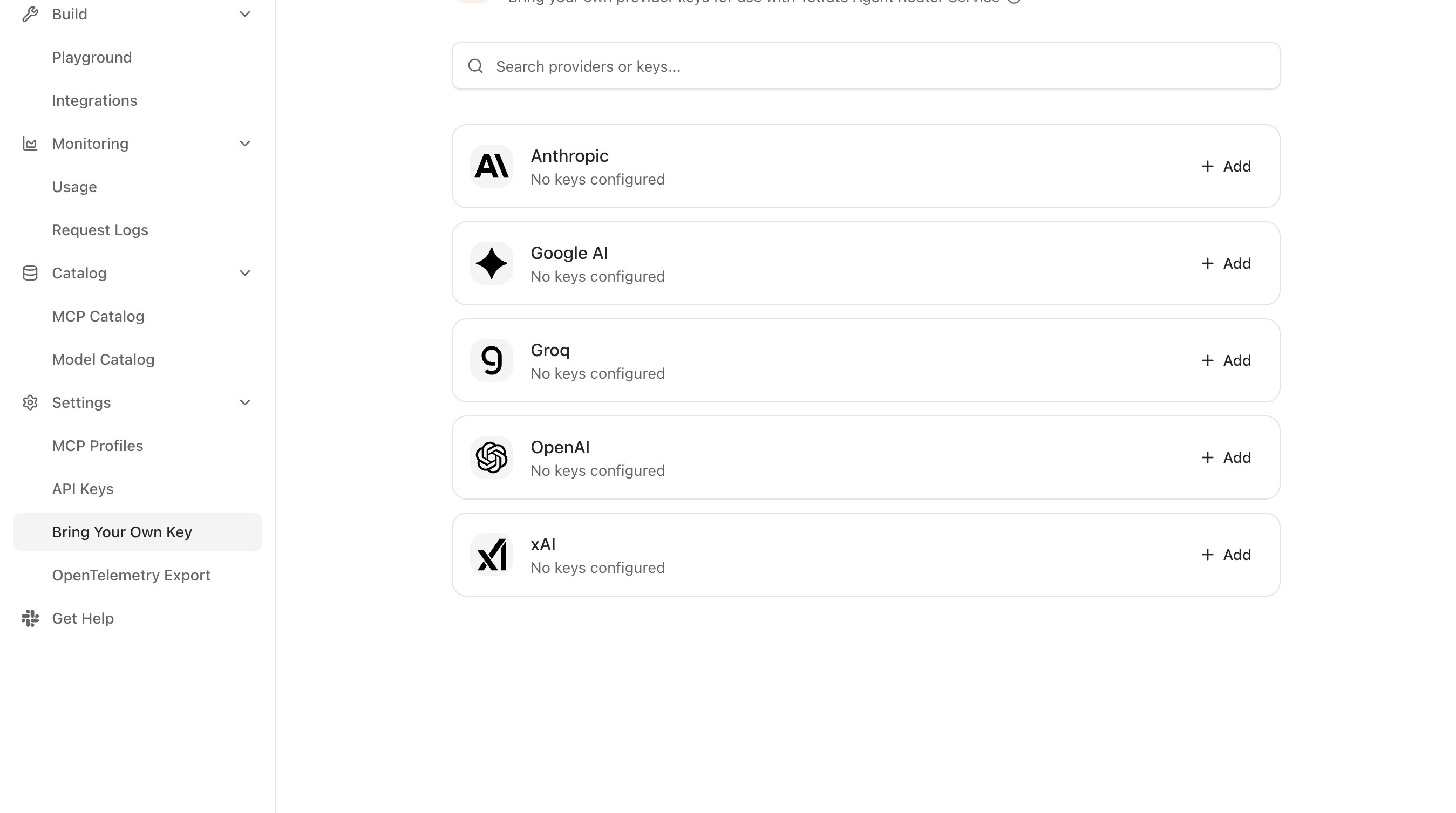
The credential is encrypted before being stored and is never returned to the Console after the initial save. Only a masked version of the key is shown on subsequent views. This is deliberate: even the user who saved the credential cannot retrieve the original value back through the UI.
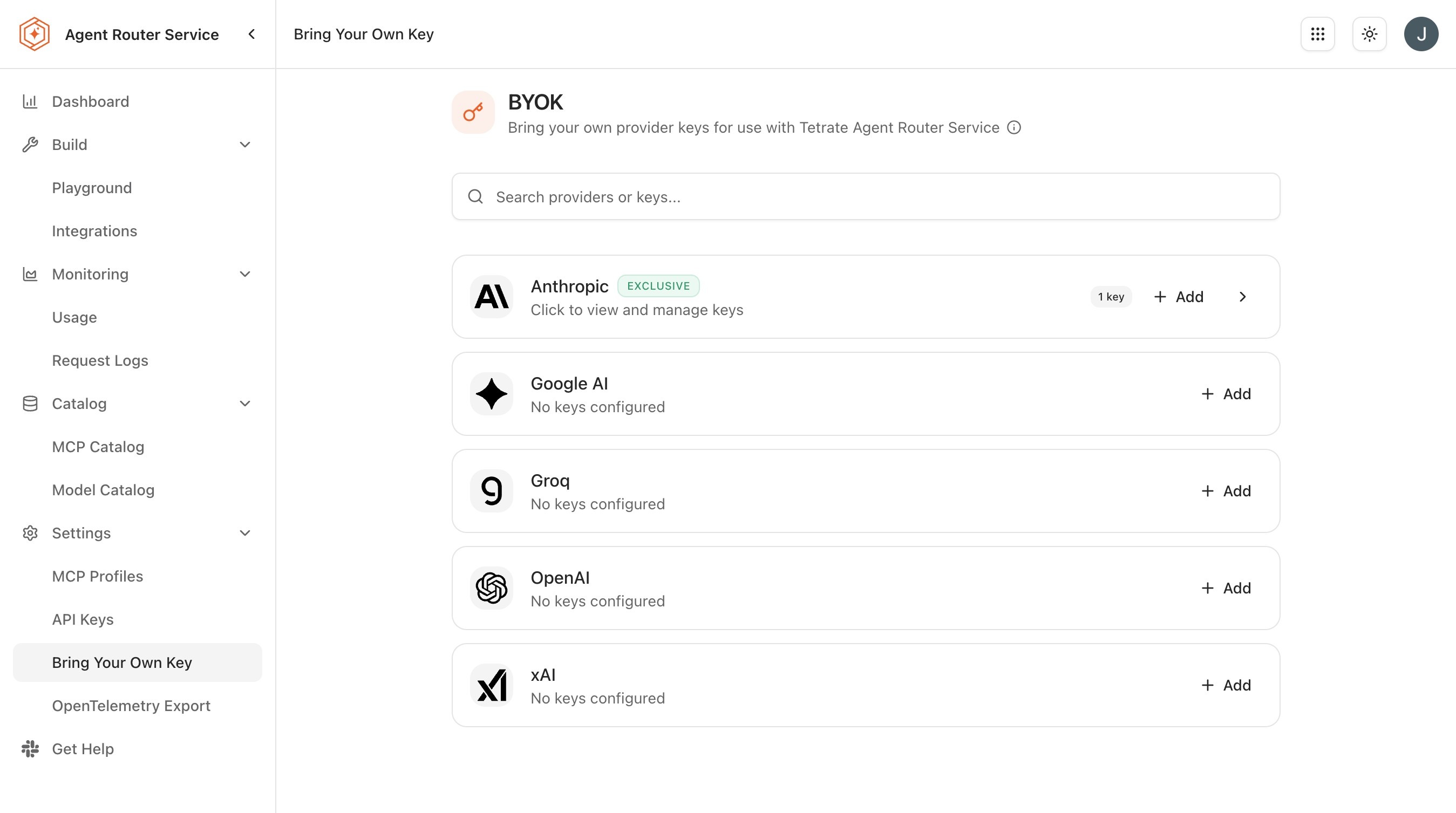
BYOK settings field reference
The settings page exposes one configuration card per supported provider:
- Supported providers. BYOK can be configured for OpenAI, Anthropic, Google (Gemini), Azure OpenAI, Mistral, Together, Perplexity, and Cohere, with additional providers added over time. Keys for several providers can be configured at once; each provider operates independently, so configuring an OpenAI key has no effect on how Anthropic requests are handled. OpenAI, Anthropic, Google (Gemini), Azure OpenAI, Mistral, Together, Perplexity, and Cohere, with additional providers added over time. Keys for several providers can be configured at once; each provider operates independently, so configuring an OpenAI key has no effect on how Anthropic requests are handled.
- Rotation behaviour. Saving a new key over an existing one replaces the old credential immediately; the next request to that provider uses the new key. No in-flight requests are interrupted.
- Removal behaviour. Removing a credential, or clearing the field and saving, reverts that provider's models to the platform-managed credential on the next request.
- Security model. All BYOK keys are encrypted at rest before storage, are never logged or exposed in API responses, and can only be updated or removed by the account that owns them.
A BYOK credential applies account-wide for the provider, not per API key. Subsequent requests from this Console account to any model hosted by the configured provider will use the BYOK credential rather than the platform-managed one, on every Agent Router API key. If the credential should apply to only a subset of traffic, the cleanest approach is to use a separate Console account for that subset, or to manage the credential's lifecycle in step with the traffic that needs it.
Step 2: send a request through the BYOK credential
The BYOK credential takes effect immediately on save. Sending a request to any model from the configured provider exercises it.
curl https://YOUR_GATEWAY_URL/v1/chat/completions \
  -H "Authorization: Bearer YOUR_AGENT_ROUTER_API_KEY" \
  -H "Content-Type: application/json" \
  -d '{
    "model": "gpt-4o",
    "messages": [{"role": "user", "content": "Confirm this request is routed through the BYOK credential."}]
  }'
The request looks identical to any other gateway request; nothing in the request shape indicates whether BYOK or platform-managed credentials are being used. The decision happens inside the gateway, based on the BYOK configuration of the account. For each request, the provider that hosts the target model is resolved, and that provider's BYOK configuration is checked:
- When a BYOK credential exists for the provider, the request is forwarded upstream with the consumer-supplied key, and usage is tracked by the provider directly against the BYOK account.
- When no BYOK credential exists for the provider, the request is served with the platform-managed credential instead.
The Playground is an alternative way to exercise the credential without leaving the Console:
- Open Build → Playground in the Console sidebar.
- Select a model from the BYOK-configured provider.
- Send a short test message.
- Confirm a successful response is returned.
Step 3: verify the credential was used
Three signals confirm that the BYOK credential rather than the platform-managed credential served the request. Two of them are visible inside the Console; the third is the most authoritative, because it confirms the request actually reached the provider account.
- In the Console, open Monitoring → Request Logs.
- Filter by the API key used in the test.
- Locate the request and expand its detail row.
- Confirm the request metadata indicates the BYOK credential was used. The exact field name depends on the Console build, but a BYOK-served request is clearly distinguished from a platform-served one.
- Cross-reference with the provider's own usage dashboard. For OpenAI, the request should appear at
platform.openai.com/usage, attributed to the account that owns the BYOK credential, within a few minutes of the call. For the other providers, the equivalent surface offers the same confirmation.
The provider-side check is the strongest evidence because it cannot be faked by the platform: if the request shows up under the BYOK account, the credential was used.
Step 4: rotate or remove the credential
Provider credentials are not forever. Keys are rotated on a schedule, revoked when an employee changes role, or replaced when a quota tier changes. The platform supports the full lifecycle in a single screen.
To rotate a credential:
- Open Settings → Bring Your Own Key.
- Select the provider whose credential should be rotated.
- Paste the new key into the API Key field.
- Click Save.
The old credential is replaced on save; the next request to that provider uses the new key. No in-flight requests are affected, but in-flight requests that were authorised with the old key still complete with it.
To remove a credential entirely:
- Open Settings → Bring Your Own Key.
- Select the provider.
- Click Remove, or clear the key field and save.
Subsequent requests to that provider's models revert to the platform-managed credential. The transition is immediate; the next request will be served by the platform account.
Rotate BYOK credentials in step with the provider's own key-rotation schedule. A credential that has expired on the provider side but is still configured in the Console produces authentication failures that look, at first glance, like provider outages. A scheduled rotation cadence on the Console side (written into the team's runbook rather than the platform) eliminates this category of incident.
How BYOK composes with routing configurations
BYOK credentials and routing configurations are independent: the routing configuration decides which backend serves a request, and the BYOK configuration decides which credential is used to reach that backend. The two compose without conflict.
A few useful patterns:
- Fallback with BYOK primary and platform-managed secondary. The fallback chain has a BYOK-hosted model at priority 0 and a platform-managed model at priority 1. Under normal conditions, the BYOK account serves all traffic; if the BYOK account experiences a quota or availability problem, traffic falls through to the platform account without disruption.
- Traffic split between BYOK and platform-managed accounts. Two routes resolve the same logical name; one is hosted by the BYOK provider and one by the platform. A weight distribution shifts traffic between them, useful when a BYOK quota needs to be smoothed out across the month.
- BYOK plus model-name override. Logical names defined under Apply Advanced Routing Rules compose naturally with BYOK, because the override is applied before credential selection.
What to do next
- Aggregate MCP servers into a profile: the next agent-infrastructure concern. See Aggregate MCP Servers into a Profile.
- Monitor traffic and usage: distinguish BYOK and platform-managed traffic in usage analytics over time. See Monitor Traffic and Usage.
- Export telemetry to an observability stack: push the BYOK/platform distinction into existing dashboards so cost reporting picks it up.
The BYOK credentials configured above remain attached to the Console account for subsequent guides.
Where to go next